What Enlist™ does for your MSP
Onboarding, apps, patching and PSA tickets for your clients’ Windows PCs and Macs.
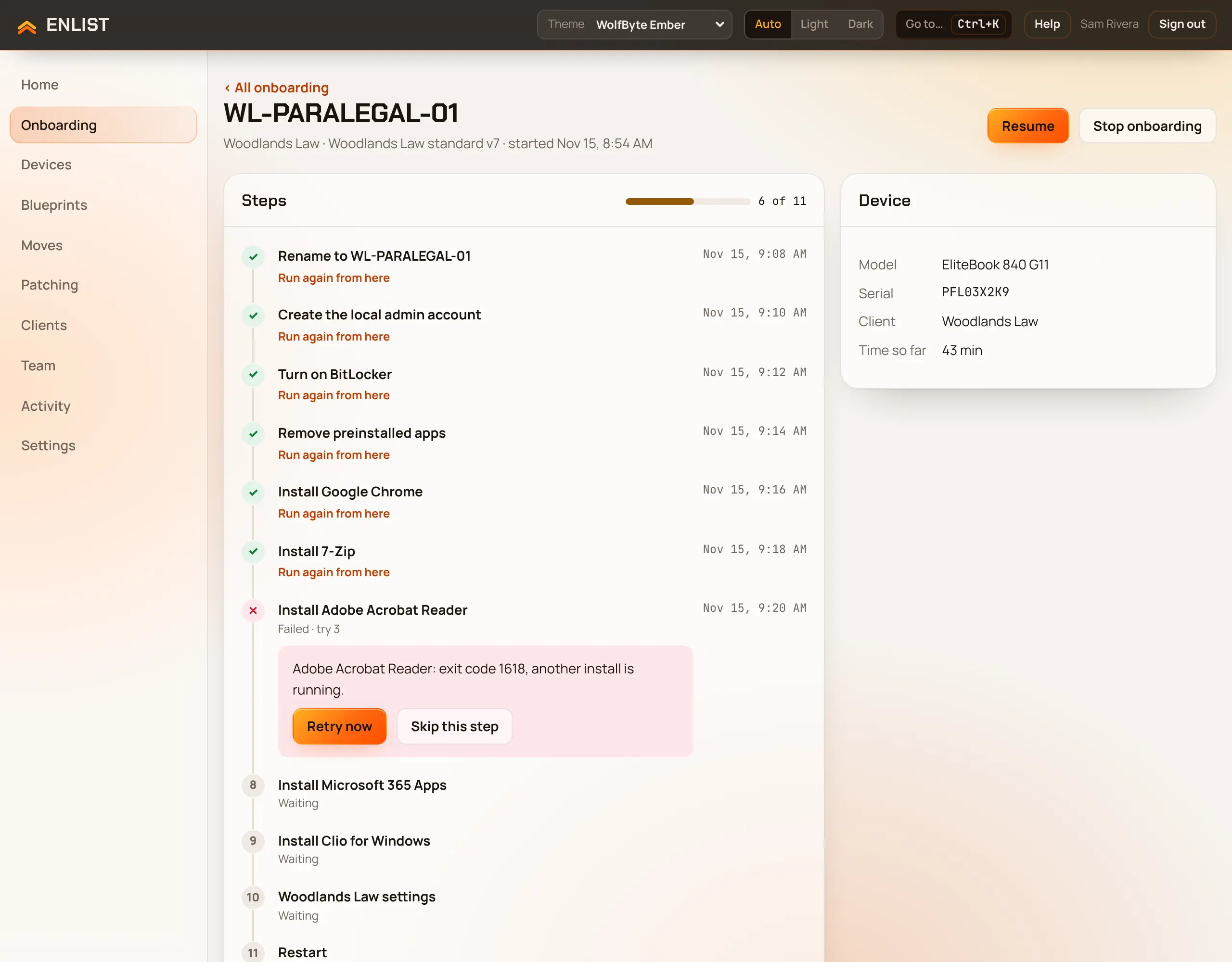
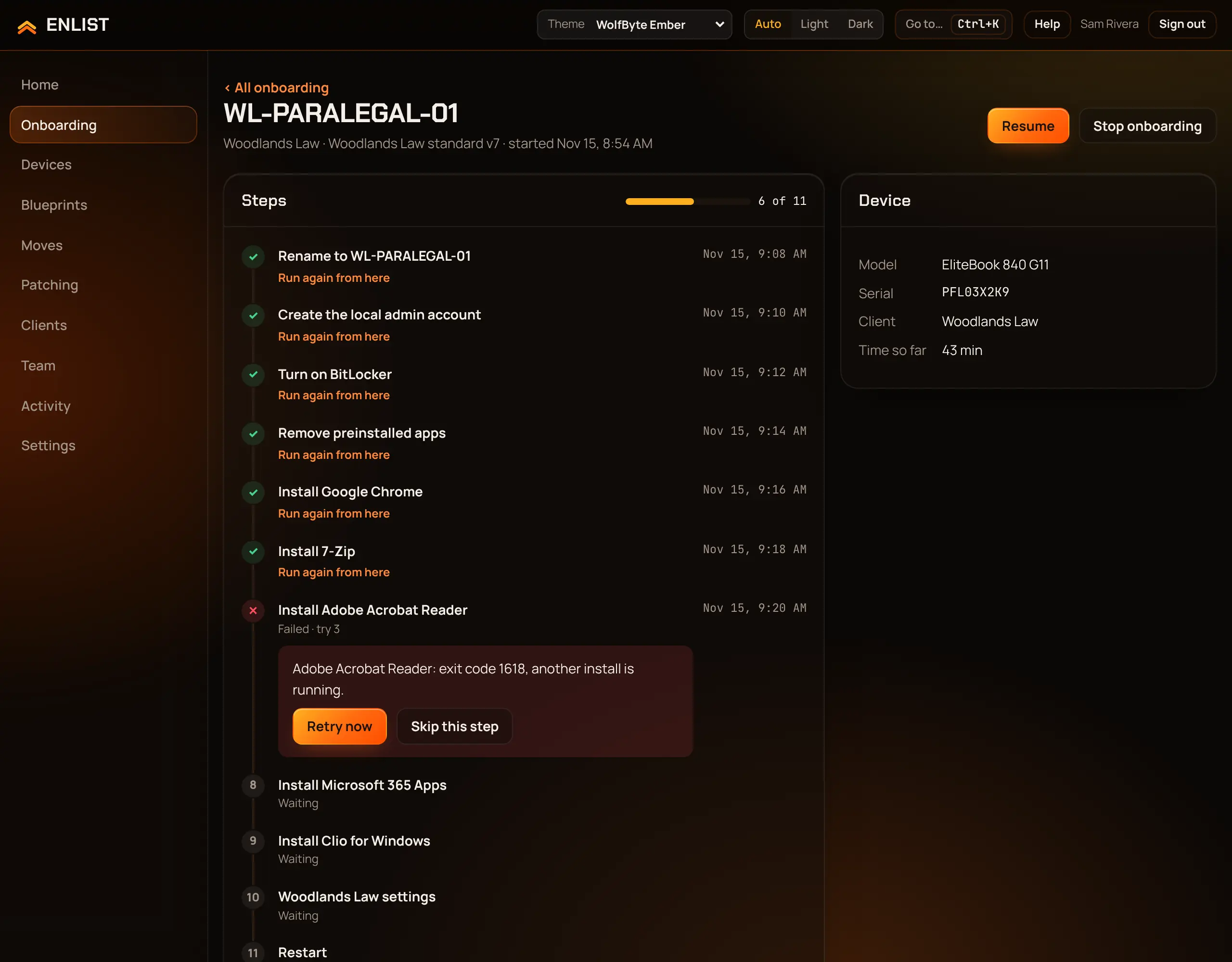
Onboarding with nobody at the bench
Set up each client once. After that a new device only needs the client’s USB or one installer.
- A USB at the first setup screen on a new Windows PC. Nothing boots from it
- An installer or one command on a Mac or a PC already in use
- Renames itself from the client’s naming rule
- Joins Entra ID or Active Directory. For Active Directory, you install the Enlist AD connector (a small Windows service) on one of the client’s servers, and new PCs join even when they’re off the client’s network
- A local admin account with its own password per device, changed again after someone views it
- BitLocker or FileVault, with the recovery key kept in Enlist
- Picks up after every restart, and retries a failed step before it asks for help
- Ready checks run before a device is called ready
No golden image, Autopilot profile or MDM to set up. On a Mac, the user approves FileVault once.


When a step stops, you see why
The device page names the step, the error and what to try. Retry from that step or skip it, from any browser, phone included.
Blueprints
- Ready-made blueprints: Microsoft 365 with Entra, Google Workspace, a shared PC
- One blueprint per client, copied to the next client
- Profiles such as Attorney or Front desk add apps, drives and printers
- Add-on blueprints follow a tag, so every tagged device gets them
- A plain-English preview of what a change will do, before you save it
New hires
One request makes the person’s Microsoft 365 account and gets their computer ready. If the license has no free seat, Enlist can buy one.
App Library
Every app your techs can install, in one place, with how many devices have it and whether it’s current.
- Pick several apps and deploy them to a device, a client, a site or a group in one go
- Your most used apps sit on top, categories fold away, and apps you never use can be hidden
- Common business apps from winget, Chocolatey and Homebrew, plus your own installers
- Microsoft 365 Apps through the Office Deployment Tool
- Removes the apps PC makers preinstall
- Uploads are virus-scanned before any device can use them
- Your RMM agent installs like any other app: paste your site token
App requests as PSA tickets
When someone asks for an app from their client’s self-service list, the request opens a ticket in HaloPSA, ConnectWise PSA or Autotask. Approve or deny it there, and Enlist installs it. No PSA? A bell in the console counts waiting requests, and you approve or decline them on one page.


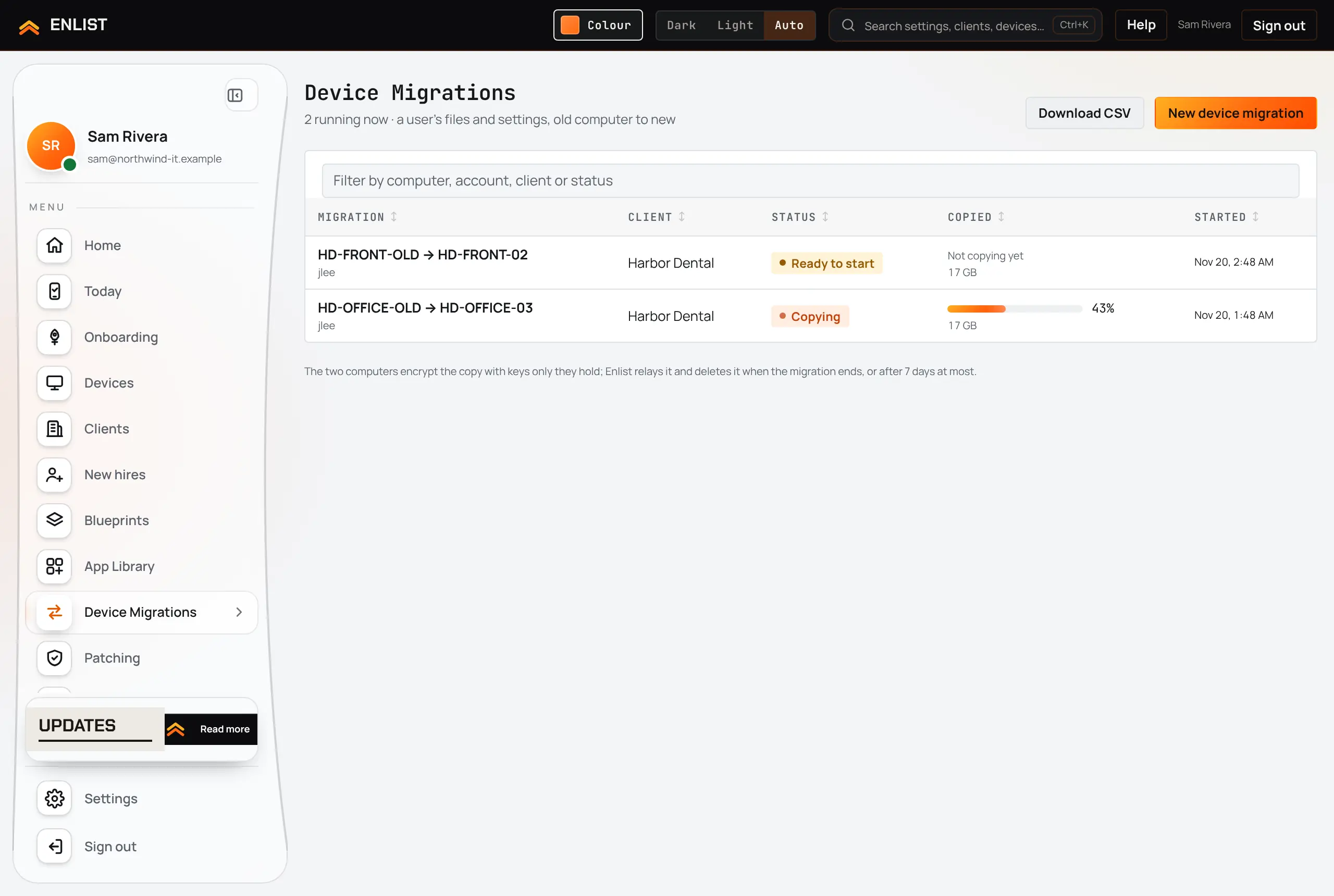
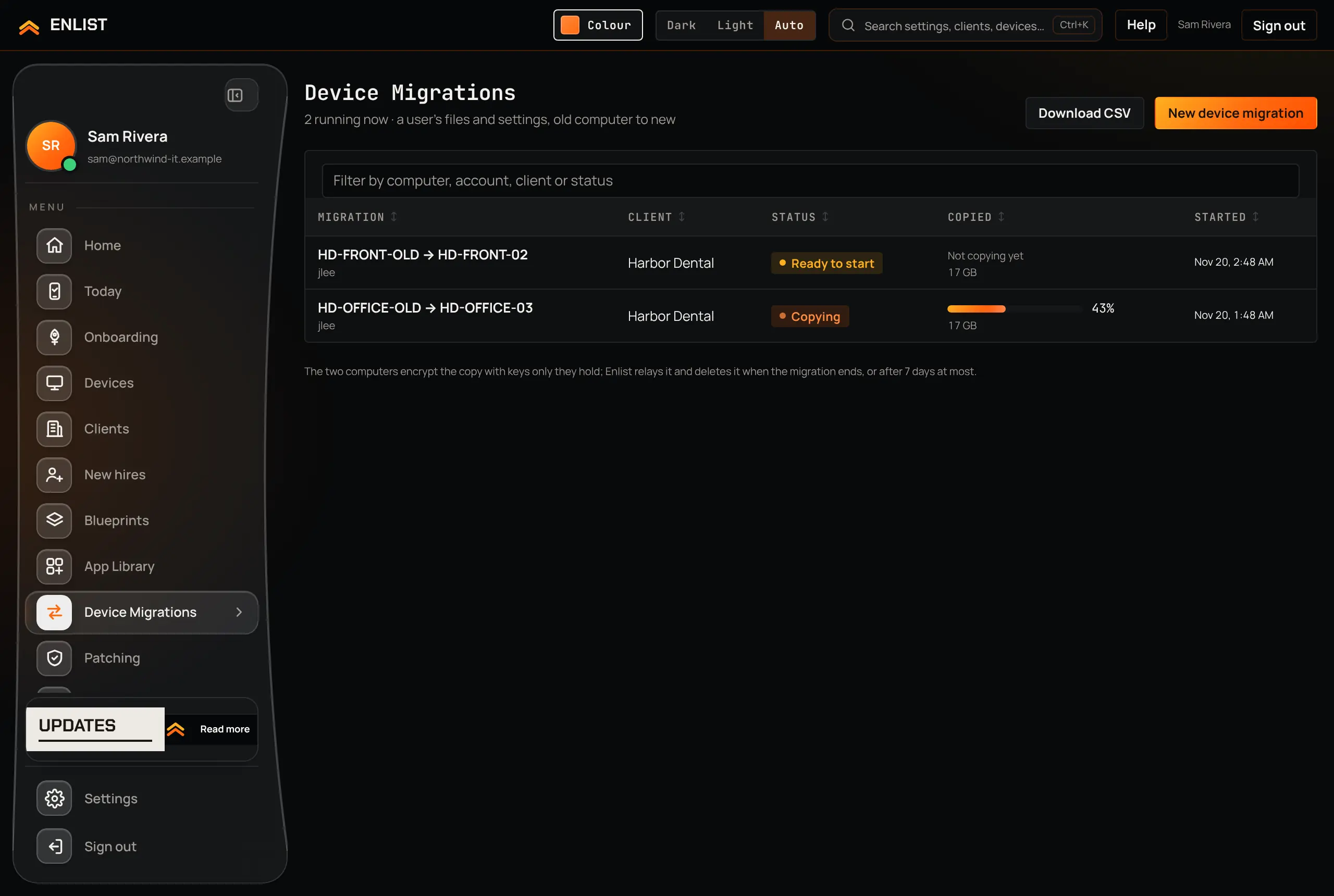
Device Migrations
Moving someone to a new computer? Enlist scans the old one and carries their work across.
- Apps installed fresh on the new computer
- Files, bookmarks, Outlook signatures, OneDrive, printers, drives and app settings follow the user
- A tech approves each migration with their own passkey
- The old computer is never changed
Every device, every client, one screen
Tiles at the top count your devices and filter the list with one tap.
Hands on, with your passkey
- Restart one device or a whole selection, and watch each one come back
- Pick the columns your Devices list shows, like local IP, health and patch status
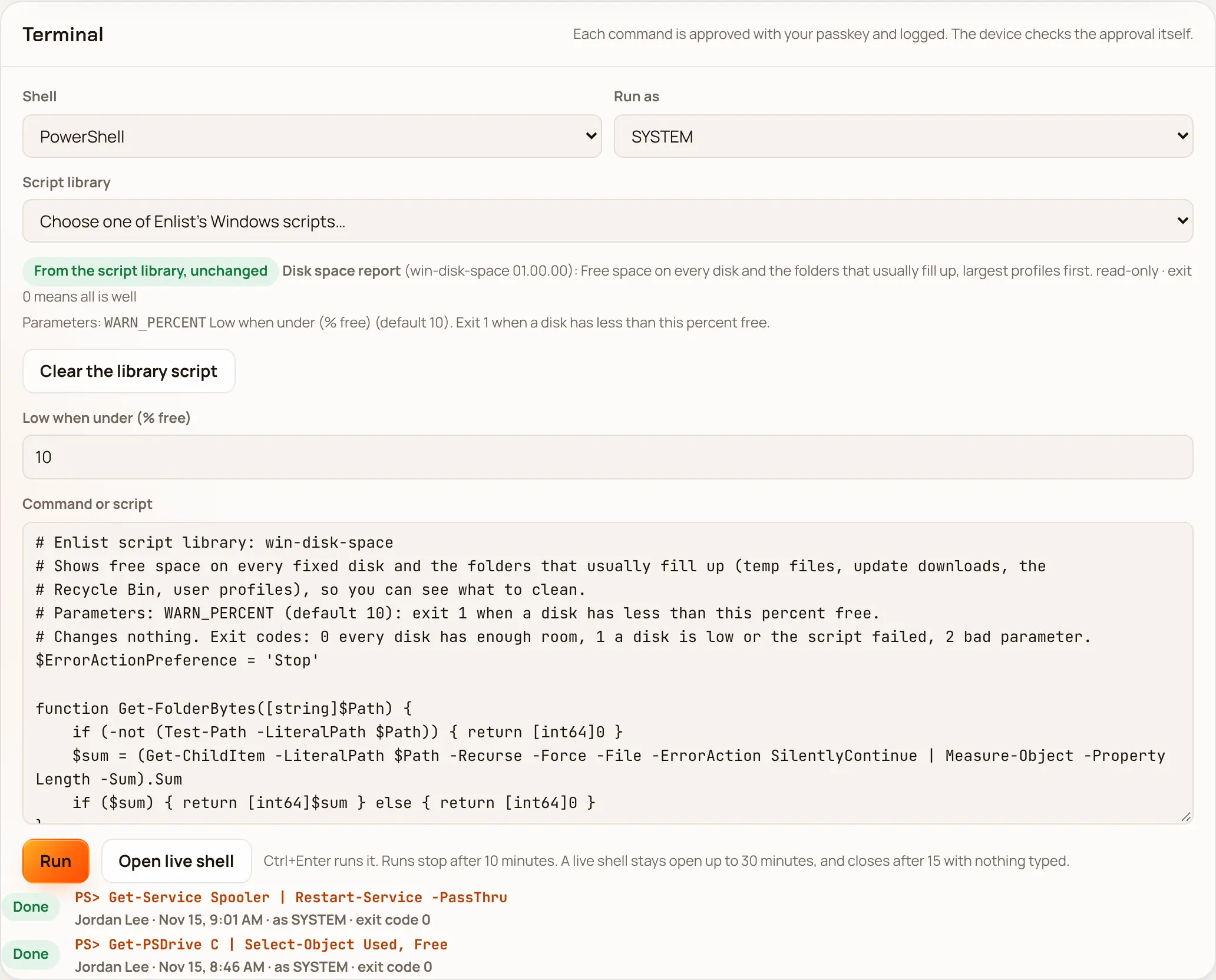
- Run a command or script as SYSTEM, root or the signed-in user, and watch the output
- A live shell for up to 30 minutes, each keystroke signed in your browser
- Processes, services and files: upload, download a folder as a zip, rename, delete
- 57 ready-made scripts for Windows and Mac, each saying what it changes first
- Wake-on-LAN, device health alerts and secrets kept per device


After setup: patching and staying on standard
- A daily check, inside each client’s maintenance window, puts back apps, settings and encryption that drifted
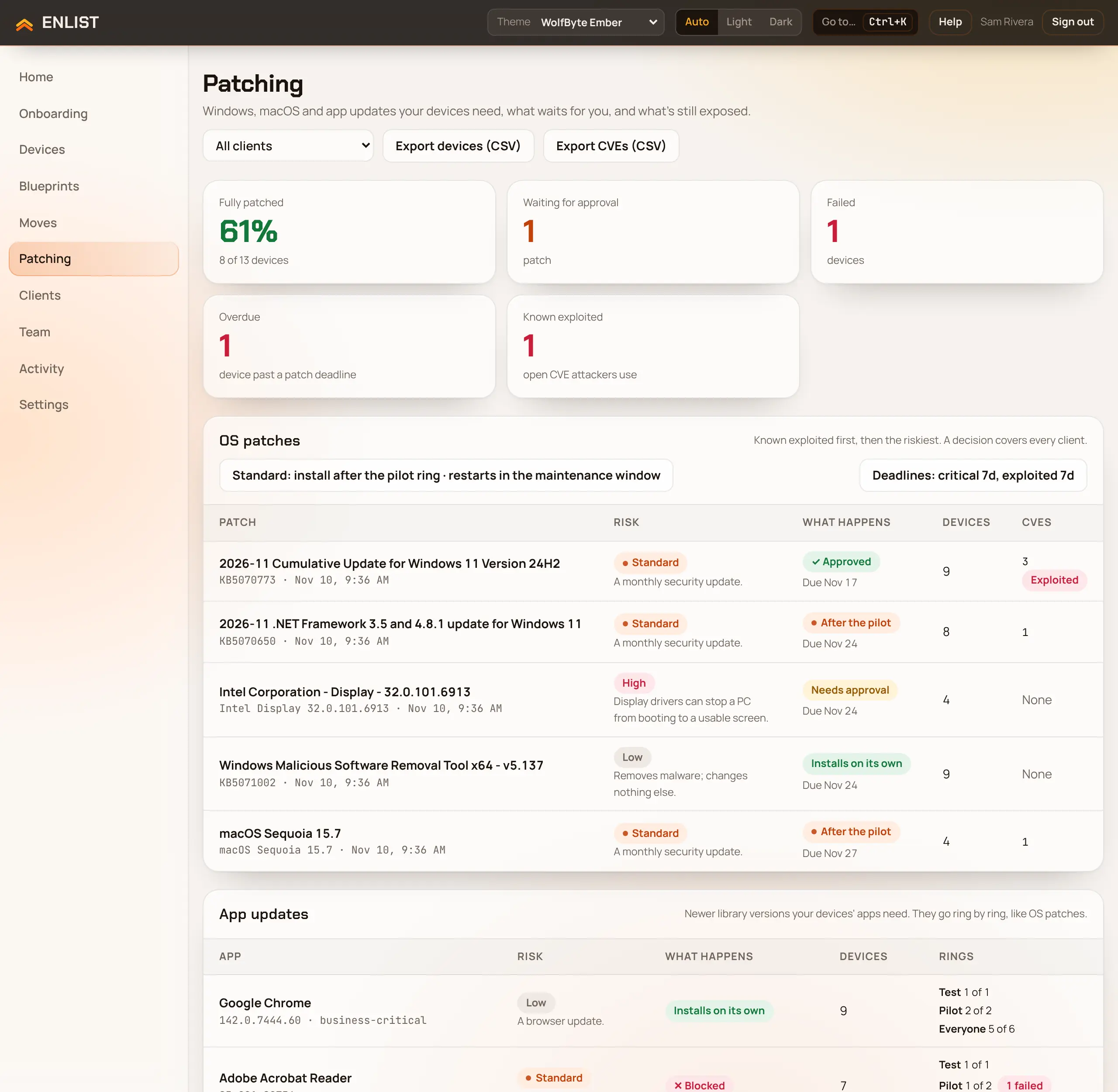
- Windows, macOS and app patches, with approvals and restart rules per client
- Test devices, then a pilot group, then everyone. A patch that fails too often stops
- Vulnerabilities on CISA’s known-exploited list come first
- Deadlines per severity, with overdue devices called out
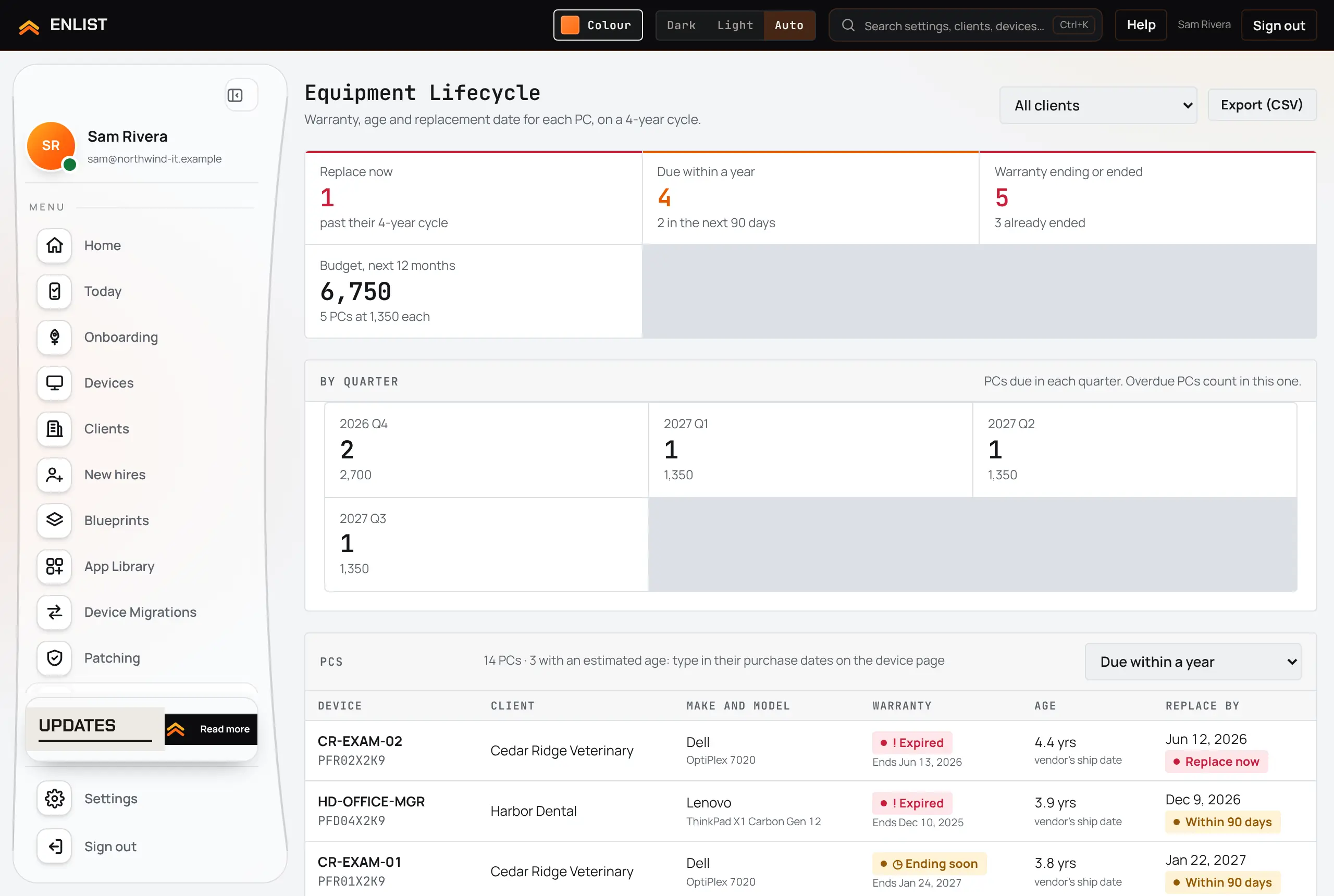
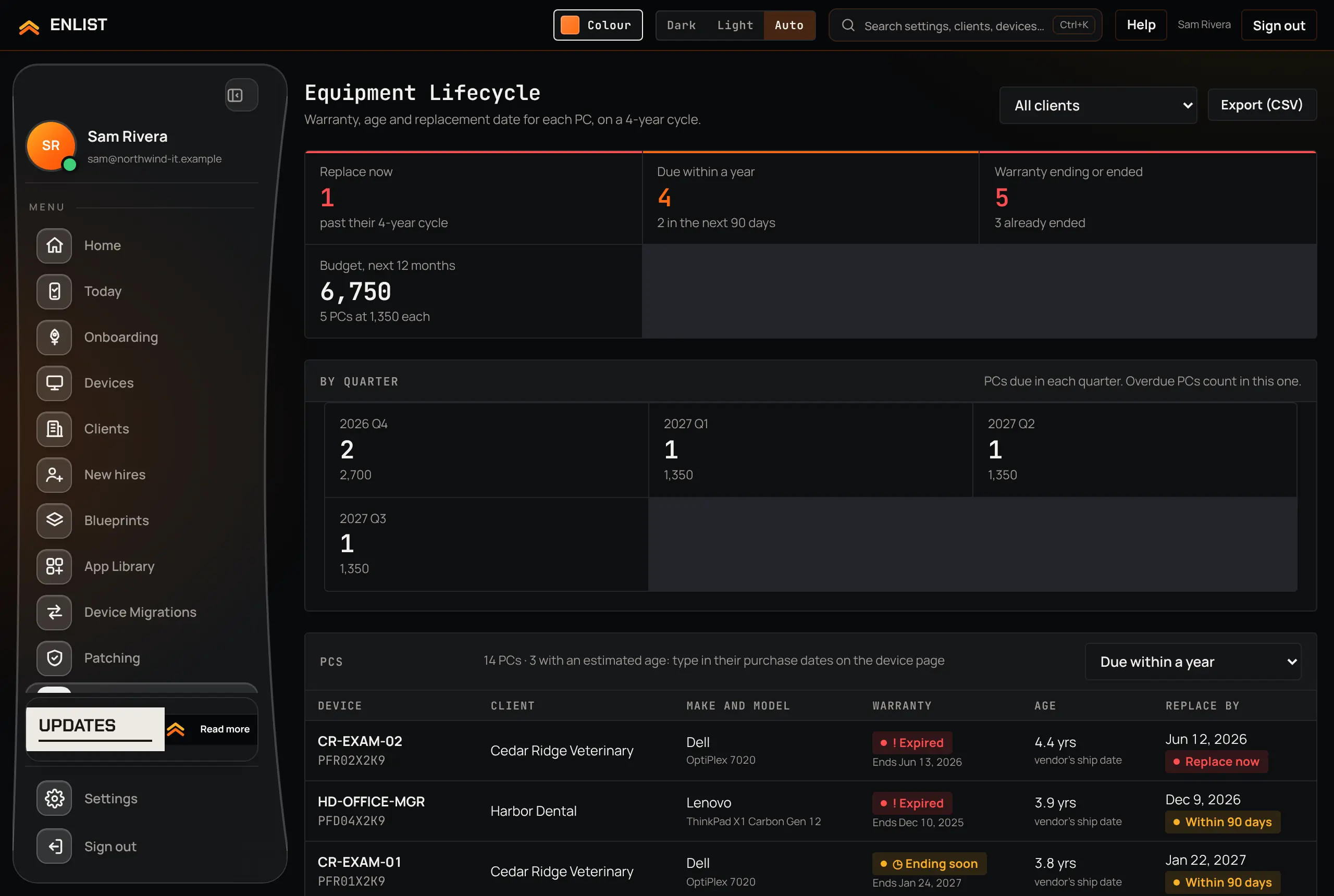
Equipment Lifecycle
Warranty and age for every computer, and when each one is due for replacement, by quarter and by client. Export it as a CSV for the client’s budget meeting.
Tickets, assets and time in your PSA
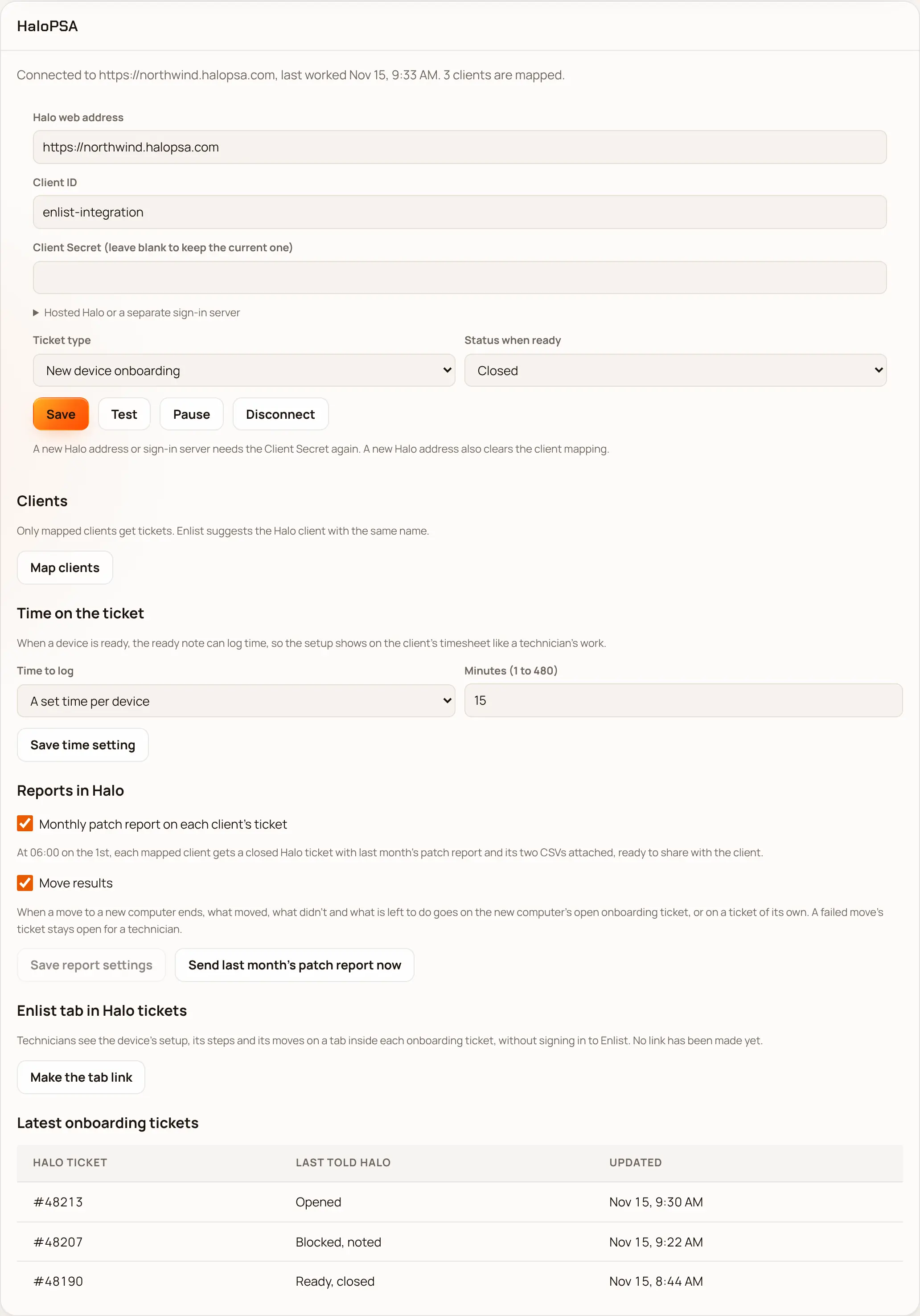
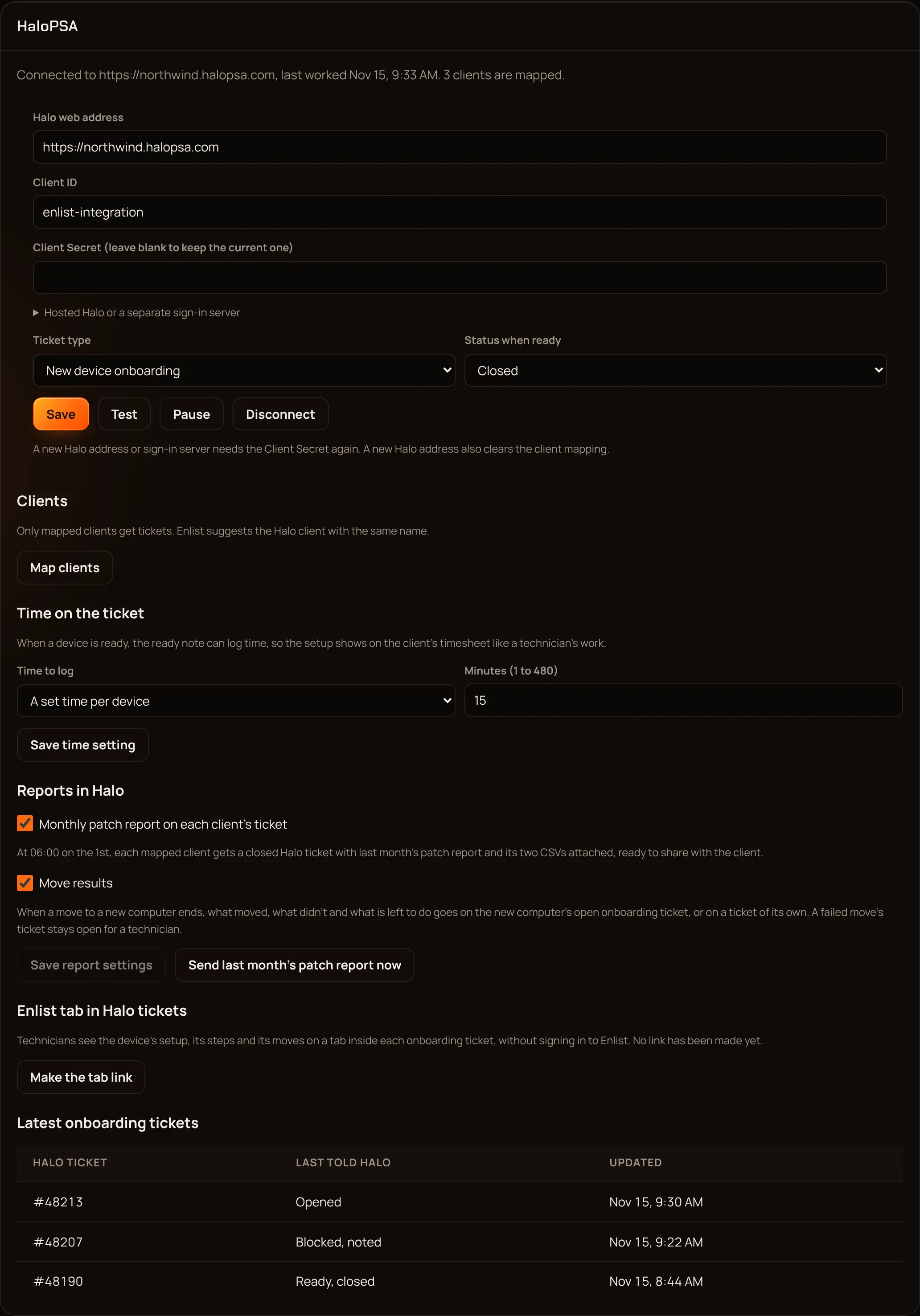
Connect HaloPSA, ConnectWise PSA or Autotask and map your clients.
- A ticket per onboarding: opened, noted if blocked, closed with the ready report
- Each device linked to its asset or configuration by serial number
- The time Enlist took, or a flat setup time, logged on the ticket
- Agreements and recurring invoices become device tags, and add-on blueprints follow them
- Monthly patch report tickets and device migration results in HaloPSA
One PSA is connected at a time, so a device never gets two tickets. Enlist runs beside your RMM and doesn’t replace its monitoring.
Security in every plan
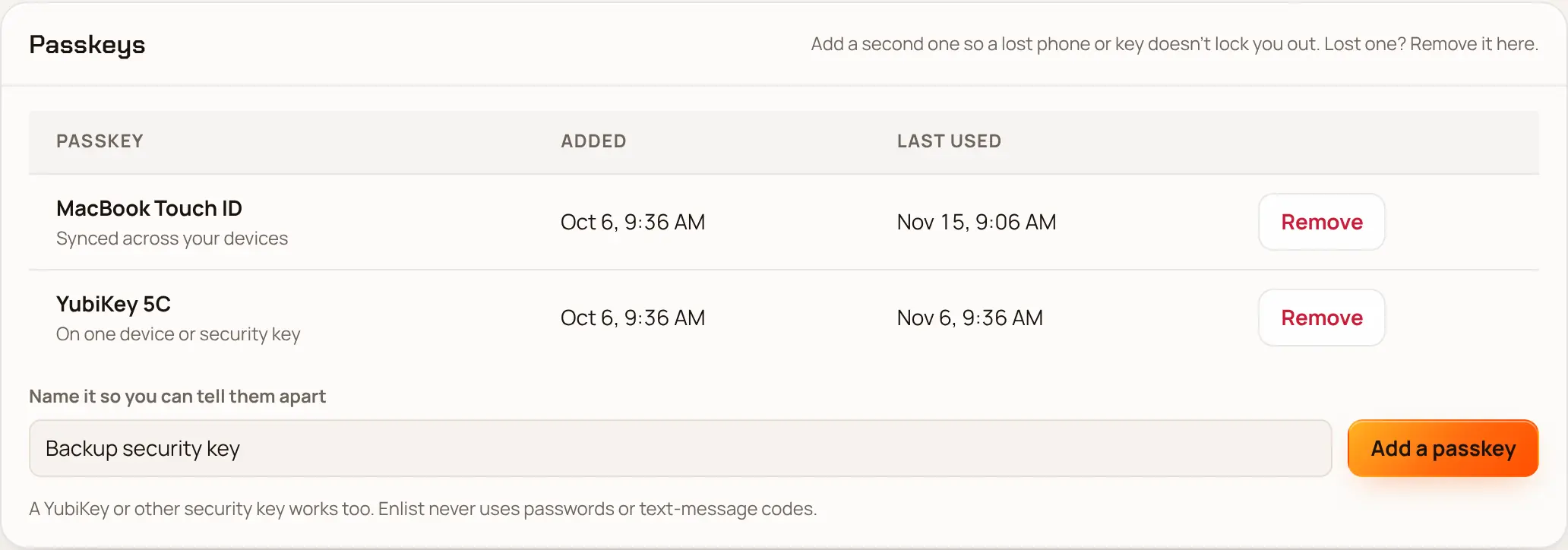
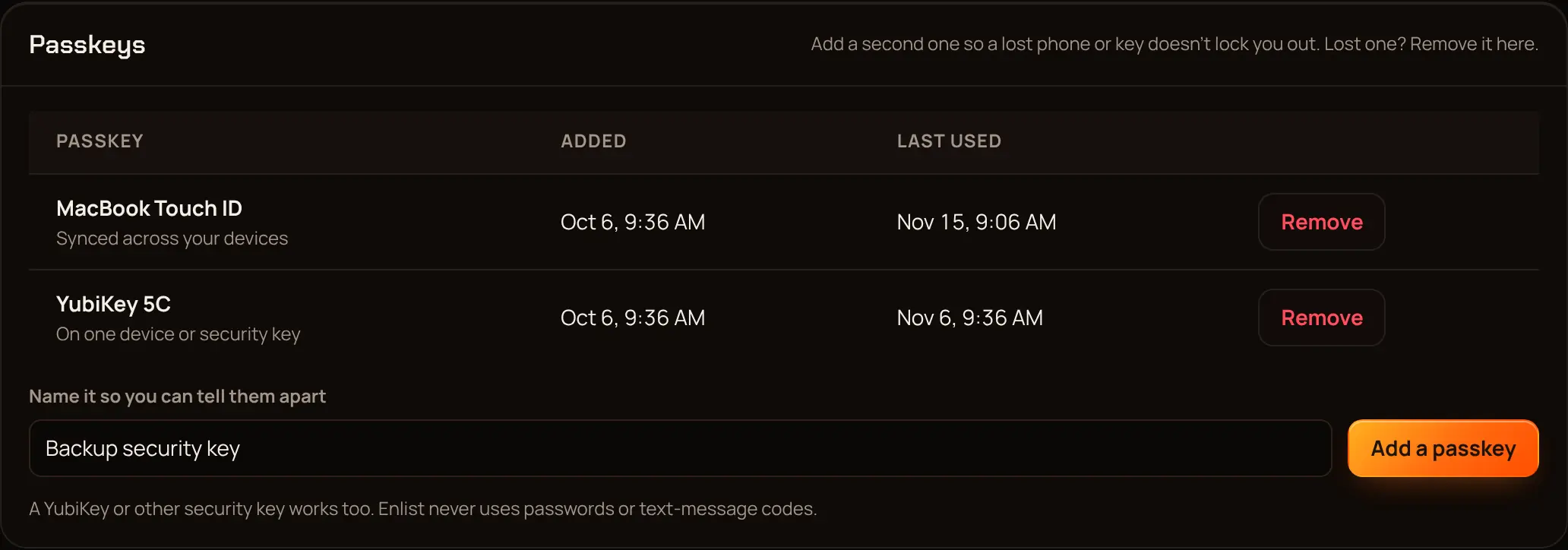
- Passkeys or hardware security keys. No passwords and no text-message codes
- Every instruction is signed, and the device checks it before it runs
- See where you’re signed in, and sign out everywhere
- A tamper-evident audit log, including every password view
- Roles for every tech, sorted by department and location as your team grows
- Never a paid add-on
Your brand on everything
Your clients see your MSP, not ours.
- Your logo and colors in the console, and in the tray or menu bar on every device
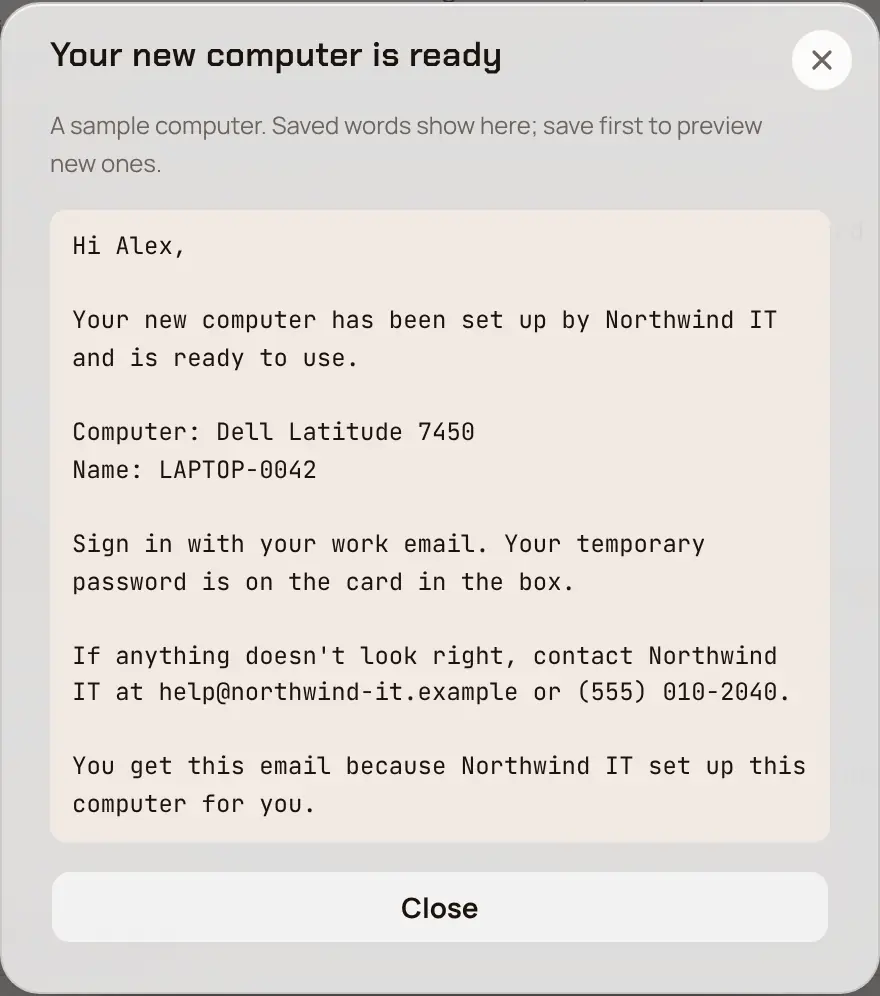
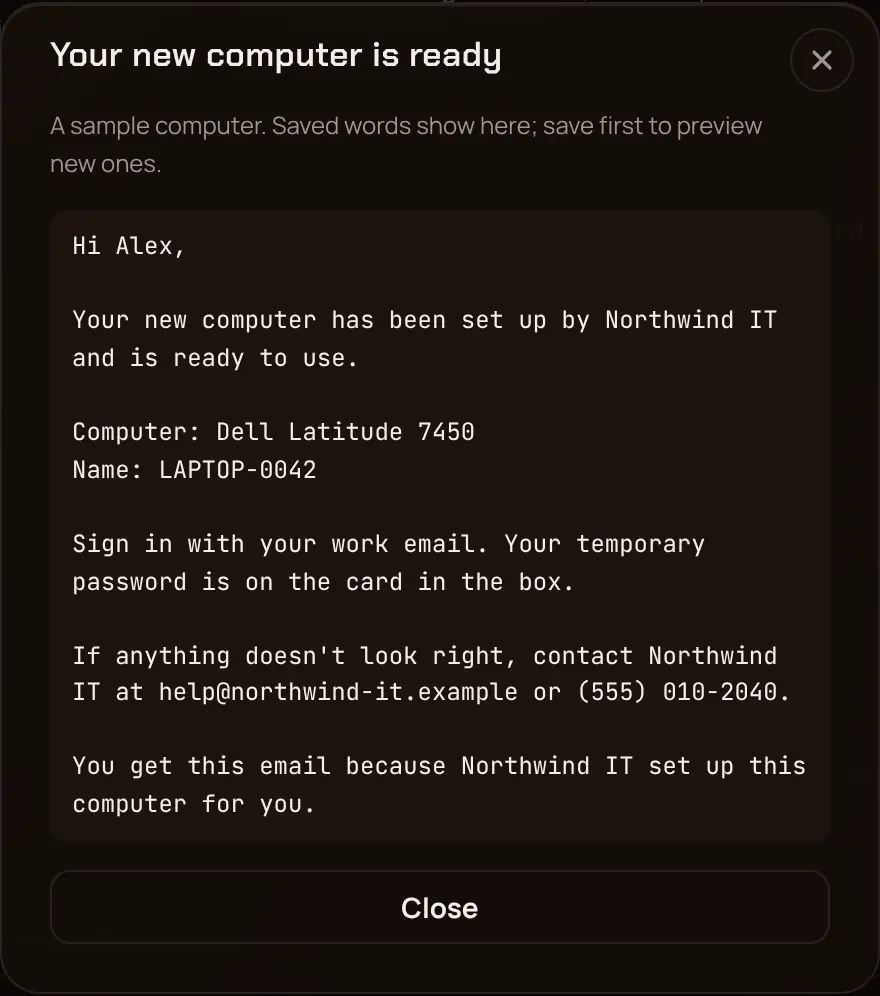
- Your logo on agent prompts and the “your new computer is ready” email
Full white-label with Pro +
- The console at your own address
- Emails sent from your own domain, through your own mail server if you like
- No Enlist name anywhere your clients look
- A status page for each client, at your address
- Monthly or quarterly IT reports, sent to each client
- Priority support with faster reply targets, and 3,000 API requests a minute per key
Enlist Remote Coming soon
Remote control built into Enlist, with its own viewer apps for Windows and Mac. No third-party remote tool to buy, install or keep patched.
- Connect from the device’s page, approved with your passkey
- The person at the computer is asked first, and a banner shows while you’re connected
- Every monitor, Ctrl+Alt+Del and the Windows sign-in screen
- Copy files both ways
- Every session in the audit log, with who connected and how it ended
- Turn it on or off per client
An add-on per device: 50¢ a month on Pro, 25¢ on Pro +.
Until it ships, the Connect button on each device opens the remote tool you already use: ScreenConnect, Splashtop, TeamViewer or AnyDesk.
Who it’s for
MSPs that set up new computers for many clients, on Windows and Mac. Enlist isn’t a full MDM for phones and tablets, doesn’t replace your RMM’s monitoring, and doesn’t manage servers or Linux.
Pricing
The more machines you have, the less each extra one costs: Onboarding $15 a machine capped at $360 a month, Pro from $1 and Pro + from $3 a machine a month. See what you’d pay and compare every feature.
Join the beta
Enlist is in beta with a small group of MSPs. Join the waitlist and we’ll invite you when a spot opens.