Onboarding
Blueprint steps
Every kind of step a blueprint can hold, the options all steps share, and the checks that decide when a device is ready.
A blueprint holds up to 200 steps and checks. On each platform, apps install in this order: your RMM first, then security tools, then other apps. The other steps run in the order you set, and the checks run last.
Step types #
- Install an app
- An app from the software library or an installer you uploaded. Pick whether it's your RMM, a security tool, or an app. Apps that live in the user's own folders install as the person once they sign in (see below).
- Run a script
- PowerShell or Command Prompt on Windows, bash or zsh on macOS. Runs as SYSTEM (root on a Mac) or the signed-in user. Up to 256 KB and 50 parameters. Start from one of Enlist's own scripts in the script library, or write your own.
- Rename the computer
- Letters, digits and dashes, with
{serial}for the serial number or{serial:N}for its last N characters, such asWL-LT-{serial:6}. - Apply settings
- A registry value under HKLM, a Windows service's startup type and whether it runs, or a macOS default under
/Library/Preferences. - Create an admin account
- The password is made on the device and kept in Enlist (see Admin passwords and recovery keys). You can hide the account from the sign-in screen and turn off the built-in Administrator.
- Turn on disk encryption
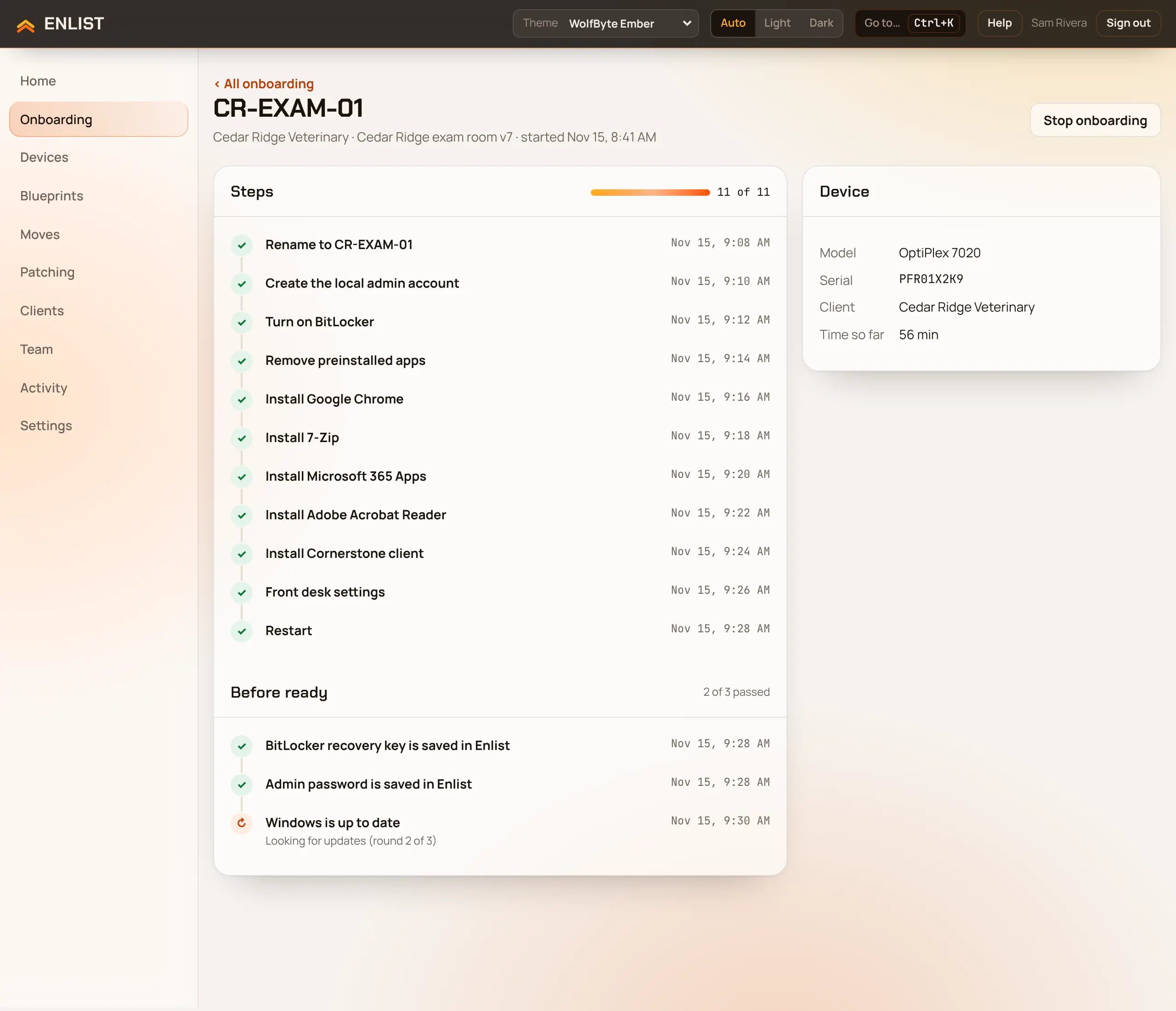
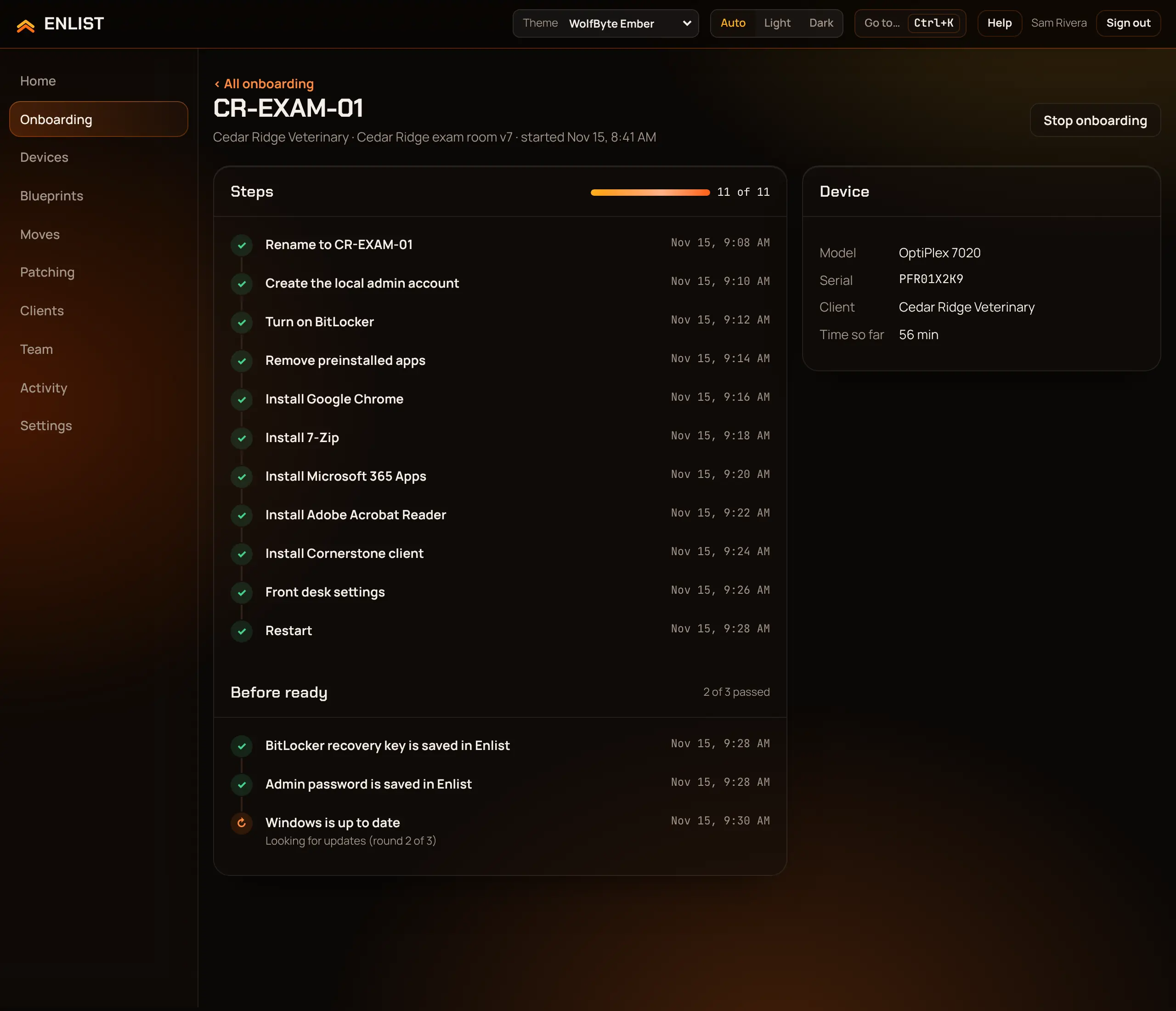
- BitLocker or FileVault. The recovery key is stored in Enlist before the device can be ready.
- Join a domain or Entra ID
- Microsoft Entra ID with the client's Entra join package, Active Directory directly with the client's join account, or Active Directory offline through the AD connector. See Domain and Entra join.
- Remove preinstalled apps
- Office trials and bloatware that came with a Windows PC.
- Install Microsoft Office
- Microsoft 365 Apps for business or enterprise, Project, Visio, or Outlook (classic), on Windows. It must come after the Office Deployment Tool step.
- Language, keyboard and time zone (Windows)
- Sets the language and formats, the keyboard, the region and the time zone for the sign-in screen, for every account and for the PC itself, before anyone signs in. The keyboard you pick is the only one. It runs first, and the PC restarts after it so the sign-in screen has that keyboard. Every Windows starter includes it with English (US), the US keyboard, the United States and your own time zone. Without it, a PC set up from the USB stick keeps its Windows download's defaults, and "English (International)" Windows starts with the UK keyboard.
- Sign in to OneDrive and Edge (Microsoft 365)
- On Windows, switches for what happens when someone signs in with their Microsoft 365 account: OneDrive signs in by itself, Desktop, Documents and Pictures move to OneDrive and stay there, Edge signs in with the work account, Edge sync turns on, and Edge skips its first-run screens. Moving folders needs the client's Microsoft Entra tenant ID. Enlist sets Microsoft's own OneDrive and Edge policies before anyone signs in, and the Microsoft 365, Accounting and Engineering starters include this step. Microsoft's limits apply: the PC must be joined to Entra ID, silent OneDrive sign-in doesn't work for people who must use multifactor authentication, and Edge sync needs a paid Entra ID plan.
- Restart
- With an optional message to the person at the computer.
- Tell or ask the person at the computer
- Shows a message with OK, or asks a Yes/No question (below).
- Bring Windows Update current
- Runs before the device can be ready, in rounds of install and restart (3 by default).
- Check the device
- A check the device must pass before it's ready (below).
Options every step has #
- Key
- The step's name inside the blueprint. Blueprints based on this one use it to replace or leave out the step.
- Shown as
- What technicians see in Onboarding.
- Timeout in minutes
- How long the step may take before it fails.
- Runs only after these succeed
- Steps that must finish first.
- Runs only when
- A condition, for example the answer to an earlier question.
- Keep going if this fails
- Lets the rest of the blueprint run when this step fails, for a nice-to-have app. Each platform needs at least one step that stops on failure, and restarts, checks and Windows Update always stop.
- Lock
- Stops blueprints based on this one changing or removing the step.
Ask the person at the computer #
Tell or ask the person at the computer shows a window on Windows and Mac. It has a title (up to 80 characters), a message (up to 1,000), and OK or Yes/No buttons. Choose how long to wait for an answer (1 to 235 minutes, 30 if left blank) and what counts if nobody answers. Later steps can use Runs only when with the answer, for example "install the accounting app only if they said Yes". The onboarding shows "Answered Yes" or "Nobody answered, so it counted as…".
Installs for the signed-in user #
Some apps install into the user's own folders (%LOCALAPPDATA%, %APPDATA% or %USERPROFILE% on Windows, ~/Applications on a Mac). Onboarding doesn't wait for them: the step shows Skipped with "Installs for each person when they sign in to this device.", and the device goes on to Ready. Then each time someone signs in to the device, Enlist installs those apps as them: the first person and everyone after. A failed install is tried again an hour later while they're signed in. A step another step waits for (After), or a blueprint with nothing else in it, still runs during onboarding and waits for a sign-in, with a 4-hour timeout by default. Installing at sign-in needs Windows agent 01.26.02 or Mac agent 01.15.02 or newer, and a blueprint version published after this change; older ones wait during onboarding as before. When the blueprint joins a domain or Entra ID, or sets the language and keyboard, the PC restarts before anyone signs in, so the sign-in screen offers work accounts and the right keyboard. Enlist adds that restart when the blueprint has none after the join.
Checks before ready #
When the steps are done, the onboarding moves to Verifying. Windows Update rounds run, then every check, even after one fails, each tried up to 3 times. Enlist also checks on its own that the recovery key and admin password were stored. Then the device is Ready, or Not ready with the checks that failed.
| Check | Platform |
|---|---|
| Defender is on | Windows |
| Any antivirus is on | Windows |
| BitLocker is on | Windows |
| A service is running | Windows |
| Firewall is on | Windows and macOS |
| FileVault is on | macOS |
| Gatekeeper is on | macOS |
| System Integrity Protection is on | macOS |
| A launchd service is running | macOS |
| Find My is on for an admin account | macOS |
| My own script: exit 0 passes | Windows and macOS |
A failed check can be run again with Check again, or skipped with a reason by someone who manages blueprints. The stored-secret checks can't be skipped. See Watch and fix an onboarding.
Last updated 2026-11-18. Something wrong or missing? Email [email protected].