Onboarding
Software library
Add common business apps to blueprints in a click, upload your own installers, and keep apps updated.
The software library is Enlist's built-in list of common business apps for Windows and Mac. Add one to a blueprint and Enlist installs it, pinned to the newest version, and keeps it updated with app patching. Windows apps come from winget; Mac apps come from the vendor's own download.
Some Windows apps, such as Chrome, Edge, Teams and Zoom, update themselves so often that winget keeps only their newest version. When the pinned version is gone, the Windows agent (01.25.04 or later) installs the newest one winget has, with the same app ID from the same source. When a package doesn't say whether it installs for the whole computer, the agent installs it without asking for that; it runs as SYSTEM, so the app still installs for everyone. The step's result says when either happened.
Add an app to a blueprint #
In a blueprint draft, pick Add apps from the software library (or Find it in the software library).
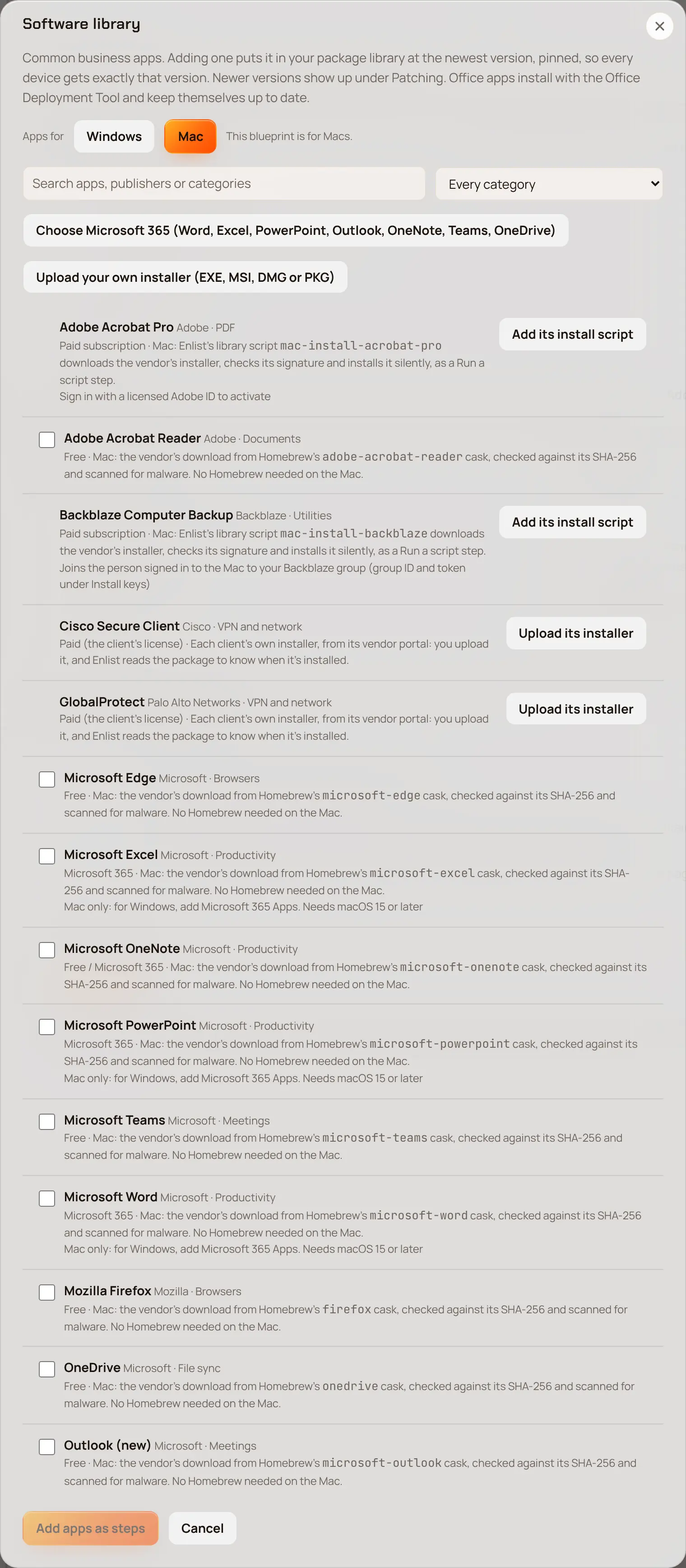
The library shows only the apps for the blueprint's platform. A Mac blueprint lists Mac apps and a Windows blueprint lists Windows apps. A new blueprint with no steps yet lets you switch with Windows and Mac.
Search for the app and add it. It becomes an Install an app step. Apps are listed alphabetically; pick a category to narrow the list.
Save and publish the blueprint.
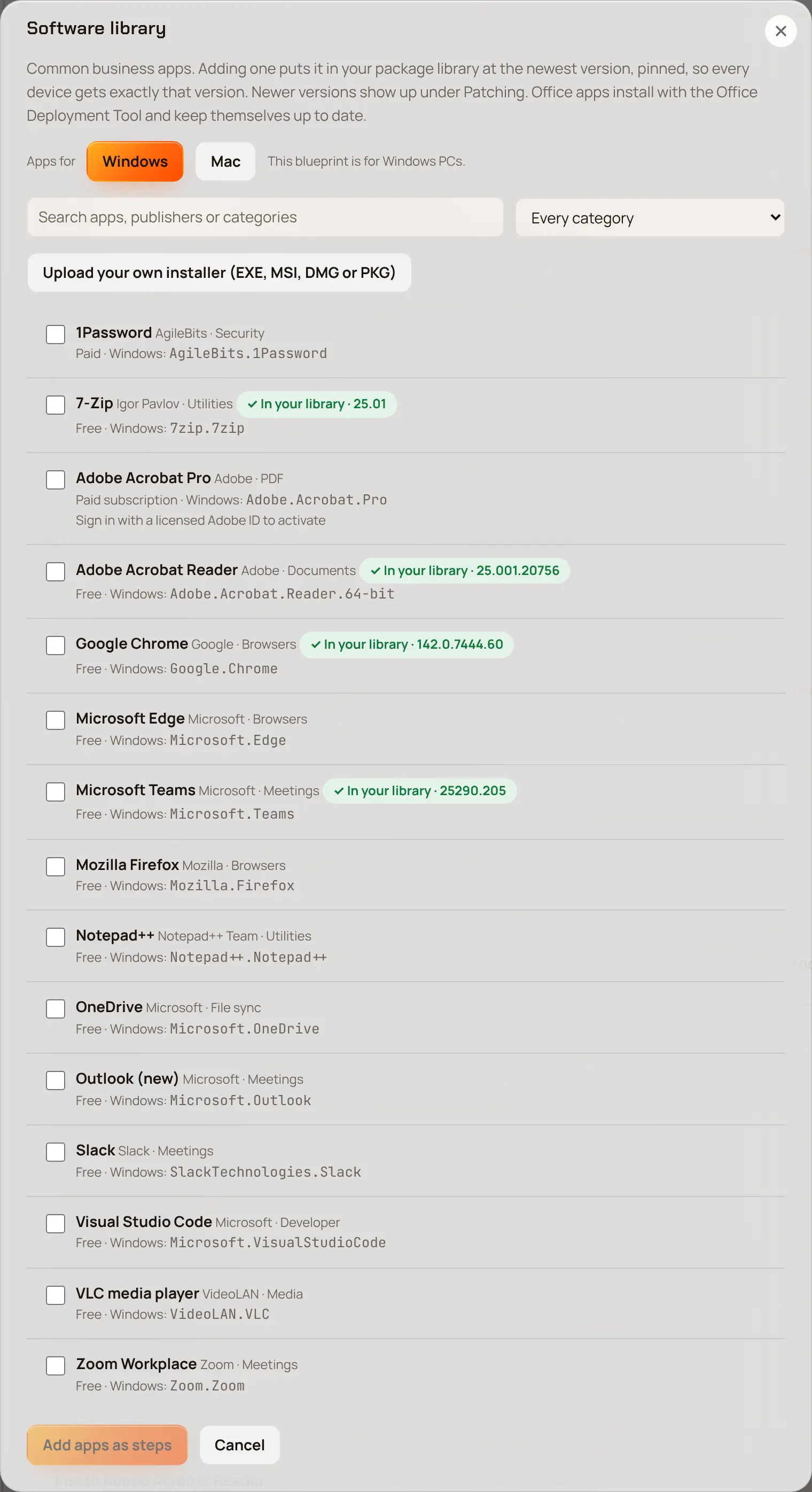
Adding apps to the library needs the right to manage the library (owners and admins).
Upload your own installer #
Some apps can't come from winget, such as QuickBooks and Autodesk products. For those, the library asks you to upload the installer. Installers Enlist downloads from a vendor are checked against a known hash and scanned for malware before any device gets them.
Some big installers unpack to more than the malware scanner can read to the end, such as Adobe Acrobat Reader. When nothing the scanner did read is malware, Enlist checks the installer's code signature. If a trusted publisher (Adobe, Microsoft, Google, Mozilla, Apple, Zoom, Cisco, Oracle or Autodesk) signed it and the signature covers every byte of the file, Enlist accepts it and says so on the file and in the audit log: who signed it, the certificate and why it was checked. Anything unsigned, signed by someone else or changed after signing stays quarantined, and a file the scanner flags as malware is always quarantined. This works for Windows .exe installers today. If one was quarantined before Enlist did this, such as an installer the library fetched by itself, Enlist checks its signature on its own within the hour and the audit log shows the system cleared it. Uploading it again also checks the signature straight away instead of scanning it all over.
When you upload a macOS package (.pkg), Enlist reads what it installs as soon as the malware scan is clean, and fills in its version and how to tell it's installed: the app it puts in Applications, or the package receipt it leaves. Check them, pick another one it found if you like, and add it. Enlist can't look inside a disk image (.dmg), so if one holds a .pkg, upload the .pkg instead.
Company VPN and security clients #
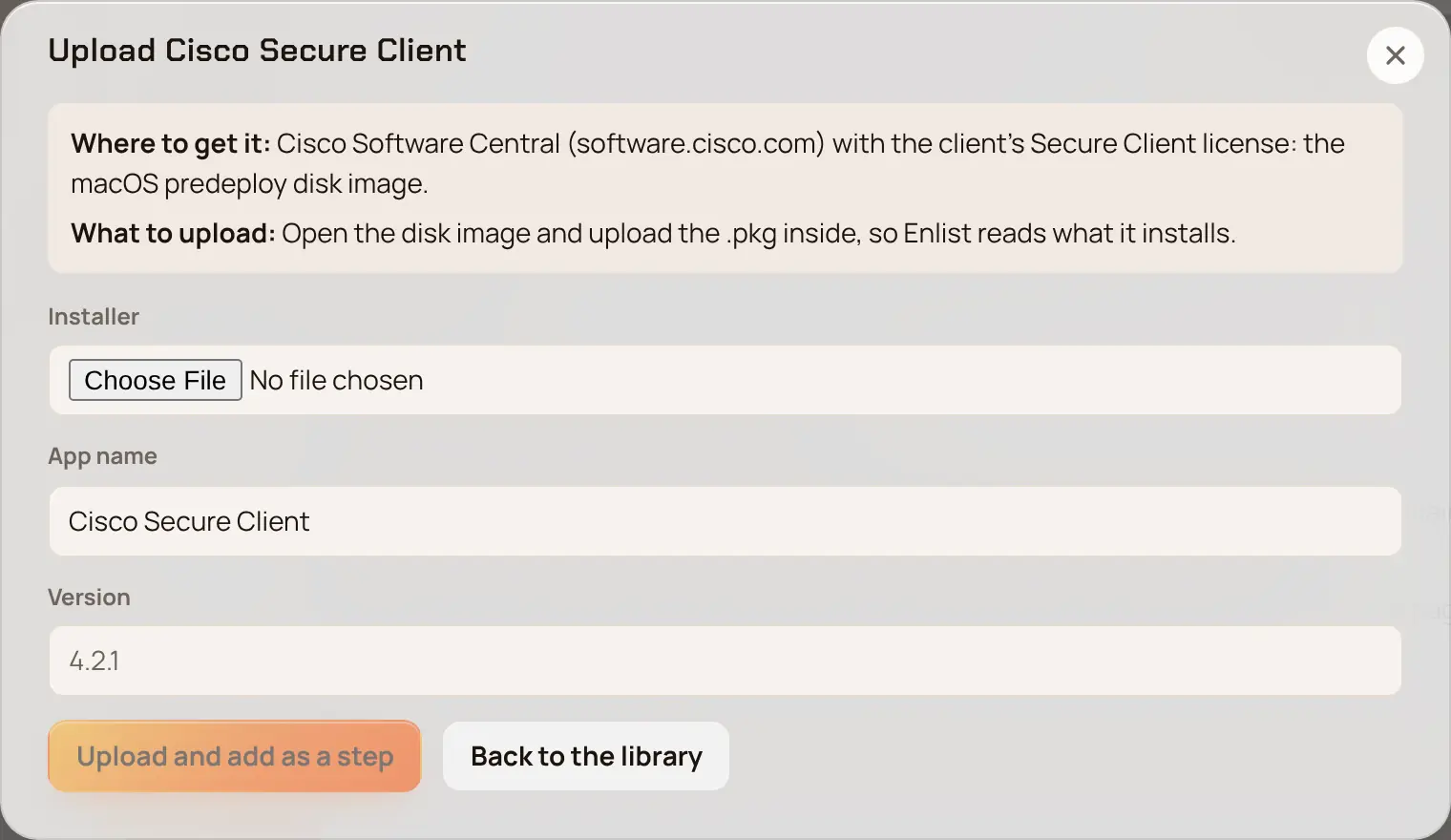
Cisco Secure Client, GlobalProtect, FortiClient and Jamf Connect come from each client's own vendor portal, so the library lists them with where to get the installer and what else it needs, such as a settings profile or an approval for its system extension from your MDM. In a client's blueprint, Upload Contoso's installer names the package for that client, such as GlobalProtect (Contoso), so each client keeps its own installer. Once a client has one, the library shows it and Use adds it to the blueprint.
Microsoft Office #
Office installs with its own step, Install Microsoft Office, after the Office Deployment Tool. Pick Microsoft 365 Apps for business or enterprise, Project, Visio, or Outlook (classic). To clear the Office trial and other apps a new PC came with, add Remove preinstalled apps.
Apps on a device #
A device's page shows Apps from your library with the version installed and the newest, and lets you Update, Roll back, Uninstall or pin an app. Install an app installs one library app on that device now, without a blueprint: pick the app and the version, and the panel follows the install until the device says how it went. If the device already has the app, nothing runs.
Your library in Settings #
Every app in your library is listed under Settings > Devices > Software library, with its platform, its newest version and how it installs. Anyone who can see the library sees the page; owners and admins get the buttons.
Newer versions: every 6 hours Enlist checks winget and Homebrew for each app that installs from them. When one has a newer version, the list says Newer version available and offers Add version. Adding it asks for your passkey, sets the new version up like the one before, and is how a third-party app update reaches devices: devices with an older version get it under Patching > App updates. Enlist doesn't check Chocolatey.
Versions: pick an app to see its versions. Archive takes one bad version out of use, and Archive app takes the whole app out of the library. Both stay on record, can't be added to anything new, and can't be undone.
Installers for rollbacks: for winget and Homebrew versions, Enlist keeps the vendor's installer so a rollback works after the vendor removes the old download. Each version shows whether its installer is kept, still downloading, or couldn't be kept and why. When it couldn't, Try again works ten minutes after the failure.
When a user moves to a new computer: the app shows what a move copies for it (settings folders, registry keys) and how its licence moves. Enlist's built-in rule is shown when there is one. Set your own rule replaces it for your MSP, and Remove your rule goes back to it. Saving or removing a rule asks for your passkey.
On a Mac #
Many library apps also install on Macs, and more are added as Enlist learns to handle their downloads. Enlist reads where the vendor's Mac download is, and its SHA-256, from the app's Homebrew cask. It downloads the file once, checks it against that hash and scans it for malware before any Mac gets it. When the vendor replaces its file in place and Homebrew publishes no hash, Enlist keeps the exact file it downloaded and scanned, and every Mac gets that one. When an app has separate downloads for Apple silicon and Intel Macs, Enlist keeps both and each Mac installs its own (Mac agent 01.10.00 or later). Homebrew no longer supports Intel Macs, so Enlist keeps its own link to each of those apps' Intel download, at the same version from the same vendor, and uses it if Homebrew stops listing one. Some vendors don't say in the download address whether the file is a disk image, zip or package (Visual Studio Code, Postman); Enlist reads that from the file itself. The Mac doesn't need Homebrew. Enlist confirms the install by the app in Applications, or by the receipt its installer package leaves.
Microsoft 365 on a Mac #
On a Mac, Word, Excel, PowerPoint, Outlook, OneNote, Teams and OneDrive are separate apps in the library, each from Microsoft's own signed installer package. Pick Choose Microsoft 365 to choose all seven at once, or choose only the ones you need. A Microsoft 365 sign-in activates them, and Microsoft AutoUpdate keeps them current. The newest Word, Excel, PowerPoint and Outlook need macOS 15 or later. Microsoft 365 Copilot and Microsoft Remote Help are in the library too.
Microsoft Project, Visio and Access have no Mac versions. Mac users can use Project for the web and Visio for the web in a browser, or run the Windows apps on a Windows 365 Cloud PC or Azure Virtual Desktop through Windows App (in the library), or in a Windows virtual machine such as Parallels Desktop. To put Microsoft Defender for Endpoint on Macs, use the Onboard to Defender for Endpoint script from the script library: it installs Defender and onboards the Mac to the client's tenant.
Mac admin tools #
Escrow Buddy, dockutil, Installomator, XCreds and PowerShell 7 come straight from their makers' signed packages, pinned to the exact file Enlist checked. Escrow Buddy needs your MDM's FileVault escrow profile to do anything, and XCreds replaces the Mac login window, so send its settings profile before you install it. PowerShell 7 has one entry for Apple silicon and one for Intel Macs. DEPNotify is no longer published (its download site is gone), so use swiftDialog for onboarding windows instead.
Apps a library script installs #
Some vendors' Mac installers need more than a package: a silent mode, a sign-in, or a second package first. For Adobe Acrobat, Adobe Creative Cloud, Logi Options+, Backblaze Computer Backup, TeamViewer Host, Zoom Rooms, VMware Fusion, Zscaler Client Connector and VeraCrypt, the Mac list says Add its install script. That adds a Run a script step with Enlist's own script from the script library, filled in with the vendor's download link. The script checks the installer is signed by the vendor before it runs it, and reports the app already there when it is.
Backblaze: set the client's Backblaze group ID and group token under Install keys, and the client's email domain in the step. The person signed in to the Mac joins the group as their short name at that domain.
VMware Fusion and Zscaler Client Connector: their downloads need a sign-in, so put the installer in your own file storage and set its link under Install keys. Zscaler also takes each client's cloud name and user domain there.
TeamViewer Host: an assignment ID from the TeamViewer Management Console joins the Mac to your account.
VeraCrypt installs macFUSE first. The first time it opens a volume, macOS asks the person to allow macFUSE's file system extension unless your MDM allows it; the step says so. On macOS older than 15.4, macFUSE needs a kernel extension, which on Apple silicon also needs Reduced Security set in Recovery by someone at the Mac.
When an app also needs an approval only an MDM profile or a person can give (a system extension, screen recording or accessibility), the step's output starts that line with NEEDS APPROVAL and says which profile to send.
The first time you add a Mac app, Enlist takes a minute or two to download and scan it. The library waits for that, and the blueprint can be published once the download is ready.
Some apps can't install on a Mac from the library yet. These are mostly apps whose installer is a vendor setup app rather than a plain app or package. Install those with a Run a script step or an uploaded installer for now.
Last updated 2026-11-18. Something wrong or missing? Email [email protected].