Integrations
PSA integrations: HaloPSA, ConnectWise and Autotask
Connect HaloPSA, ConnectWise PSA or Autotask so every onboarding gets a ticket, devices link to their assets, time is logged and contracts become device tags.
Connect your PSA and every onboarding of a mapped client gets its own ticket: opened when the device starts, a private note when it's blocked, the ready report when it finishes, then closed. Enlist can also link each device to its asset or configuration, log the setup time, and turn what a client buys into device tags. Only one PSA can be connected at a time, so a device never gets two tickets.
What Enlist does in your PSA #
- A ticket per onboarding
- When a device of a mapped client starts onboarding, Enlist opens a ticket named
Set up <device> [Enlist <id>]. Blocked and failed onboardings get a private note with the step and the error, and a failed one stays open for a technician. A finished one gets the ready report (each step and how it ended), then is closed. Notes are private, so the client isn't emailed. - Never twice
- Each ticket, note and time entry carries a marker, and Enlist looks for it before it posts. If your PSA is slow or a reply is lost, a retry finishes what didn't happen and nothing appears twice. Failures are retried for about five hours, and the last error shows in the settings.
- Assets and configurations
- Off until you turn it on. Enlist finds the client's active asset (Halo) or configuration (ConnectWise, Autotask) with the device's serial number and attaches it to the ticket. One match is linked; more than one is listed for a person to sort out. With adding turned on (Add the asset when Halo has none in Halo), Enlist adds a new one with the device's name and serial, so a retry can always find it again. Placeholder serials such as "To be filled by O.E.M." are never searched.
- Time on the ticket
- When a device is ready, Enlist can log the time it took (rounded up to a whole minute), or a fixed number of minutes if you bill a flat setup. Cancelled, failed and blocked onboardings log nothing.
- Tags from what clients buy
- Add up to 50 rules: a catalog item, service or recurring-invoice item, or the start of an agreement's or contract's name, and the tag devices get. Enlist reads each mapped client once a day, and again when you change a rule. Devices carry exactly their client's PSA tags, next to any tags people added. A failed read keeps the tags already there, so an outage never strips them. Pair a tag with an add-on blueprint and selling the line item installs its software.
Connect HaloPSA #
In Halo, open Configuration, then Integrations, then Halo API, and choose View Applications, then New.
Set Authentication Method to Client ID and Secret (Services), and Login Type to Agent, with an agent for Enlist to act as.
On Permissions, allow
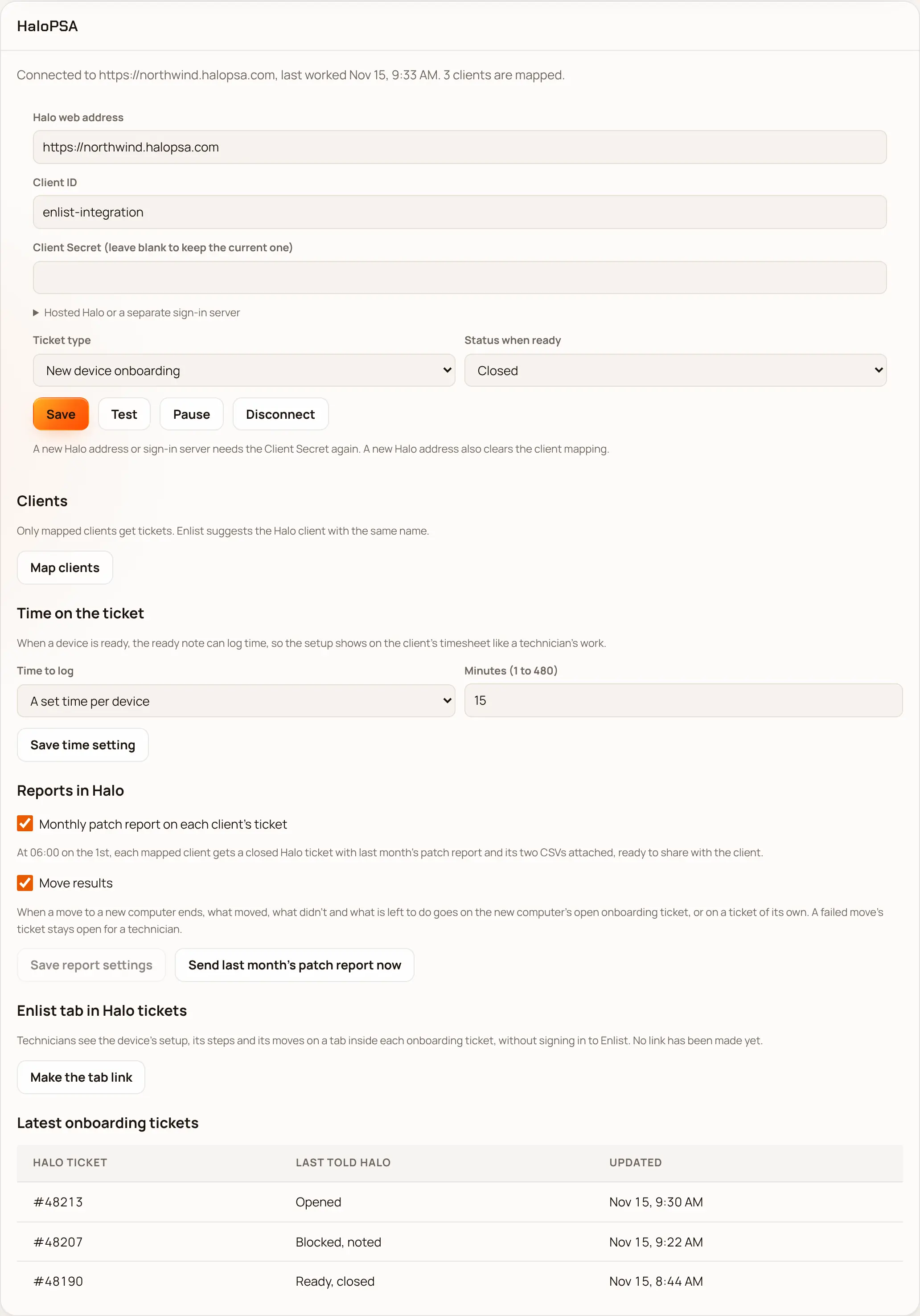
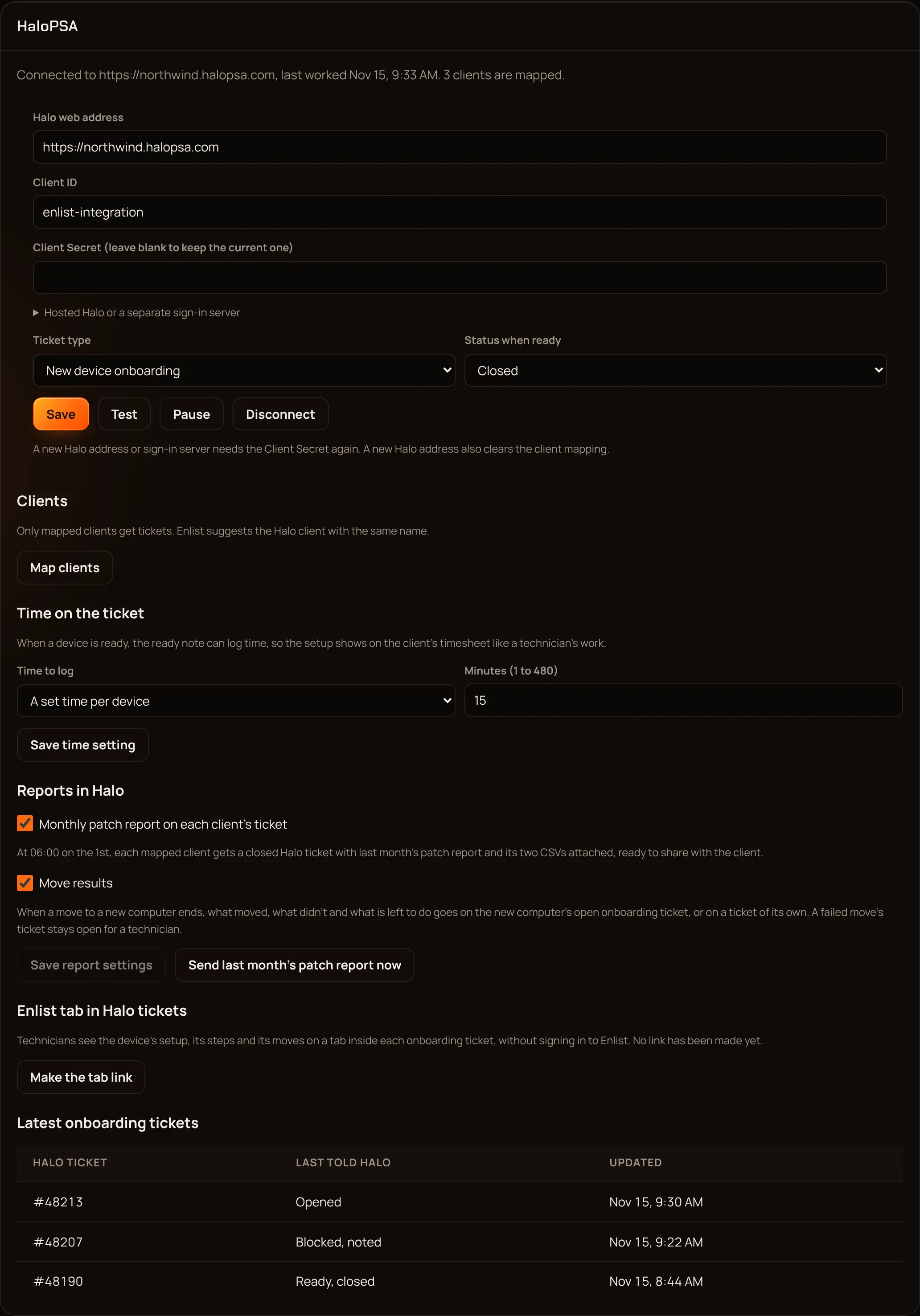
read:customers,read:tickets,edit:tickets,read:assets,edit:assets,read:items,read:invoicesandread:contracts. Save, then copy the Client ID and Client Secret.In Enlist, open Settings → HaloPSA. Enter your Halo web address, the Client ID and the Client Secret, pick Connect and approve with your passkey. Hosted Halo with its own sign-in server goes under Hosted Halo or a separate sign-in server.
Pick the Ticket type and the Status when ready, then Save. Test checks the connection.
Under Clients, pick Map clients. Enlist suggests the Halo client with the same name; pick Use to accept it. Only mapped clients get tickets.
HaloPSA has two extras under Reports in Halo. Monthly patch report on each client's ticket opens a closed ticket per mapped client at 06:00 on the 1st, with last month's patch report and its two CSV files attached. Move results writes what moved, what didn't and what's left to do when a user move ends, on the new computer's onboarding ticket or a ticket of its own.
The Enlist tab in Halo tickets #
Technicians can see a device's setup, its steps and its last moves on a tab inside each onboarding ticket, without signing in to Enlist. The tab shows only what Enlist linked to that ticket, and nothing secret: no passwords, keys or scripts.
In Enlist, under Enlist tab in Halo tickets, pick Make the tab link and approve with your passkey. Copy the link: it's shown only once.
In Halo, go to Configuration, then Custom Objects, then Custom Tabs, then Tickets, and pick New. Name it Enlist, set Type to Iframe, paste the link into URL and save.
Go to Configuration, then Tickets, then Ticket Types, open the type Enlist uses, and add the Enlist tab under Custom Tabs on Allowed Values. Save.
Make a new link replaces the old one at once, and Turn off the tab removes it. Disconnecting Halo removes it too.
Connect ConnectWise PSA #
In ConnectWise, open System, then Members, then API Members, and add a member for Enlist with a security role that can read and add companies, service tickets, ticket notes and time entries.
On the member's API Keys tab, add a key and copy the public and private key.
In Enlist, open Settings → ConnectWise PSA or Autotask and pick ConnectWise PSA under PSA. Enter the ConnectWise site, the Company id as you type it at sign-in, the Public key and the Private key, plus a Developer clientId from developer.connectwise.com if the form asks for one. Approve with your passkey.
Pick the Service board and the statuses (or leave them for the board's defaults), then use Map clients to match your clients to ConnectWise companies.
Notes go on the ticket as internal analysis notes, with notifications off. Time is logged as its own time entry for the member you pick, or the API member if you leave it blank.
Connect Autotask #
In Autotask, open Admin, then Resources (Users), and add an API user (Security Level: API User (system)).
Under API Tracking Identifier pick Custom (Integration), name it Enlist, and copy the tracking identifier, user name and secret.
In Enlist, open Settings → ConnectWise PSA or Autotask and pick Autotask under PSA. Enter the API user name, the Secret and the API tracking identifier. Enlist looks up your Autotask zone itself. Approve with your passkey.
Pick the Queue, the statuses and the Priority (the ready status is Complete if you leave it), then use Map clients to match your clients to Autotask companies.
Notes are published as Internal Only. Logging time needs both a resource and a role. Adding missing configuration items also needs a product, because Autotask requires one.
Keeping the sign-in safe #
- Only owners and admins can change PSA settings. Connecting, changing the sign-in and disconnecting also need a fresh passkey check, and each change is in the audit log.
- Enlist checks a secret or private key with the PSA before saving it, keeps it encrypted, never shows it again and leaves it out of data exports. A kept secret is only ever sent to the same PSA address and account it was typed for.
- Connecting a different PSA address or account clears the client mapping, links and tag rules, because another PSA has other IDs. Disconnecting removes them too. Nothing in your PSA is deleted.
Last updated 2026-11-15. Something wrong or missing? Email [email protected].