Devices and agents
Pre-register devices by serial number
Enter serial numbers, typed or from a Dell, HP or Lenovo order CSV, so each new device joins the right client, site and blueprint with its user, by itself.
When you order computers for a client, you know their serial numbers before the boxes arrive. Pre-register them with the client, site, blueprint and user each one is for. When a device is installed, Enlist finds its serial number and puts it there: it starts that blueprint and shows who it's for, and nobody has to place it by hand.
Pre-register devices #
In Devices (or a client's page), pick Pre-registered, then Pre-register devices.
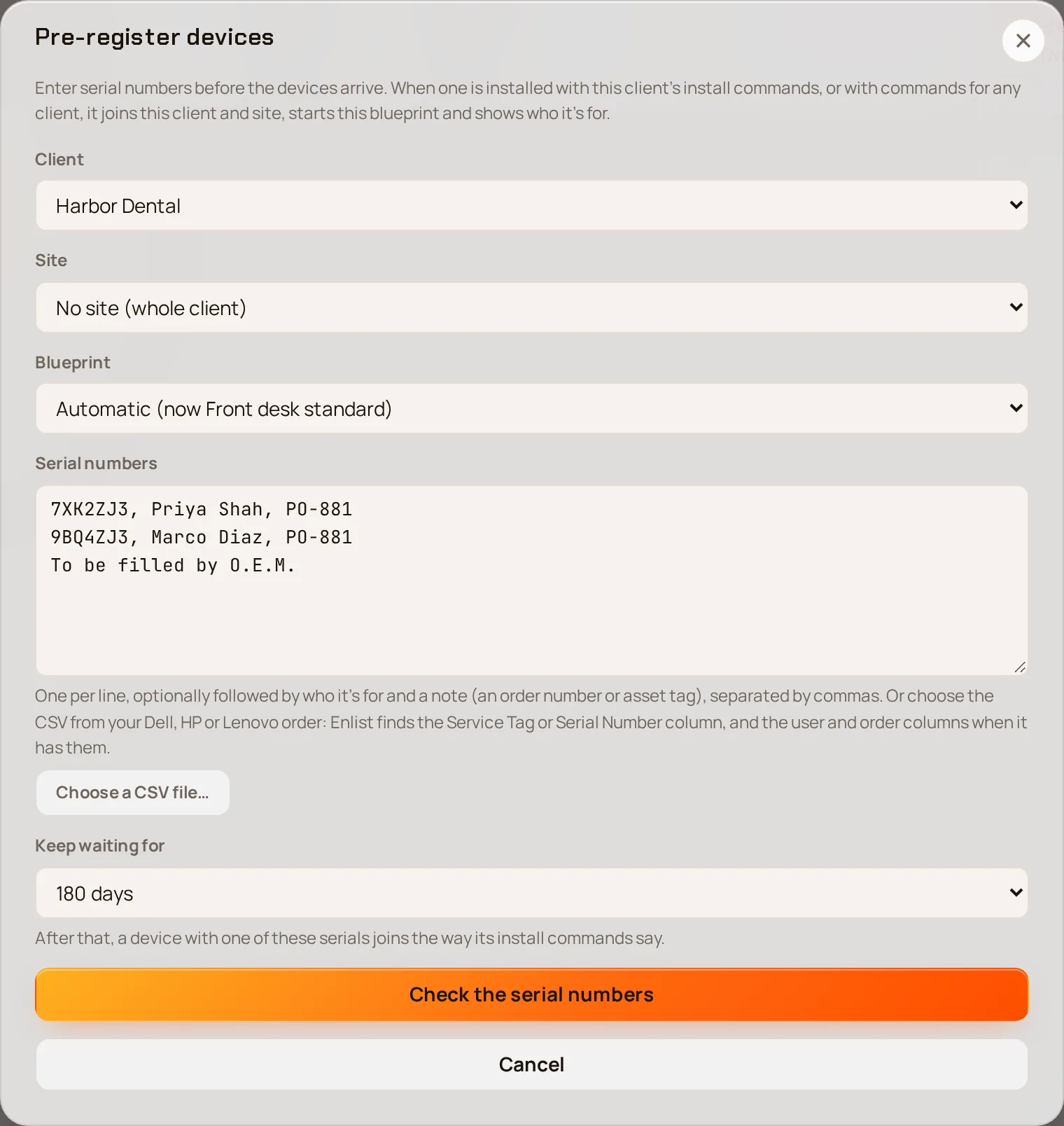
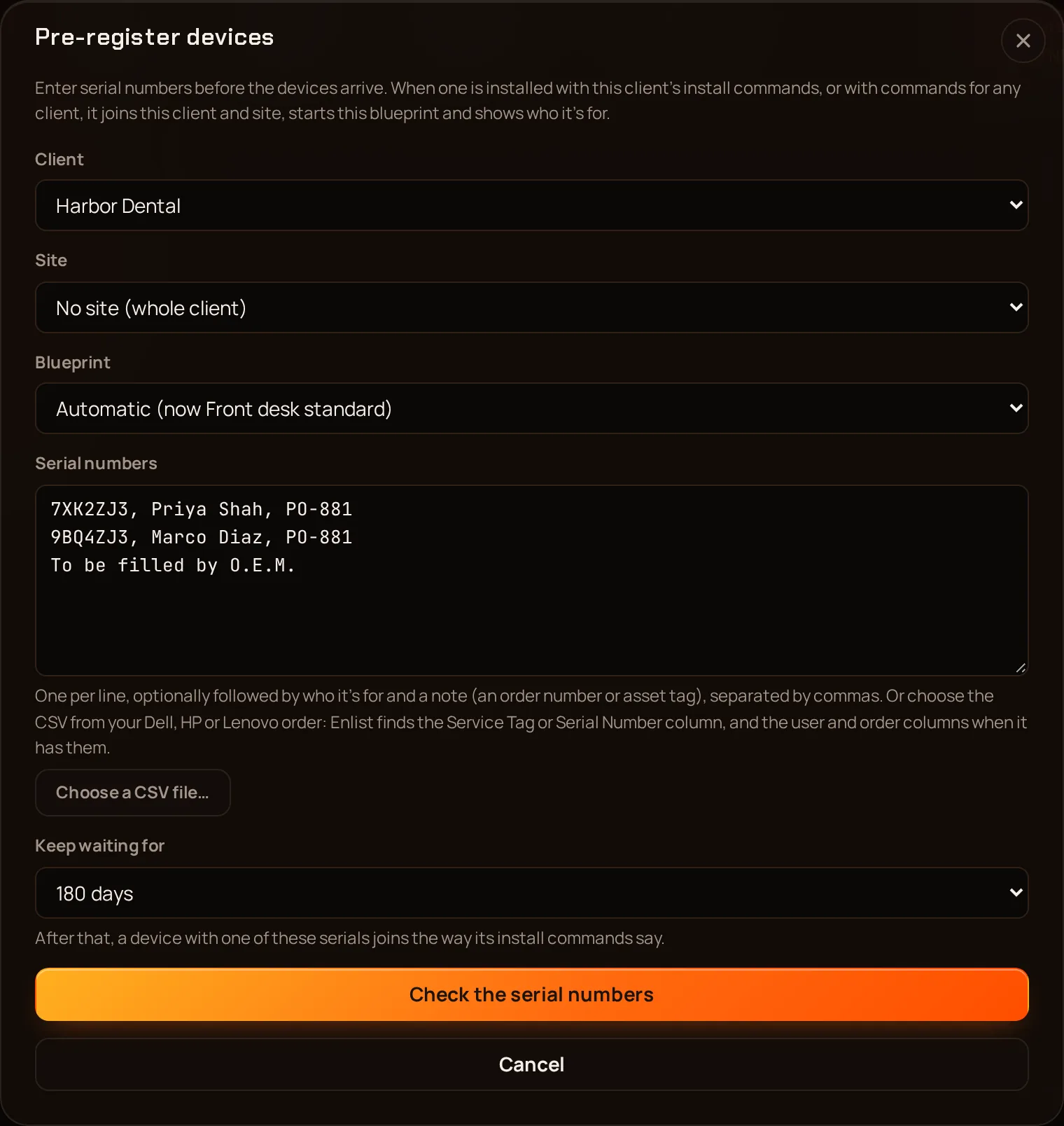
Pick the Client, the Site (or No site (whole client)) and the Blueprint. Automatic uses the site's blueprint, or the whole client's.
Type or paste the Serial numbers, one per line. After each one you can add who it's for and a note, separated by commas:
7XK2ZJ3, Alex Morgan, PO-881. Or pick Choose a CSV file… and choose the CSV from the order.Pick how long they Keep waiting for: 30, 90, 180 or 365 days.
Pick Check the serial numbers. Enlist shows every row and what it will do: Add, Replace (it was already waiting) or Skip, with the reason.
Pick Pre-register N devices and approve with your passkey.
Order CSVs #
Enlist reads Dell, HP and Lenovo order exports and any other CSV with a serial number column, separated by commas, semicolons or tabs.
- The serial number is the Service Tag or Serial Number column (also Serial No, SN or System Serial Number). Lines above the column names, such as the order summary, are skipped, and so are totals at the end.
- Who it's for comes from a column such as Ship To Name, Assigned To, User or Email, and the note from Order Number, PO or Asset Tag, else the model.
- Case, spaces and dashes don't matter:
7xk-2zj3matches7XK2ZJ3. - A serial number one machine can't own, such as
To be filled by O.E.M.or0000000, is skipped. - Up to 2,000 serial numbers or 1 MB at a time.
Install the devices #
Install Enlist with that client's install commands from Add devices. A pre-registered device goes to its own site and blueprint, even when the commands name another site.
To use one USB stick or image for every client, pick Any client, by pre-registered serial number as the client in Add devices. Each pre-registered device joins its own client. Any other device waits under New devices until you pick its client on its device page. Keep these commands short-lived and revoke a lost stick under Install tokens.
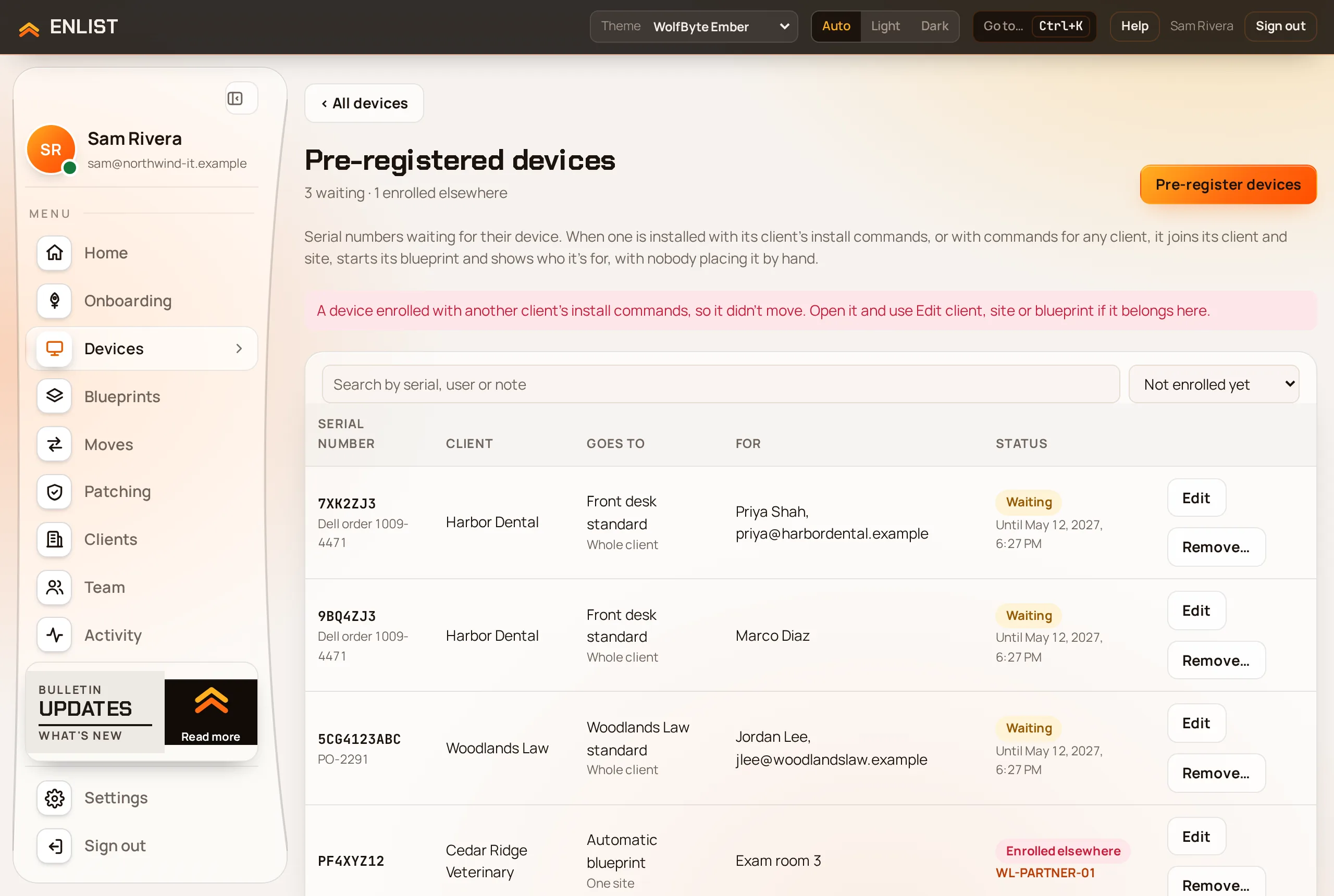
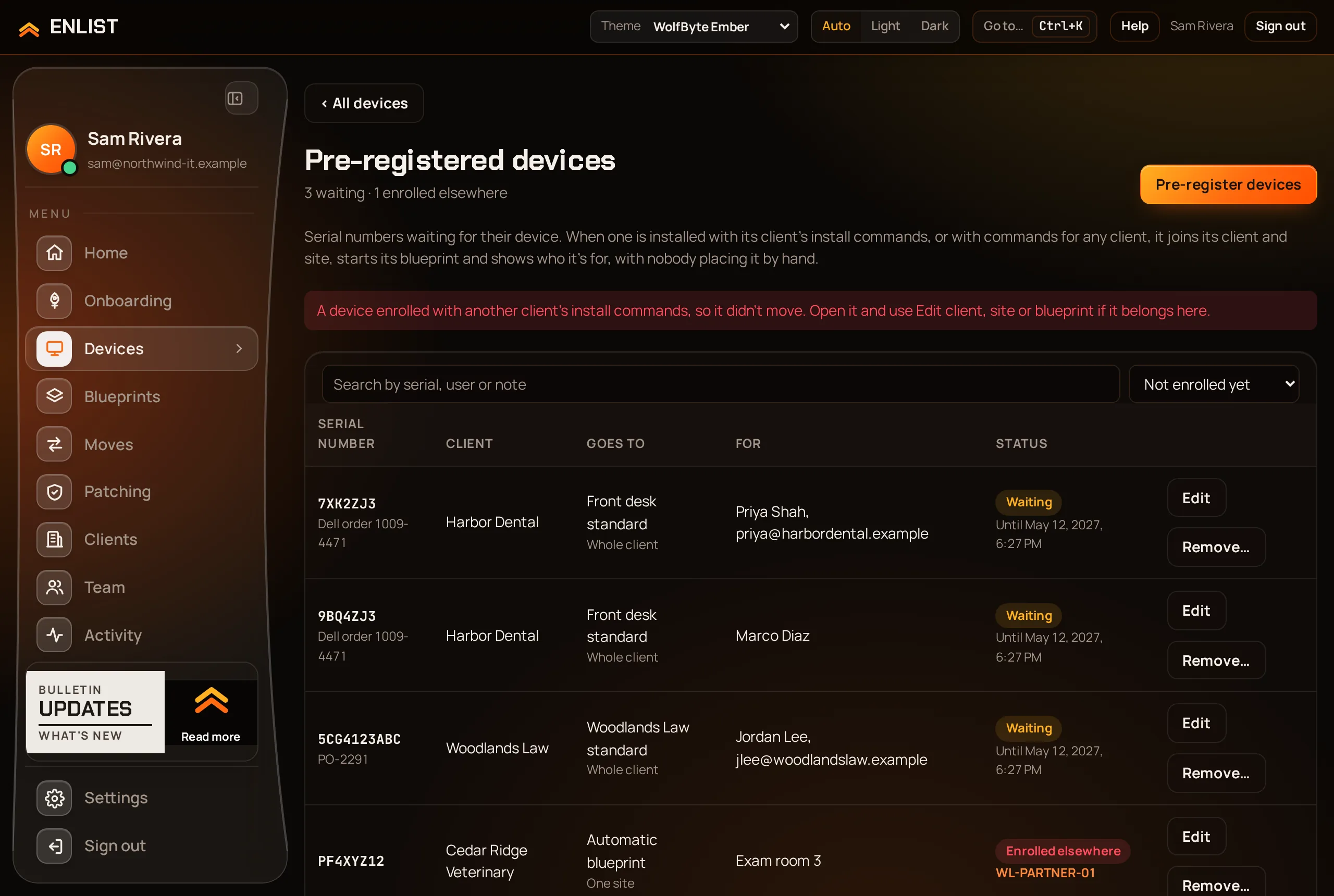
Install commands for another client never move a device: it stays where those commands say, and its entry shows Enrolled elsewhere with the device. Open it and use Edit client, site or blueprint if it belongs to the other client.
The list #
Pre-registered shows each serial number with where it goes, who it's for and its status:
- Waiting
- Until the date shown. Edit changes the client, site, blueprint, user and note, and can keep it waiting longer (needs your passkey). Remove… takes it off.
- Enrolled
- Its device enrolled and took it. Pick the device's name to open it. Shown with All, with enrolled.
- Enrolled elsewhere
- A device with this serial number enrolled with another client's commands, or before you added it.
- Expired
- It no longer places a device. Edit can start it waiting again.
Pre-registering a serial number that is already waiting replaces it, so importing a corrected CSV fixes the rows. A serial number that is already enrolled is skipped: change that device on its page instead.
Who uses a device #
A device's About card shows Assigned to, filled in from its pre-registration. Edit user changes it. Search Devices by it.
From your own tools #
POST /preregistrations takes the same CSV, or items as JSON, with dryRun to check first. See Devices in the API reference.
Last updated 2026-11-15. Something wrong or missing? Email [email protected].