Start here
Sign-in and account security
Sign up your MSP, sign in with passkeys, recover a lost passkey, use your company key, and see where you're signed in.
Enlist has no passwords. Everyone signs in with a passkey or a security key, at their own MSP's address. Changes that matter, such as publishing a blueprint, showing a recovery key or making an API key, ask for your passkey again at that moment.
Sign up your MSP #
Open
https://console.enlistit.app/signup(Sign up your MSP). Sign-ups may be closed or approved one by one while Enlist is in early access; if so, ask for early access.Fill in MSP name, Your Enlist address (3 to 40 letters, digits and dashes, which becomes
<address>.enlistit.app), Your name and Work email.Tick the box to agree to the Terms of Service, Data Processing Agreement and Acceptable Use Policy, and to confirm you've read the Privacy Policy. Then pick Sign up.
Open the link in the email within 24 hours. The page shows your MSP being made, then sends your owner invite.
Open the invite and set up your passkey. You're the MSP's first owner.
Your address #
Each MSP has its own address, such as https://northwind.enlistit.app. Your sign-in page there shows your MSP's name, colours and logo. People sign in only at their own MSP's address: if someone tries another address, Enlist sends them to the right one. Passkeys belong to enlistit.app, so one passkey works wherever you're sent (once you add your own domain, they belong to your address instead; see below). If your address is ever renamed, the old one keeps forwarding to the new one and nobody else can take it.
Your own domain #
On the Pro + plan, your team and clients can use Enlist at a domain your company owns, such as https://devices.northwind.com, with your name, colours and logo in the address bar. You can add up to 5 domains. Owners and admins add them, and Enlist asks for your passkey first.
Open Settings → Your domains, type the domain, such as
devices.northwind.com, and pick Add domain. Use a name under your domain: most DNS providers can't point a barenorthwind.comsomewhere else.At your DNS provider, add the two records Enlist shows: a TXT record named
_enlist-challenge.devices.northwind.comholding the value shown, which proves the domain is yours, and a CNAME record pointing the domain at the name shown. Each name and value has a Copy button. Some DNS providers add your domain to the name themselves; there, type only the first part, such as_enlist-challenge.devices.Back in Enlist, pick Check. Once Enlist sees the TXT record, the domain shows Verified and its certificate is made, which can take a few minutes. Until then, Check says the record isn't there yet; DNS changes can take up to an hour to show.
Your passkeys. When your first domain is verified, your MSP's passkeys move to your Enlist address (northwind.enlistit.app), so one passkey works there and on every domain you add. The next time each person signs in at your Enlist address, they pick Use my earlier passkey, and Enlist then asks them to make the new passkey right away. That takes one tap. Until they have, they can only sign in at your Enlist address, not on your domain.
Approving devices. Device approvals still happen at your Enlist address. On your domain, Enlist tells you to open your Enlist address, sign in there and approve.
Moving device approvals to your new passkeys. Your devices keep accepting approvals made with your earlier passkeys until an owner or admin moves them. Once your owners and admins have made their new passkeys, open Settings at your Enlist address: it shows who still needs one and offers the move. The move is a change to the passkeys your devices trust, so the owners and admins your devices trust today approve it with their earlier passkeys, as for any other change. After it, devices accept approvals only from the new passkeys, made at your Enlist address. Two things to do right after:
Approve your server keys again with your new passkey when Enlist asks, so new devices can enroll.
Publish each blueprint again, unchanged. Devices check every version's approval against the passkeys they trust, so they won't run a version approved with an earlier passkey. Enlist lists the blueprints that need it, before and after the move.
EnlistIt support passkeys can't be trusted for approvals after the move. An MSP that adds its domain before enrolling its first device starts with the new passkeys and never needs the move.
Removing a domain. Pick Remove next to it. It stops working at once, and everyone's passkeys keep working. Your Enlist address can't be renamed once your passkeys have moved to it.
Adding, verifying or removing a domain is recorded in Activity and sends a security alert to the notification channels that chose security alerts. A domain belongs to one MSP at a time. If another company added your domain, it can't use it without your DNS record, and after 3 days you can add it yourself. Ask Enlist support if you need it sooner.
Sign in #
Open your address and pick Sign in with a passkey. Your device asks for your face, fingerprint, PIN or security key. To sign out, pick Sign out at the top.
How long you stay signed in #
You pick how long Enlist waits without any activity before signing you out: open Settings → Session and choose 30 minutes (the default) or 1, 2, 4, 8, 12 or 24 hours in Sign me out after. Picking a longer time asks for your passkey. Whatever you pick, you're also signed out 12 hours after you sign in, even while you're working, or 24 hours after if you picked 24 hours. An owner or admin can set Team limits in the same place, to as little as 5 minutes without activity and 1 hour in all, and nobody on the team can pick more than that. When your sign-in ends, Enlist signs you out and shows the sign-in page. Sign in again and you're back on the page you were on.
Passkeys #
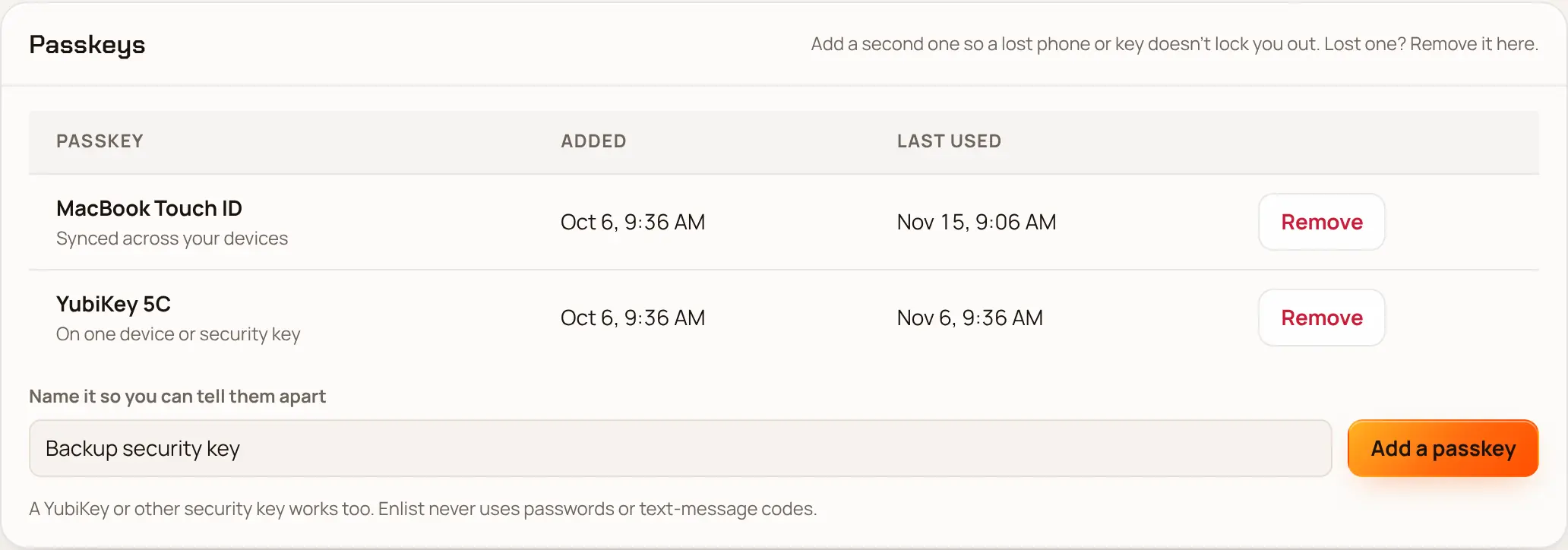
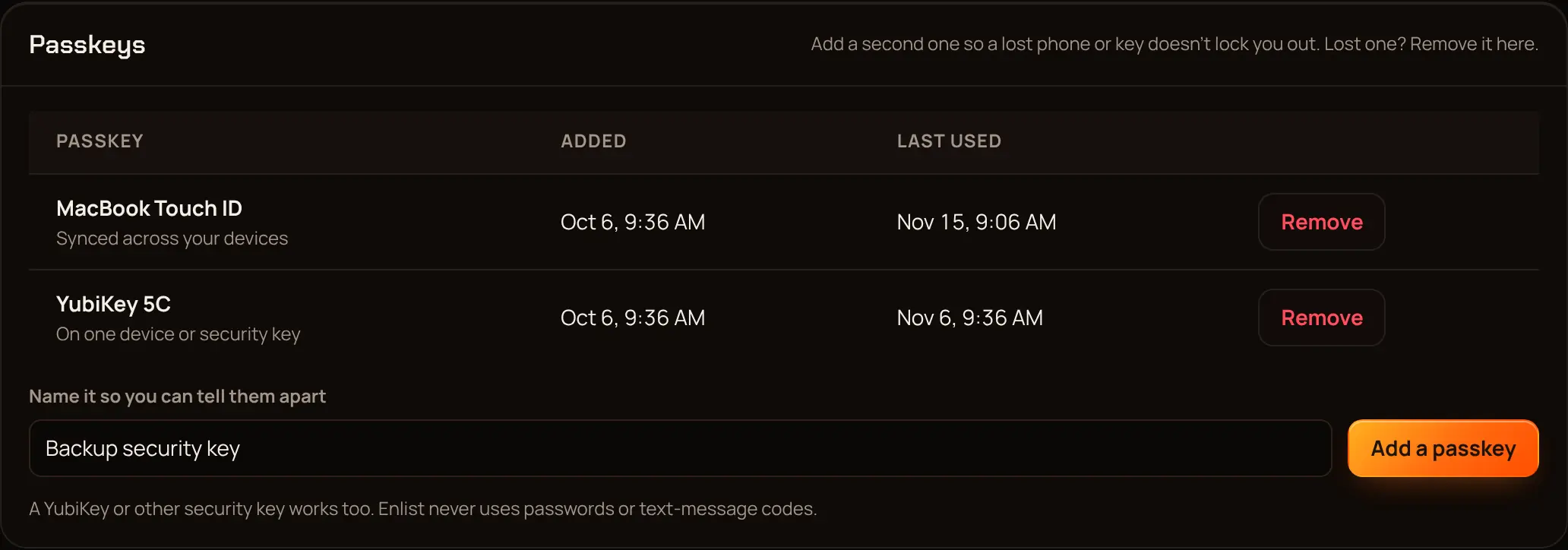
A backup passkey is optional. If you can, add a second passkey or a security key in Settings → Passkeys, so a lost phone or key doesn't lock you out. Most password managers hold one passkey per site, so one passkey plus your recovery codes is fine. The home page suggests a backup passkey once; click Dismiss to hide it. Lost one? Remove it there. You can remove a passkey only while you have another.
If you lose your passkey #
Got a new phone? Sign in on your old one or with a synced passkey, add a passkey on the new phone in Settings → Passkeys, then remove the old one.
Lost every passkey? Lost your passkey or got a new phone? on the sign-in page emails you a link. The link alone can't get you in: you also need one of your recovery codes, or a code from an authenticator app you set up for recovery. Set up at least one in Settings → If you lose your passkey.
- Recovery codes. Pick Make recovery codes. You get 10 codes, each 16 characters, such as
7KQF-9M2X-RT4P-WZ8C. Enlist shows them only once: Copy, Download or Print takes all 10, then tick I saved my recovery codes. Keep them away from your phone, such as on paper or in your password manager. Each code works once, so cross it off when you use it. Settings shows how many are left and warns you when 3 or fewer remain. Make new codes replaces the whole set, so every old code stops working, and you're emailed each time. If you made a single recovery code before Enlist gave sets of 10, it still works once; Settings shows 1 left until you make new codes. - Authenticator app. Pick Set up, scan the code with an authenticator app on a device other than your passkey's, type the 6-digit code it shows, and pick Turn on.
On the sign-in page, pick Lost your passkey or got a new phone?, enter your email and pick Email me a recovery link. The link works for an hour, and only the newest one works.
Open the link, pick Recovery code or Authenticator app, enter one unused code and pick Continue. Five wrong codes cancel the link.
Add your new passkey. Every other passkey is removed, your API keys stop working and you're signed out everywhere. You get a new set of 10 recovery codes: save them, since the old ones stop working.
You and your team's owners and admins are emailed about every recovery. If it wasn't you, tell an owner or admin at once.
Password managers that keep your authenticator code (Bitwarden, 1Password, iCloud Passwords and others) can fill the 6-digit code boxes, the same as you typing it.
No recovery codes and no authenticator? An owner or admin resets your passkeys in Team. A new link goes to your email, and they read you a 6-digit code by phone or in person. You need both. If you're the only owner, EnlistIt support can reset you the same way.
Company key #
The company key is a 20-character code, such as K7QF-9M2X-RT4P-WZ8C-H3NV, that each new person types once, at their first sign-in, next to their invite. A stolen invite link alone isn't enough. Case and dashes don't matter. Five wrong tries use up the invite.
- Owners and admins see it in Settings → Company key → Show company key, after a passkey check.
- Owners can pick Replace it… if it has leaked. People already signed up aren't affected.
- The owner invite from sign-up doesn't need it.
Where you're signed in #
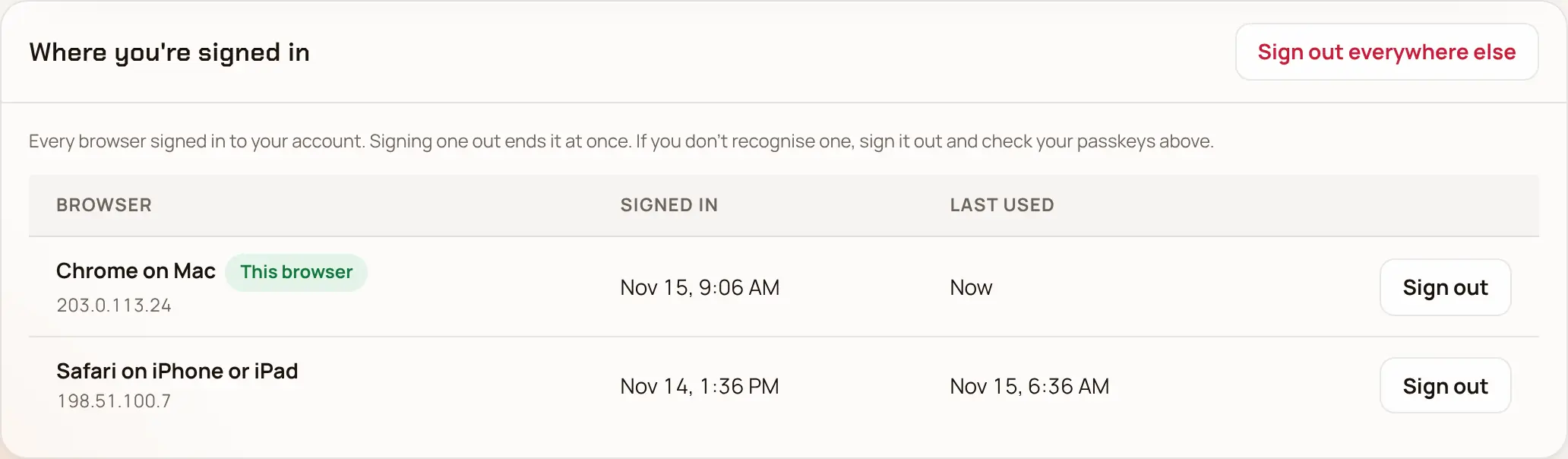
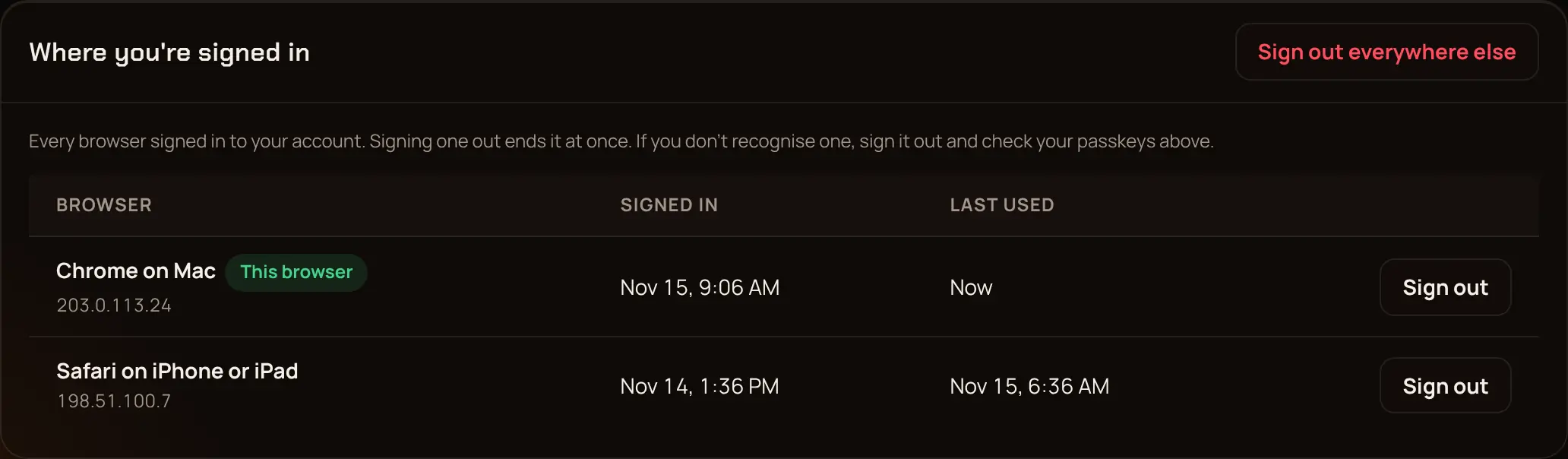
Settings → Where you're signed in lists your open sign-ins. Sign out of one, or of all the others. For a teammate, an owner or admin opens Team → Sign-ins, which needs a passkey check.
Company sign-in (SSO) #
In Settings → Company sign-in, owners can require Microsoft Entra or Google Workspace sign-in after the passkey. Turning someone off in your directory then locks them out of Enlist too, and your conditional-access rules apply. Only owners can change it. If someone's company sign-in breaks, an owner or admin picks Reset company sign-in for them in Team.
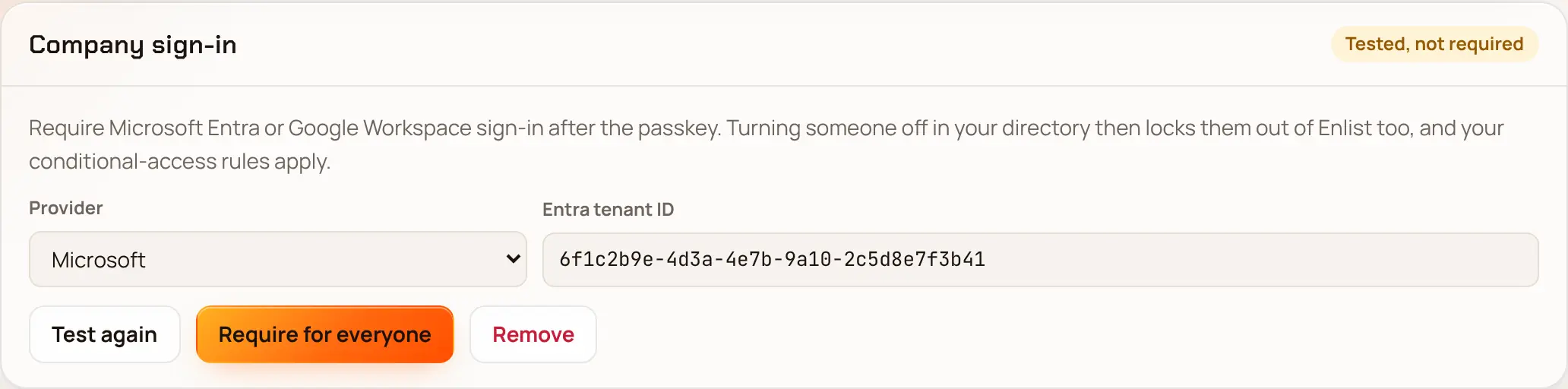
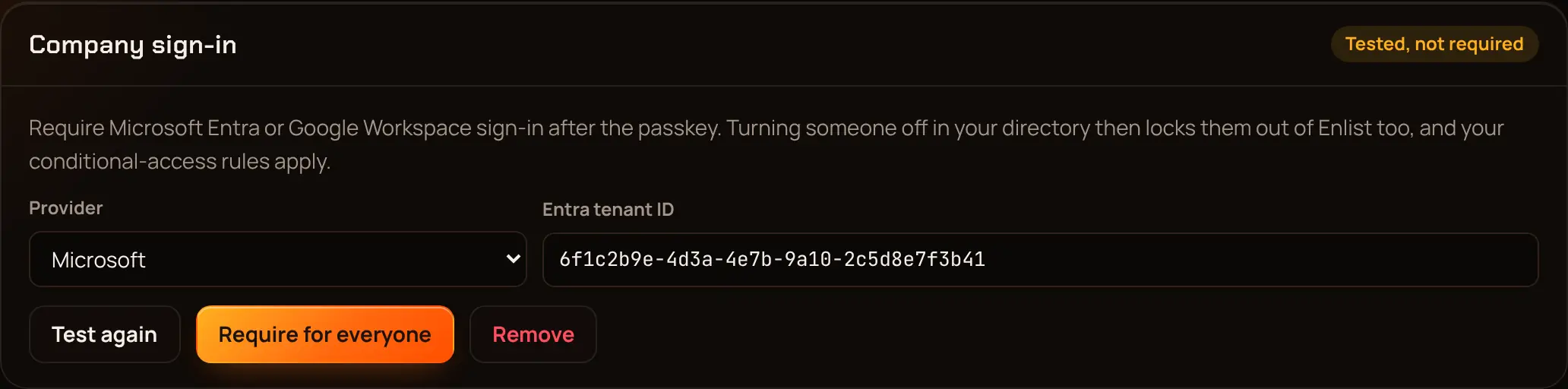
For Microsoft, enter your Entra tenant ID or any domain of your Microsoft 365. Enlist asks Microsoft which cloud your tenant is in. GCC tenants sign in like commercial ones. GCC High and DoD tenants sign in through Microsoft's US Government cloud (login.microsoftonline.us), with Enlist's app registered there. If this Enlist server doesn't have that app yet, Settings says so when you save.
Last updated 2026-11-17. Something wrong or missing? Email [email protected].