Start here
Team and roles
Invite people, choose what each role can do, limit technicians to one client or site, and review access.
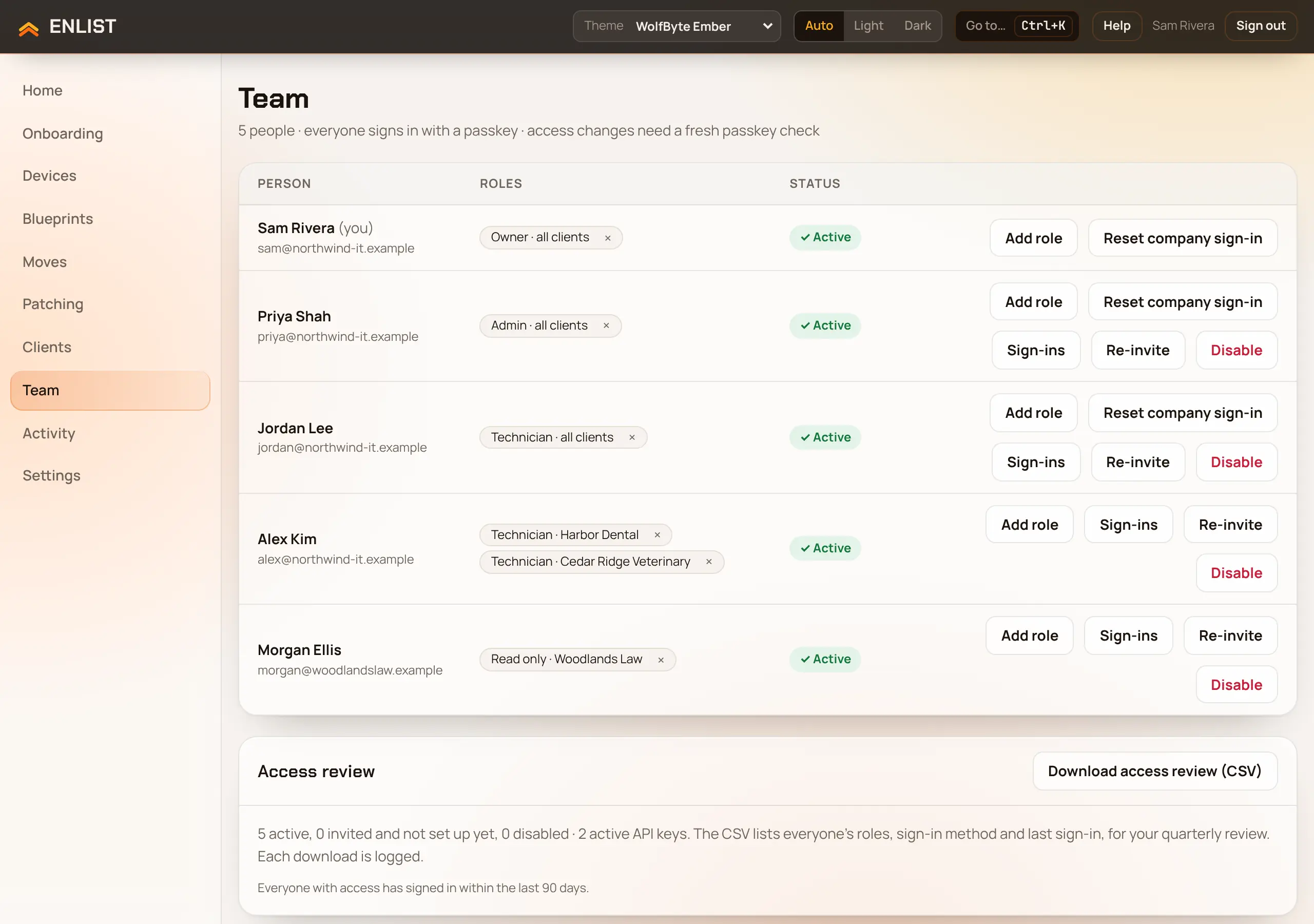
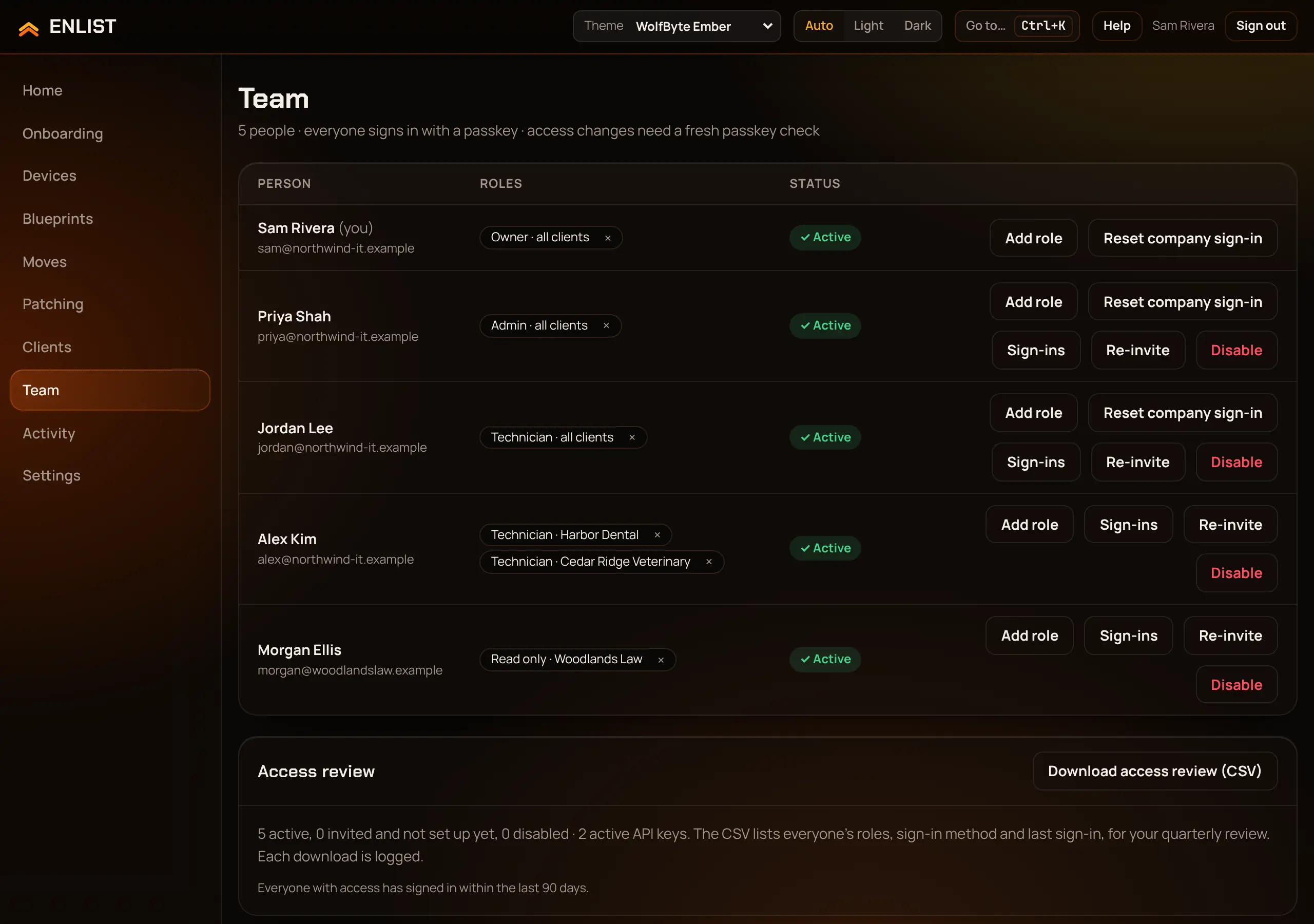
Everyone at your MSP gets their own sign-in. What they can do depends on their role, and each role can apply to the whole MSP, to one client, or to one site.
Roles #
| Role | In short | What it can do |
|---|---|---|
| Owner | Everything, including billing and other owners | Everything an admin can, plus managing owners, changing the plan, company sign-in, exporting or erasing the MSP's data, and sending activity to your SIEM |
| Admin | Everything except owners and billing | Manage the team, clients, devices, blueprints, the software library, notifications, API keys and settings; view passwords and recovery keys; see billing |
| Technician | Onboard and manage devices | See the team and clients; onboard and work on devices; view passwords and recovery keys; see blueprints and the software library |
| Read only | See everything, change nothing | Look, but never change anything or see passwords and recovery keys |
A role given for one client or one site covers only that client's or site's devices and blueprints. Rights that are about the whole MSP, such as the team, settings, the software library and billing, apply only to roles given for all clients. An owner is always for all clients.
Invite someone #
In Team → Invite someone, type their name and email.
Pick a Role, and in For choose All clients or one client.
Pick Create invite link and confirm with your passkey.
Send them the link, and give them your company key separately (from Settings → Company key). The link works for 24 hours.
They open the link, type the company key, and set up their passkey.
Change someone's access #
Each person in Team has these buttons:
- Add role
- Give another role, for all clients or one client or site. Remove a role with its own button.
- Unlock recovery
- Let them use their recovery codes again after too many wrong tries.
- Reset company sign-in
- Clear their Entra or Google link so they can set it up again.
- Sign-ins
- See where they're signed in, and sign them out everywhere.
- Reset passkeys
- For someone who lost every passkey and has no recovery codes. It removes their passkeys, recovery codes and sign-ins, and emails a new link to them only. You get a 6-digit code: read it to them by phone or in person once you're sure it's them, never by email. The link asks for it, and five wrong tries cancel the link. Your other owners and admins are emailed. For someone who hasn't finished their invite, the button says Re-invite and works the same way.
- Disable
- Stop them signing in. Their API keys stop working too.
Changes to people and roles need a passkey check. Making someone an owner or admin, and changing roles, can alert your notification channels.
Someone was paused #
Enlist pauses anyone who retires 10 devices, views 20 passwords or recovery keys, or queues 50 scripts, 50 app installs or 50 uninstalls within 10 minutes, as a stolen session would. The next one is refused until someone lets them carry on. They see that it's paused, and your notification channels that chose it get an alert. Owners and admins then see them under Paused for too many at once at the top of Team, and on Home under Needs you. Check with them first, then pick Let them carry on (a passkey check). Nobody can release themselves.
Access review #
Pick Download access review (CSV) in Team for a list of every person with their roles and where they apply, status, passkeys and company sign-in, last sign-in, and every API key. Each download is in the activity log. It's a good thing to run each quarter for SOC 2 or HIPAA.
Activity log #
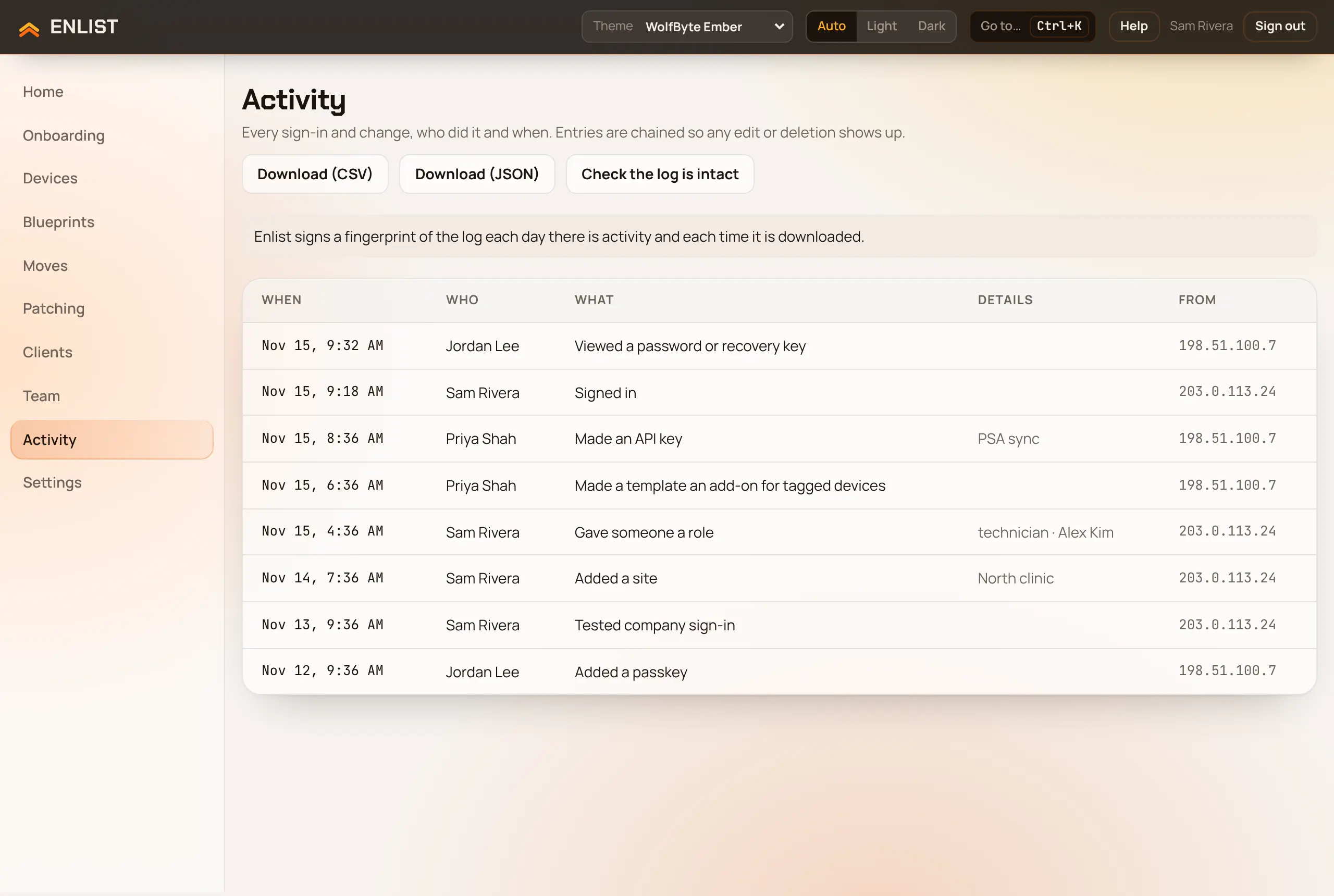
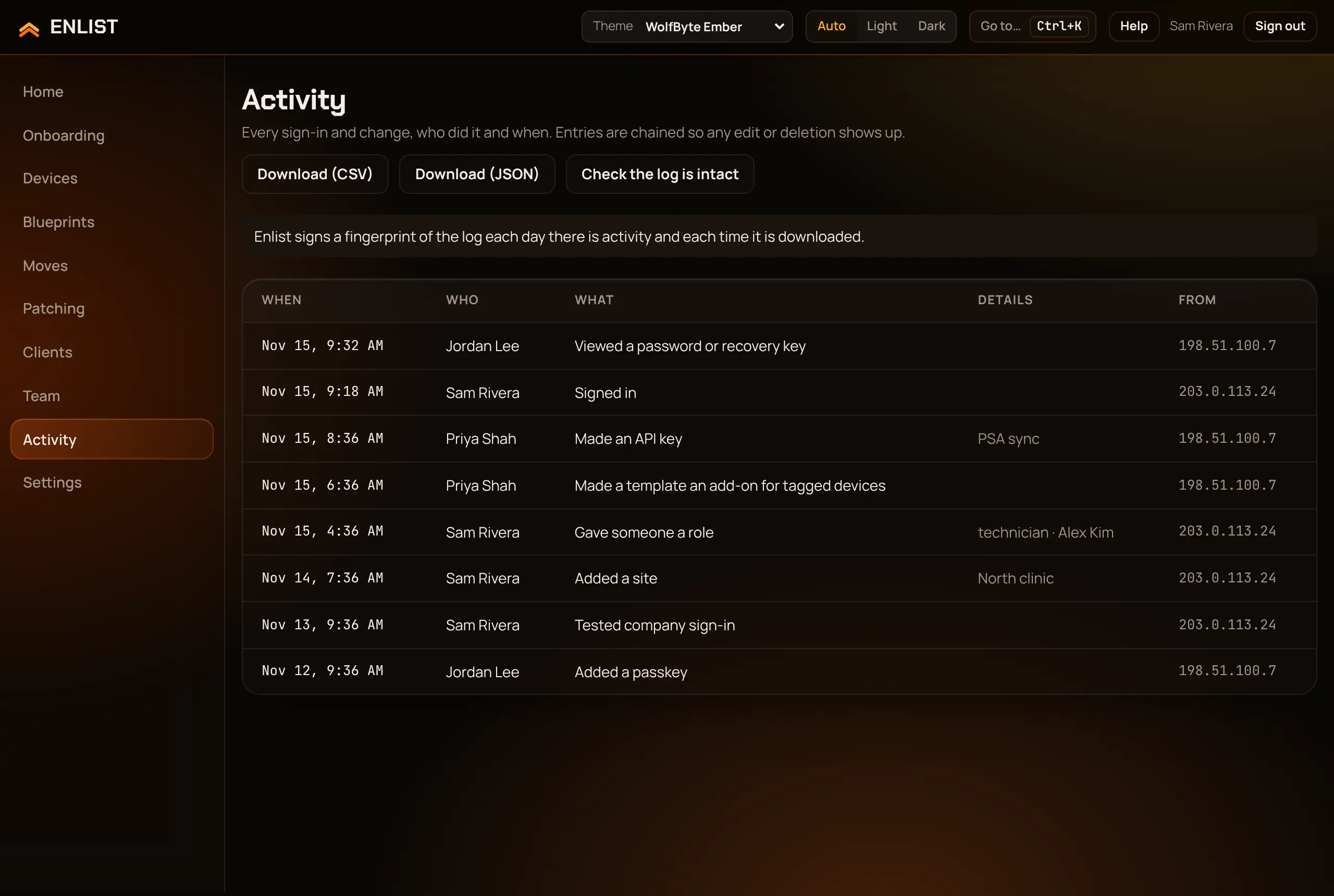
Activity lists every change anyone made, newest first, and can't be edited. Download it with Download (CSV) or Download (JSON). Owners can also send it to a SIEM (Settings → Send activity to your SIEM) and set how long it's kept (Activity log retention).
Last updated 2026-11-18. Something wrong or missing? Email [email protected].