Onboarding
Onboard a Windows PC
Use the USB package at the first setup screen, or install commands from your RMM, GPO or Intune, to onboard Windows PCs.
There are two ways to onboard a Windows PC: a USB stick at the first setup screen for a brand-new or reset PC, or one install command for a PC that's already set up. Both start the client's published blueprint.
Before you start #
- The client has a published blueprint (Blueprints).
- For a domain or Entra join, the client's join package or account is in place (Domain and Entra join).
- Windows 10 22H2 or Windows 11 (24H2 and 25H2), Pro or Enterprise, on x64. Windows on Arm PCs (Snapdragon and other Arm laptops) need Windows 11 24H2 or later, and get the agent built for Arm. These are the versions Enlist is tested on.
- The PC can reach the internet on port 443.
Get the package or commands #
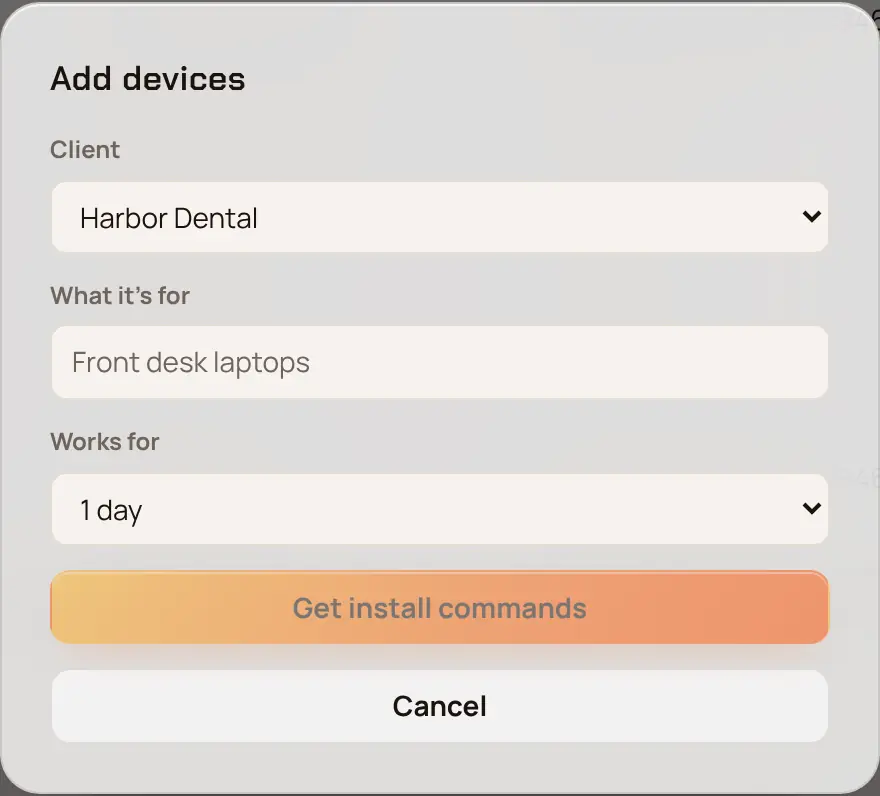
In Devices, pick Add devices.
Choose the Client, or New devices (assign a client later). Say What it's for, and pick how long it Works for: 1, 7 or 30 days.
Pick Get install commands and confirm with your passkey. The commands and downloads are shown once, so save what you need now.
USB stick at the first setup screen #
Pick Download Enlist.ppkg and Download Enlist-token.txt.
Copy both files to the root of a USB stick. Leave no other
.ppkgfile on it.Turn on the new PC and wait for the first setup screen (choosing a region or language).
Plug in the USB stick. Windows installs the package by itself. If nothing happens, press the Windows key five times.
Walk away. Watch it in Onboarding.
If Windows shows What would you like to do? instead, the stick holds more than one package. A Mac adds a hidden ._Enlist.ppkg copy when it writes to a USB stick, and that counts. Remove it in Terminal before you eject the stick, with NAME being the stick's name in Finder:
dot_clean -m "/Volumes/NAME"
rm -f "/Volumes/NAME"/._*
For a wired PC, Download Enlist-SkipSetup.ppkg skips the rest of Windows setup. It signs in with a temporary EnlistSetup account, which is removed when onboarding ends. For a virtual machine, use Download Enlist.iso and attach it as a CD.
The USB install writes its log to C:\ProgramData\Enlist\usb-install.log.
Install command #
On a PC that's already through Windows setup, run one of the commands the console showed:
- Windows (PowerShell as administrator)
- Paste it into PowerShell opened with Run as administrator.
- Windows through your RMM, GPO or Intune
- An
msiexec /i Enlist.msi /qn ENLIST_SERVER=… ENLIST_TOKEN=…line for silent installs at scale. For Windows on Arm PCs, use the second line, withEnlist-arm64.msi.
The PowerShell command picks the agent for the PC's processor by itself: the Arm build on a Windows on Arm PC, the x64 build everywhere else. The USB package holds the x64 agent, which Windows 11 also runs on Arm PCs; to move such a PC to the Arm build, run the PowerShell command on it once it's set up. It keeps its enrollment.
The token in the command works for the time you picked and only for your MSP. Treat it like a password until it expires.
What happens next #
- The agent installs and connects to Enlist.
- The device appears in Devices and its onboarding in Onboarding.
- It runs the blueprint's steps, restarting when a step needs it, then the checks.
- When it's Ready, the onboarding finishes and your notification channels hear about it.
If a step needs someone, the onboarding shows Blocked and Home lists it under Needs you. See Watch and fix an onboarding.
What people at the PC see #
Whoever is at the PC doesn't need the console to know where setup is. While nobody is signed in, the Windows sign-in screen (and the lock screen) shows a banner with your MSP name from Settings → Branding (its words never say Enlist):
- Setting up this PC
- Which step it's on, such as "Step 3 of 9: Google Chrome", and to leave it on and connected.
- Almost ready
- Every step is done and the checks before ready (Windows Update, security) are running.
- Setup needs attention
- The step that stopped, and that you can see it and fix it remotely.
- This PC is ready
- How to sign in: with a work email on an Entra joined PC, with the domain account on a domain joined PC, or with the account you gave them.
A logo sits to the left of the words: the Enlist logo, or on Pro + your own logo from Settings → Branding and no Enlist marks at all (Pro + without a logo shows the words only). Windows agents newer than 01.25.06 show the logo.
Before the sign-in screen, the PC also says it is still being set up. From its first restart, the lock screen shows a picture with the same logo, "Managed by" your MSP name, and a line asking the person to press a key to see how setup is going. After the lock screen Windows shows a notice ("Enlist: this PC is still being set up", or your MSP name on Pro +) that the person clicks OK on. Windows draws that notice itself, so it has words only. The notice goes away when the PC is ready. Windows changes the lock screen picture only when it next restarts, so the picture can stay until then; its words are still true once the PC is ready. If a group policy already sets a legal notice or lock screen picture, Enlist leaves it alone.
Your support phone number (or email) from branding shows at the bottom. The banner takes no clicks and never gets in the way of signing in. It shows again after a restart, before the agent has connected. Ready goes away for good once someone signs in, and after three days at most, so a PC in use never shows it. Windows agents newer than 01.25.02 show it.
Last updated 2026-11-18. Something wrong or missing? Email [email protected].