Patching
How patching works
Risk levels, approvals, test and pilot rings, maintenance windows, deadlines, known exploited flaws, automatic halts and rollback.
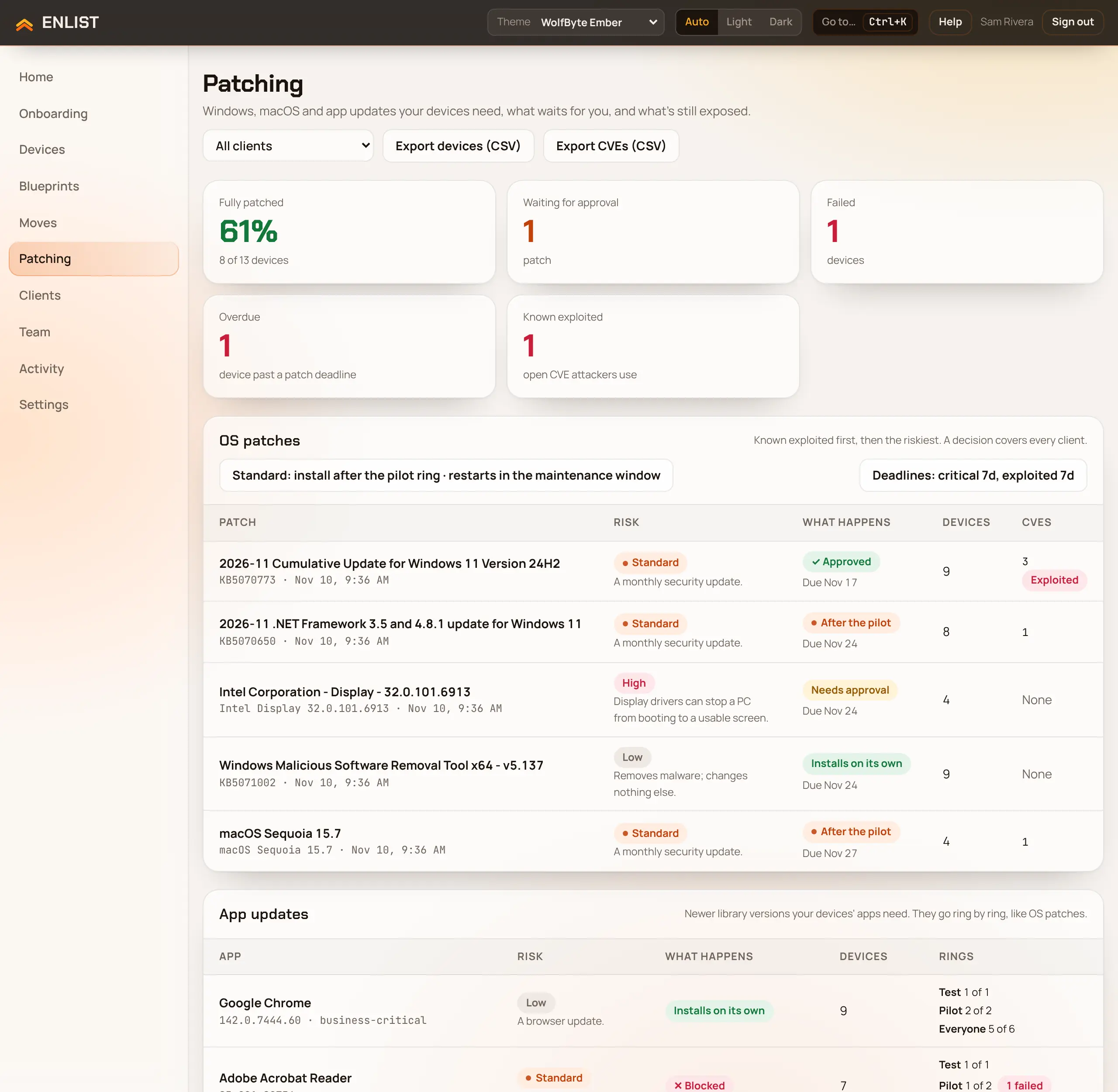
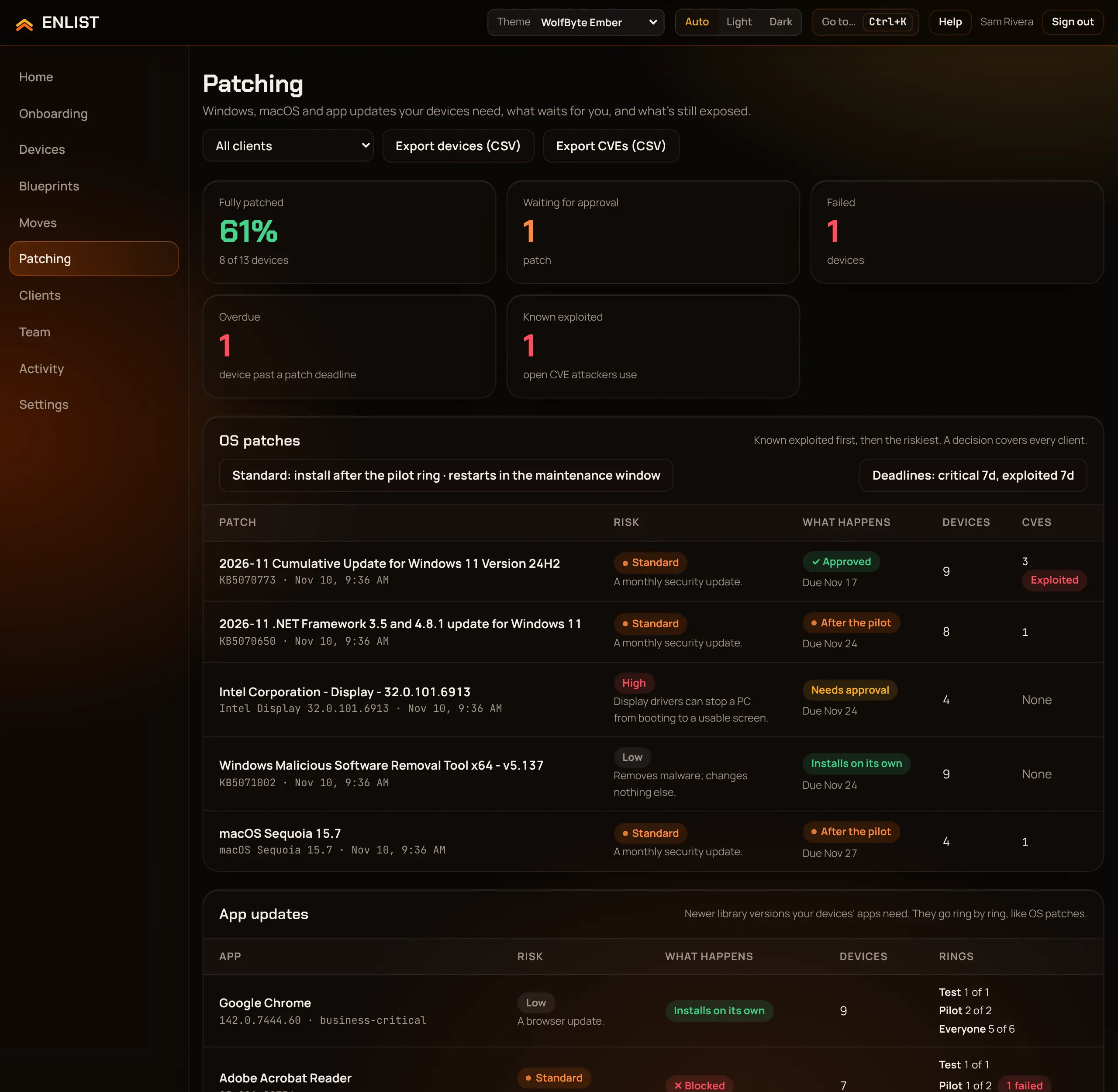
Enlist keeps Windows, macOS and your library apps up to date. Every patch gets a risk level, and your policy decides what installs on its own and what waits for a technician. Patches go out in rings, so a bad one stops on a few devices instead of all of them.
Risk and policy #
Each patch is Low, Standard or High risk. Enlist's default policy:
| Risk | Default |
|---|---|
| Low | Installs on its own, ring by ring |
| Standard | Installs on its own after the pilot ring passes |
| High | Always waits for a technician to approve. You can require a second person's approval too (off by default) |
You can change the policy for your MSP, and give any client its own policy on top.
Scans and optional updates #
Enlist checks each device for missing updates about once a day while it is online, and during onboarding. To check one now, open the device and pick Scan now under Updates.
Drivers, firmware, Windows feature updates and macOS upgrades are optional, as they are in Windows' own Optional updates list. Unless one fixes a known vulnerability, an optional update doesn't count as missing and has no deadline until someone approves it. It still shows in Patching as waiting for approval, marked Optional.
Approve or decline an update #
From a device: open Devices, pick the device, and scroll to Updates. Updates waiting for approval are listed first, each with Approve and Decline. Scan now asks the device to look for updates again.
For every device at once: open Patching. In the OS patches table, pick Review on an update for Approve, Decline, Block and Roll back.
To decide several at once, tick the box beside each update waiting for approval (or the box that selects them all), then pick Approve selected or Decline selected. Approve all approves every update waiting for you, after it tells you how many drivers and firmware updates that includes. One passkey check covers the batch.
Once an update is approved, a device's Updates list shows Install now on it. That sends it to this device at once instead of waiting for its maintenance window and ring. Tick several and pick Install selected now, or pick Install all now for every approved update the device needs; both ask first and name the drivers and firmware included. Restarts still follow the patch policy: in the window, or by the restart deadline. Each update shows where it stands on the device: sent, installed and waiting for a restart, failed (with Try again now), and so on. An approved optional update (a driver or firmware update) gets its deadline from the day it was approved, not from its release, so approving an old driver doesn't make the device overdue at once.
Either way, a decision covers that update for every client, and needs a passkey check. An approved update installs in each device's maintenance window, ring by ring.
Rings #
- Test
- Devices you put in the test ring to get patches first, such as your own office's.
- Pilot
- 10% of devices by default.
- Everyone
- All the rest.
By default, a patch stays 1 day in test and 7 days in pilot before it moves on. Each device's ring comes from its id unless you set one, and a group rule can pick devices by their ring.
To set a device's ring, open it under Devices and pick Patch ring in Apps from your library, or open Patching → Patch rings. That list counts the devices in each ring for the client picked at the top, and has a picker beside each device. Automatic lets the device's id pick again. A change takes effect at once and is in Activity. It needs the right to operate the device. From your own tools: GET /patching/rings and PUT /devices/{deviceId}/patch-ring (scope devices:organize).
Maintenance window and restarts #
By default, patches install and computers restart every day between 22:00 and 05:00 UTC. The person at the computer can put a restart off 3 times, and the patch must be in within 7 days. Change these in the patch policy.
Deadlines #
Patch deadlines sets how many days a patch may stay missing, by severity. Defaults:
| Severity | Days |
|---|---|
| Known exploited (any severity) | 7 |
| Critical | 7 |
| Important | 15 |
| Moderate or not rated | 30 |
| Low | 60 |
Each can be 1 to 365 days. Pick Save deadlines. A device past a deadline counts as Overdue in Patching and in the reports.
Known exploited vulnerabilities #
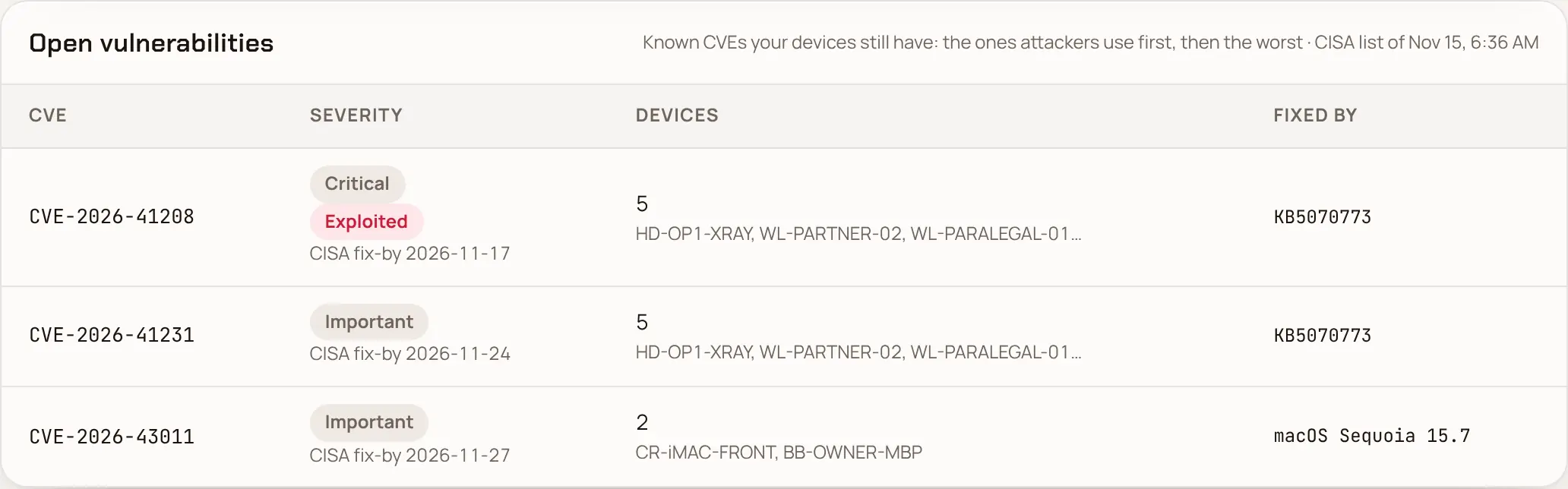
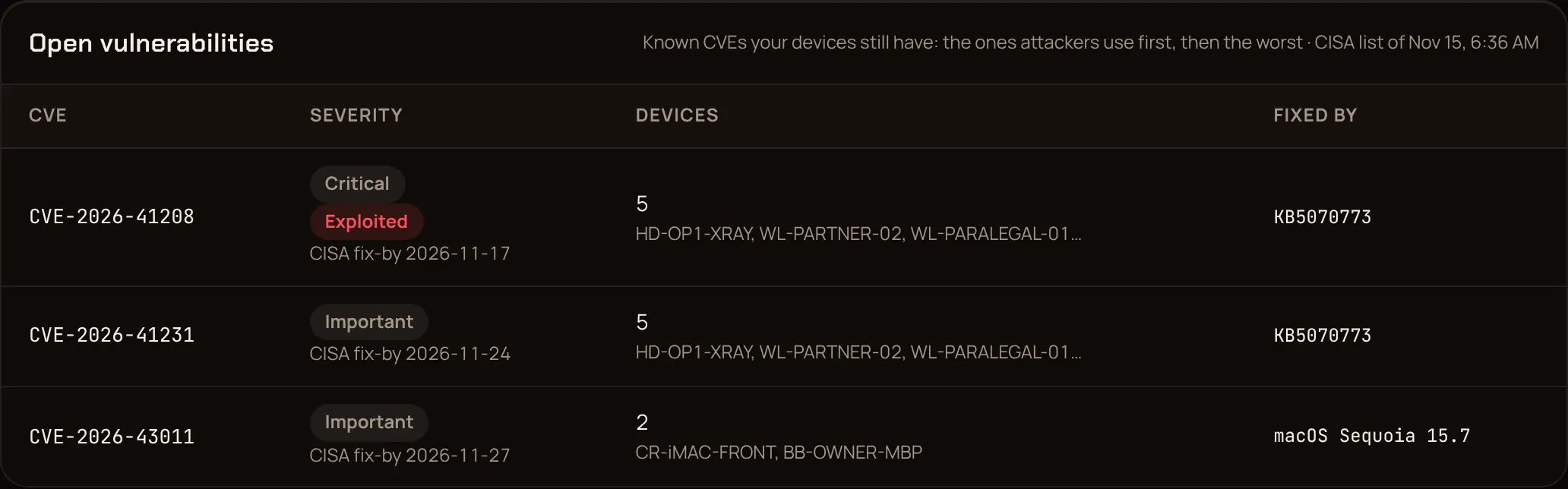
Enlist copies CISA's Known Exploited Vulnerabilities list every day. Patches that fix a flaw attackers are using now show Exploited, or Exploited · ransomware when it's known to be used in ransomware, and sort to the top of OS patches.
Decide on a patch #
In Patching → OS patches or App updates, open a patch. Its status is one of: Installs on its own, After the pilot, Needs approval, Needs a second approval, Approved, Declined or Blocked. Add a note and pick:
- Approve
- Let it install, ring by ring.
- Decline
- Don't install it.
- Block
- Never install it until someone unblocks it.
- Roll back everywhere
- Remove it from every device that got it.
- Reset to the policy
- Forget the decision and follow the policy again.
- Mark business-critical
- For apps: always ask before updating it, for example line-of-business or accounting software.
Each decision needs your passkey. A decision covers every client.
Automatic halts #
If more than 5% of a ring's devices that reported back fail a patch (and, past the test ring, at least 2 devices), Enlist stops it: the patch is blocked, installs not yet sent are called back, and your notification channels hear about it (patching.os_patch_halted, patching.app_patch_halted). Look at the failures, then decide what to do.
Rollback #
- Windows updates are removed with DISM.
- Apps go back to the version before, from the installer Enlist kept.
- macOS updates can't be rolled back. Apple doesn't allow it.
A rollback on one device or one client keeps the patch off there as an exception (below), with your note as its reason, for 30 days unless you pick another end date. A rollback for everyone blocks the patch until someone resets it.
Version pins #
A pin keeps an app at one version on purpose, for example a line-of-business app that only works with last year's release. App updates leave pinned devices alone, and a device that moves off the version is put back. A pin for 2025 also covers 2025.3. Your library must have a version that matches, so a pinned device always has an installer to go back to.
- One device: on the device's page, in Apps from your library, pick Pin to this version under the app. It keeps the version the device has; you can type another. Remove pin appears there once it's pinned.
- One client, or every client: in Patching → Version pins, pick Add pin, then the app, the version and where it applies. A pin for a client or for every client needs your passkey, because it decides what installs on many devices. Pinning for every client takes the right to manage the package library.
Version pins lists every pin for the client picked at the top (and the pins for every client), with the version, where it applies, why and when it was made, and Remove beside each. Adding and removing a pin are in Activity. From your own tools: GET /patching/pins, POST /patching/pins and DELETE /patching/pins/{pinId}.
Exceptions #
An exception keeps one patch or app update off one client, or one device, for a while, for example because it breaks a line-of-business app until the vendor ships a fix. Every exception has a reason, an owner and an end date, so nothing stays unpatched for good because someone forgot about it.
- In Patching, open the patch or app update and pick Add exception.
- Pick the client, and Every device of the client or One device. For an app, tick Every update of this app to keep newer versions off too.
- Type the reason, pick the day it ends (up to a year away) and the owner, the person who answers for it. Pick Add exception and confirm with your passkey.
A week before the end (a day before, for an exception shorter than two weeks) your notification channels get patching.exception_ending (the channels for the whole MSP and those for the exception's client). Move the end to a date that is already that close and the warning goes at once. On the end date the exception lifts itself, the patch installs there under your policy, and the channels get patching.exception_ended. To keep it off longer, open it under Patching → Exceptions, change Ends on and pick Save. End it now lets the patch install again straight away. Adding, changing, warning about and ending an exception are all in Activity.
Exceptions lists every patch kept off somewhere on purpose: exceptions, soonest end first, then patches declined or blocked for every client and app versions pinned, which have no end date. Export exceptions (CSV) downloads the same list for an auditor or an insurer (GET /patching/exceptions.csv).
Last updated 2026-11-18. Something wrong or missing? Email [email protected].