Devices and agents
Admin passwords and recovery keys
How Enlist keeps each device's admin password and BitLocker or FileVault recovery key, and how to see one when you need it.
When a blueprint makes an admin account or turns on disk encryption, the device makes the password or recovery key itself and sends it to Enlist sealed. Enlist keeps it so you can get back into the computer. A device can't be Ready until they're stored.
What's kept #
- Admin password for the account the blueprint made.
- BitLocker recovery key (Windows), for every drive BitLocker encrypts.
- FileVault recovery key (Mac).
BitLocker keys on every Windows device #
Enlist records the BitLocker recovery key of every fixed drive on every Windows device it manages, not just the ones a blueprint encrypted:
- Drives encrypted before Enlist was installed, or by Windows, Intune or a technician, are recorded once the device has finished onboarding.
- When a recovery key changes outside Enlist, the new one is recorded and the old one is kept as Replaced, in case an old backup of that drive needs it.
- An encrypted drive with no recovery key at all gets one, and it's recorded. Nothing else changes: Enlist never turns BitLocker on or off for this.
The device's Secrets panel lists each drive and whether its key is recorded. A drive the agent hasn't reported yet shows Not reported until the device has the latest agent.
Find a key from the recovery screen #
A computer stuck at the BitLocker recovery screen shows a Recovery key ID. To find whose it is:
Go to Devices and pick Find a recovery key.
Type the first 8 characters of the key ID (or more), then pick Find.
Pick Open device next to the match, then show the key from Secrets as below.
The search only lists devices whose secrets you're allowed to see, and it never shows the key itself.
See one #
Open the device and go to Secrets ("Admin passwords and recovery keys this device escrowed").
Pick Show next to the one you need.
Say why you need it (for example the ticket number), and confirm with your passkey.
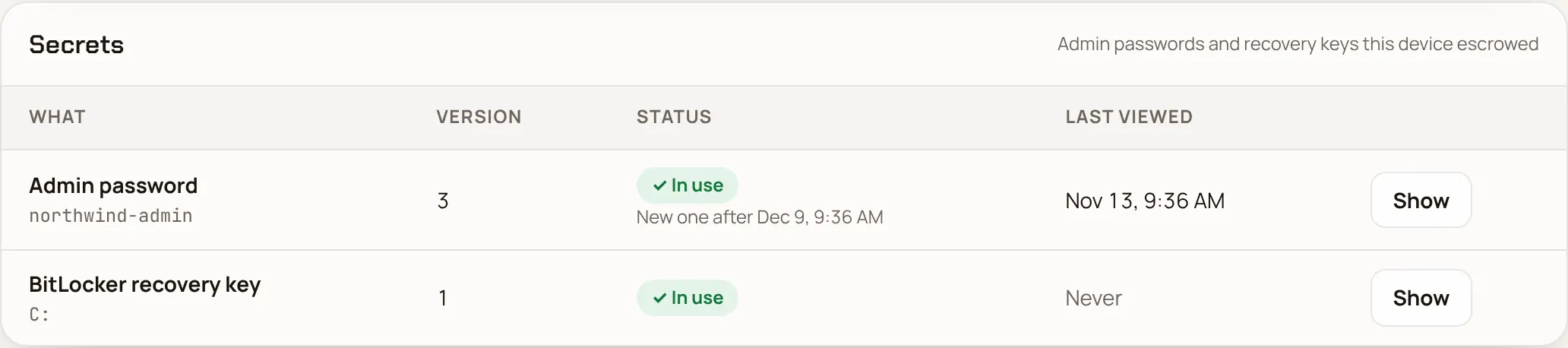
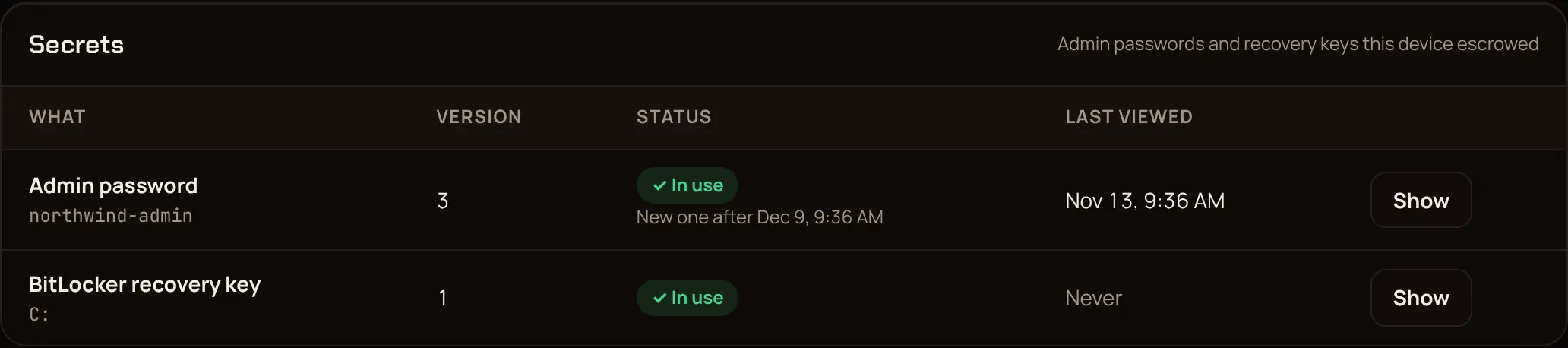
It shows for 60 seconds. Each view is in the activity log with your reason. After an admin password or a BitLocker recovery key is viewed, the device gets a new one 8 hours later (the panel says when), so one someone saw doesn't stay valid. The viewed BitLocker key stops working once the new one is recorded, so use it within those 8 hours. Passwords also change on a schedule.
Owners, admins and technicians can view secrets. Read-only people can't, and API keys never can. If someone views many secrets in a short time, your notification channels hear about it (security.bulk_secret_views).
Last updated 2026-11-16. Something wrong or missing? Email [email protected].