Integrations
Send email from your own domain
On Pro +, send your alerts, reports and team emails through your own mail server, from your own address.
Enlist emails your team and your clients: alerts, patch reports, invites and sign-in emails. They come from [email protected] as "your name via Enlist". On Pro +, they can come from your own address instead, sent through your own mail server. Owners and admins set this up.
Add your mail server #
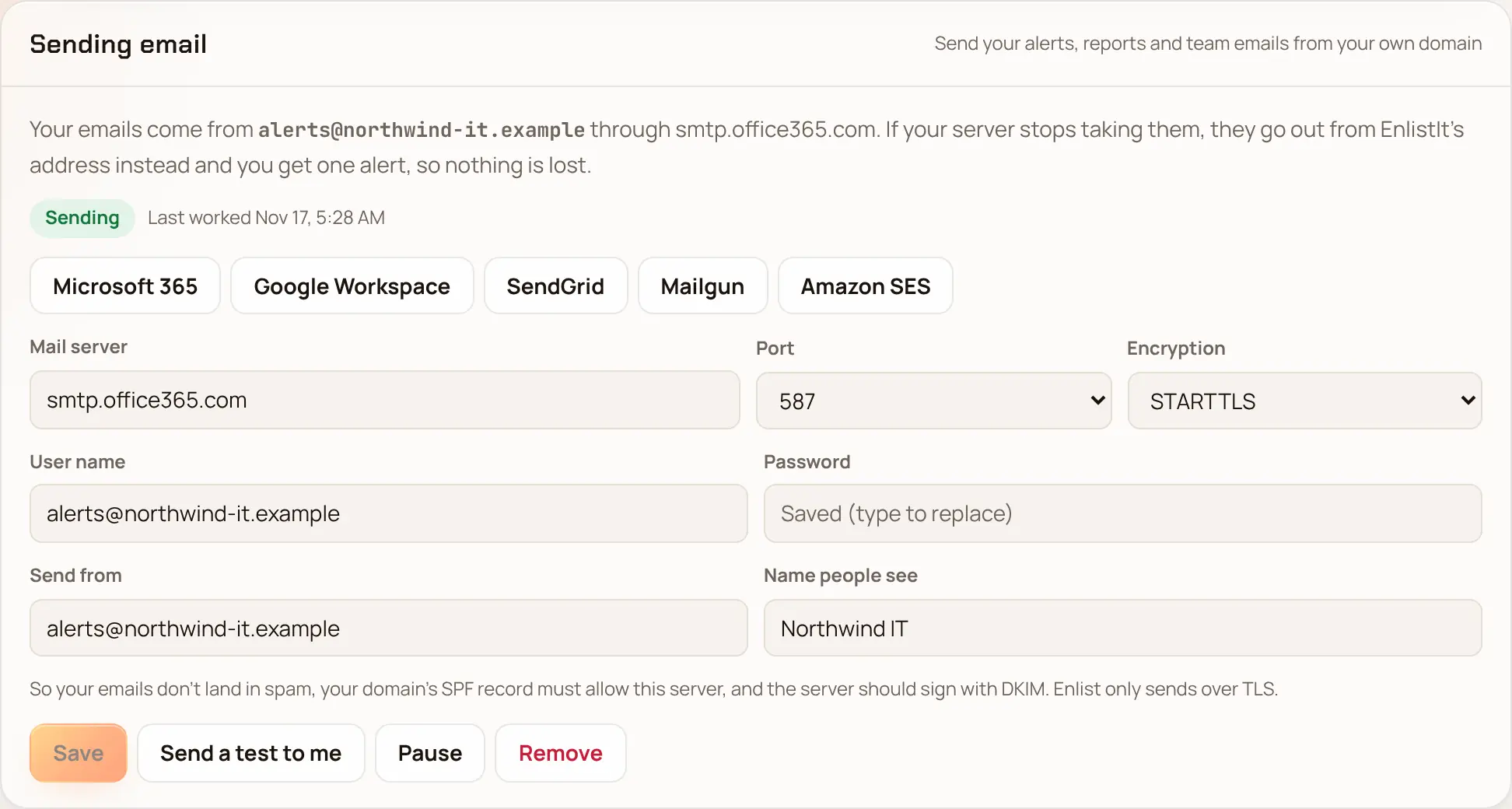
In Settings → Sending email, pick your mail service (Microsoft 365, Google Workspace, SendGrid, Mailgun or Amazon SES) to fill in the server, port and encryption, or type your own.
Enter the User name and Password the server signs in with.
Enter Send from, the address your emails come from, and the Name people see. Leave the name empty to use your branding name.
Pick Save and use my server and confirm with your passkey. Enlist signs in to the server first, so a wrong password or port shows right away and nothing is saved.
Pick Send a test to me. The test goes to your own email address. Check that mailbox, and its spam folder.
Keep it out of spam #
- Your domain's SPF record must allow the server, for example
include:spf.protection.outlook.comfor Microsoft 365. - The server should sign with DKIM for your domain. Microsoft 365, Google Workspace and the sending services do once DKIM is turned on for the domain.
- Enlist only sends over TLS: STARTTLS on 587, 25 or 2525, or TLS from the start on 465.
Notes for each service #
- Microsoft 365
- Turn on Authenticated SMTP for the mailbox (Microsoft 365 admin center → Users → the user → Mail → Manage email apps). Microsoft is retiring basic SMTP sign-in for Exchange Online, so a sending service is the lasting choice.
- Google Workspace
- Use an app password for the account (Google Account → Security → App passwords). It needs 2-Step Verification.
- SendGrid
- User name
apikey, and an API key with Mail Send access as the password. - Mailgun
- The SMTP user and password of your sending domain.
- Amazon SES
- SES SMTP credentials, not your AWS keys. Change the region in the server name if yours isn't us-east-1.
If your server stops sending #
Nothing is lost. If your server refuses an email or can't be reached, that email goes out from [email protected] instead, the error shows under Sending email as Failing, and you get one alert (mail.relay_failed) through your notification channels. You get it once per outage; it resets the next time a send through your server works.
Change, pause or remove it #
- Change any field and pick Save. The password is kept for the same server and user name; a new server or user name needs the password typed again.
- Pause sends from EnlistIt's address until you pick Turn on.
- Remove deletes the server and its password.
- If you leave Pro +, emails come from EnlistIt's address again. Your settings are kept in case you come back.
Every save, test and removal is in the audit log. Emails from EnlistIt itself, such as sign-up, billing and plan notices, always come from EnlistIt.
Last updated 2026-11-17. Something wrong or missing? Email [email protected].