Start here
Clients and sites
Add the businesses you look after and their offices, and see what each client holds.
A client is a business you look after. A site is one of its offices or locations. Every device belongs to a client, and can belong to one of its sites.
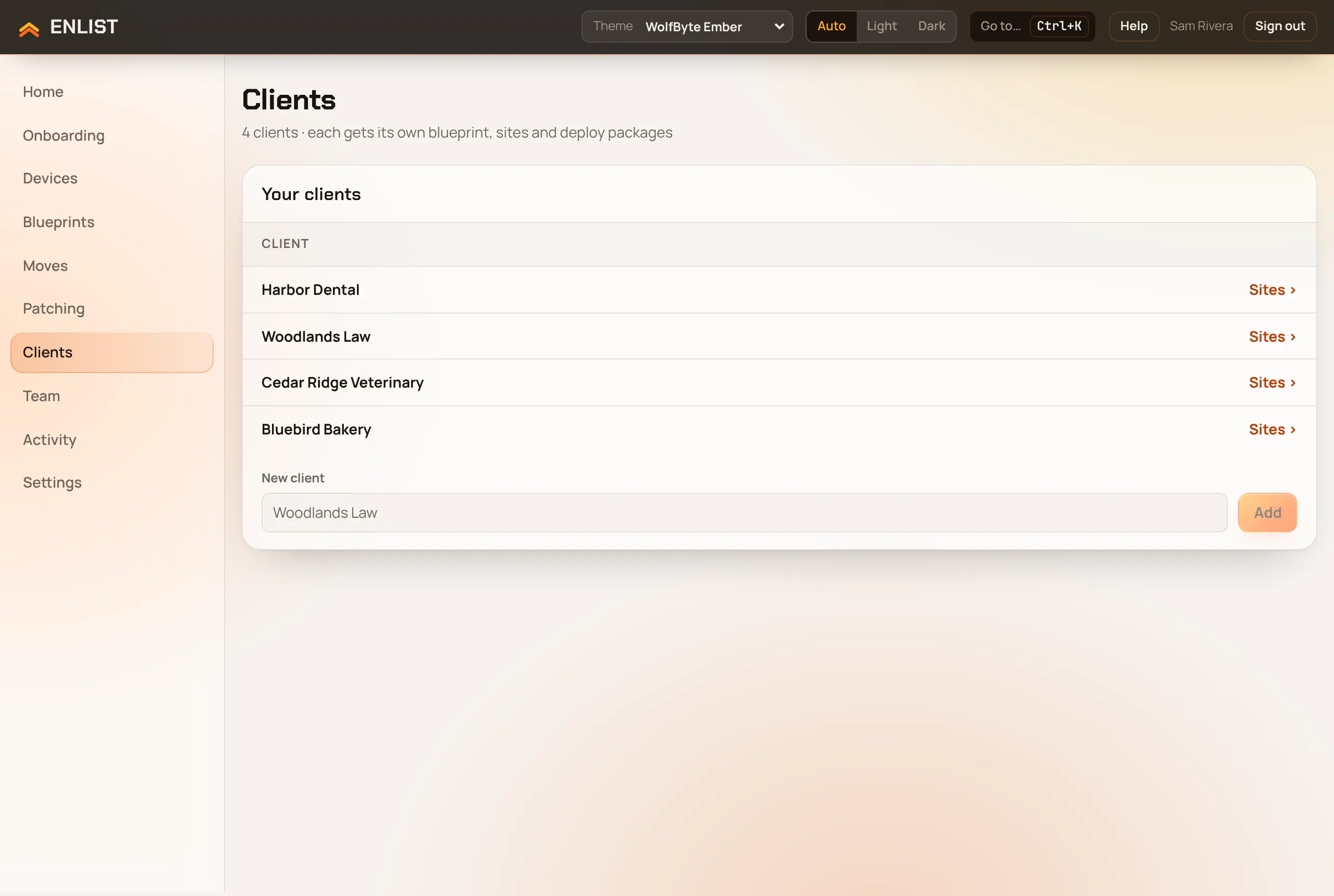
Add a client #
Open Clients.
Pick Add client at the top right, type the name in Client name, such as
Woodlands Law, and pick Add.
Add sites #
Pick a client to open its Sites panel ("Offices or locations. Technicians can be limited to one site."). Type a name in New site and add it.
What a client holds #
- Its own blueprints. A client blueprint, and site blueprints on top of it, decide what that client's new devices get. See Blueprints.
- Domain join. The client's Entra join package or Active Directory join account. See Domain and Entra join.
- AD connectors. For offline Active Directory joins through a server on the client's network.
- Its own patch policy, if it needs one different from your MSP's. See Patching.
- Install commands and USB packages made for it in Devices → Add devices.
Technicians given a role for one client see only that client.
Share a status page with a client (Pro +) #
On Pro + you can give people at a client a link to a page that shows their devices, with no sign-in: whether each one is online, its setup progress and ready report, its BitLocker or FileVault and antivirus, and who uses it. The page is in your branding, at your own address, and says nothing about Enlist.
Open Clients, pick the client, then the Client settings tab.
In the Status page panel, type who the link is for in Who it's for, such as
Office manager, choose when it ends in Link ends (after 30 days, 90 days or a year: every link ends within a year), and pick Make a link. Confirm with your passkey.Pick Copy link and send it to them. Enlist shows the link only this once.
Each link shows when it was made, when it ends, and how often it was opened. Revoke turns one off at once. A client can have up to 20 working links. If you move to another plan or your plan ends, every link is turned off at once. Coming back to Pro + doesn't turn them on again, so make new ones.
Let people install apps themselves (Pro +) #
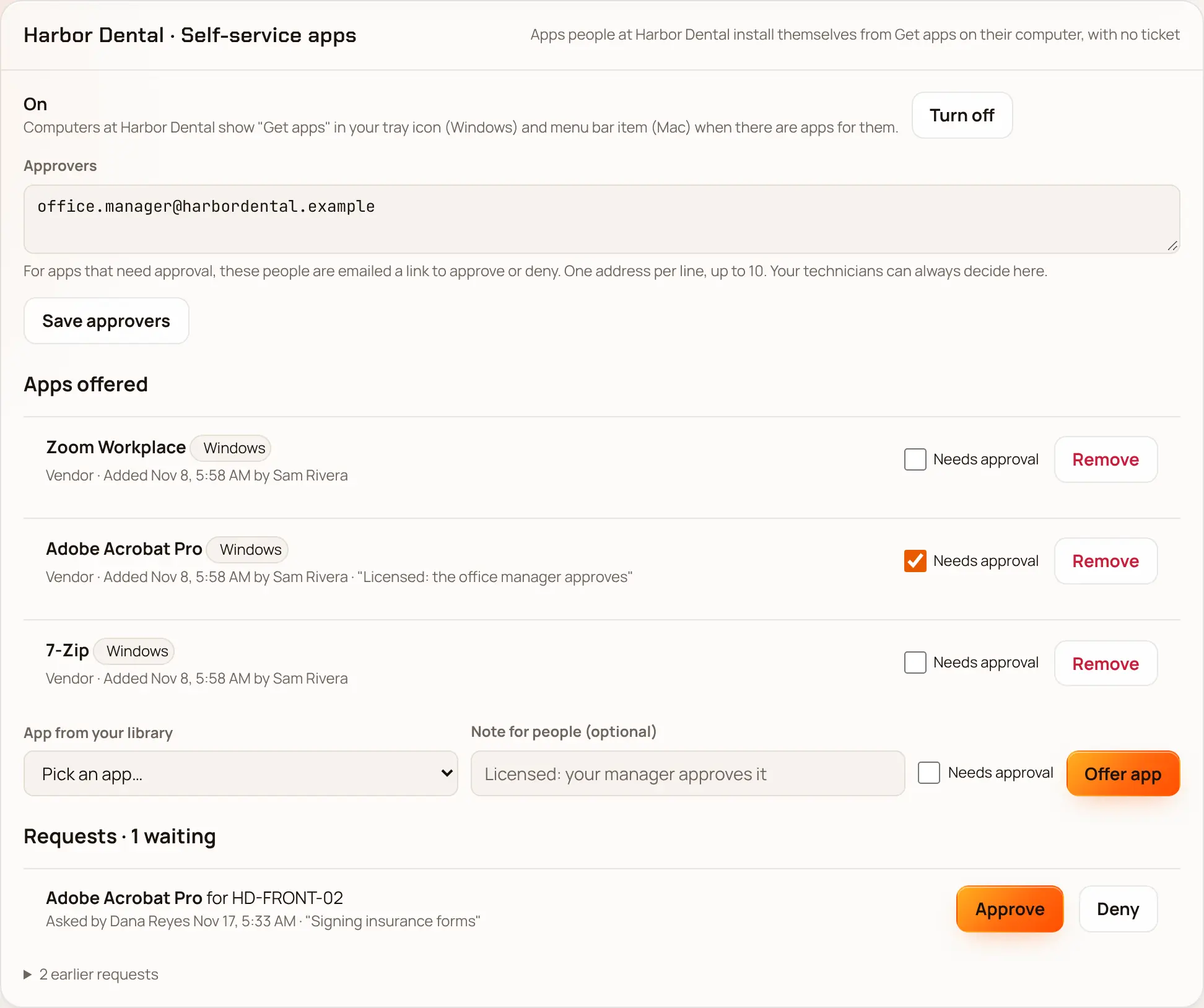
On Pro + the people at a client can install apps you picked for them, with no ticket. Their computers show Get apps… in your tray icon (Windows, by the clock) or menu bar item (Mac). It opens a page in your branding that lists the apps for that computer, each with an Install button. Apps you mark Needs approval, such as paid or licensed ones, ask for the person's name and a reason and wait until someone approves them.
Open Clients, pick the client, then the Client settings tab.
In the Self-service apps panel, pick Turn on.
Under App from your library, pick an app, tick Needs approval if someone should approve it first, add a note people see if you like (such as
Licensed: your manager approves it), and pick Offer app. Repeat for each app. A Windows app shows on Windows PCs and a Mac app on Macs.Optional: in Approvers, type the email address of each person at the client who approves requests, one per line (up to 10), and pick Save approvers. Each gets an email with their own link to approve or deny.
Computers show Get apps… within the hour. Every install and request is listed under Requests with who asked, why, and how it went. Waiting requests have Approve and Deny buttons for your technicians; the first decision counts, and a request nobody decides within 7 days ends. Installs run as ordinary installs from your library, and every step is in the Activity log. If you leave Pro +, Get apps… goes away; your apps and history are kept for when you come back.
On Pro + your emails also drop the "with Enlist" line and come from your name alone, and your sign-in page no longer says "Powered by Enlist".
With an API key that has clients:write, your PSA can add clients and sites for you (API reference).
Last updated 2026-11-19. Something wrong or missing? Email [email protected].