Onboarding
Blueprints
What a new computer gets, how templates, client and site blueprints build on each other, and how editing and publishing work.
A blueprint is the list of steps a new computer gets: its name, an admin account, disk encryption, a domain or Entra join, apps, scripts and settings, and the checks it must pass before it counts as ready. Devices run a published version of it. A published version never changes.
Templates, clients and sites #
Blueprints come at three levels:
- Template
- Not tied to a client. Use it as a base for many clients, such as "Our standard Windows laptop".
- Client
- What that client's devices get.
- Site
- What devices at one of the client's sites get.
A blueprint can be based on another. It inherits the base's published version, and its own steps add to it or replace steps that have the same key. A device onboards with its site's blueprint if there is one, otherwise its client's.
On a step you inherit, you can pick Replace here to use your own version, Leave out to skip it, or Keep it. A base can Lock a step so blueprints based on it can't change or remove it, for example a security baseline.
Make a blueprint #
In Blueprints, pick New blueprint.
In Start from, pick a ready-made starter (below) or start empty.
Choose the level (template, client or site), type a Name, and optionally pick Based on. Starters that use Microsoft 365 or Google Workspace ask for the client's Entra tenant ID or Workspace domains.
Pick Create draft.
Add, change and order steps (see Blueprint steps). Pick Save draft as you go. Devices see nothing until you publish.
Pick Publish with my passkey.
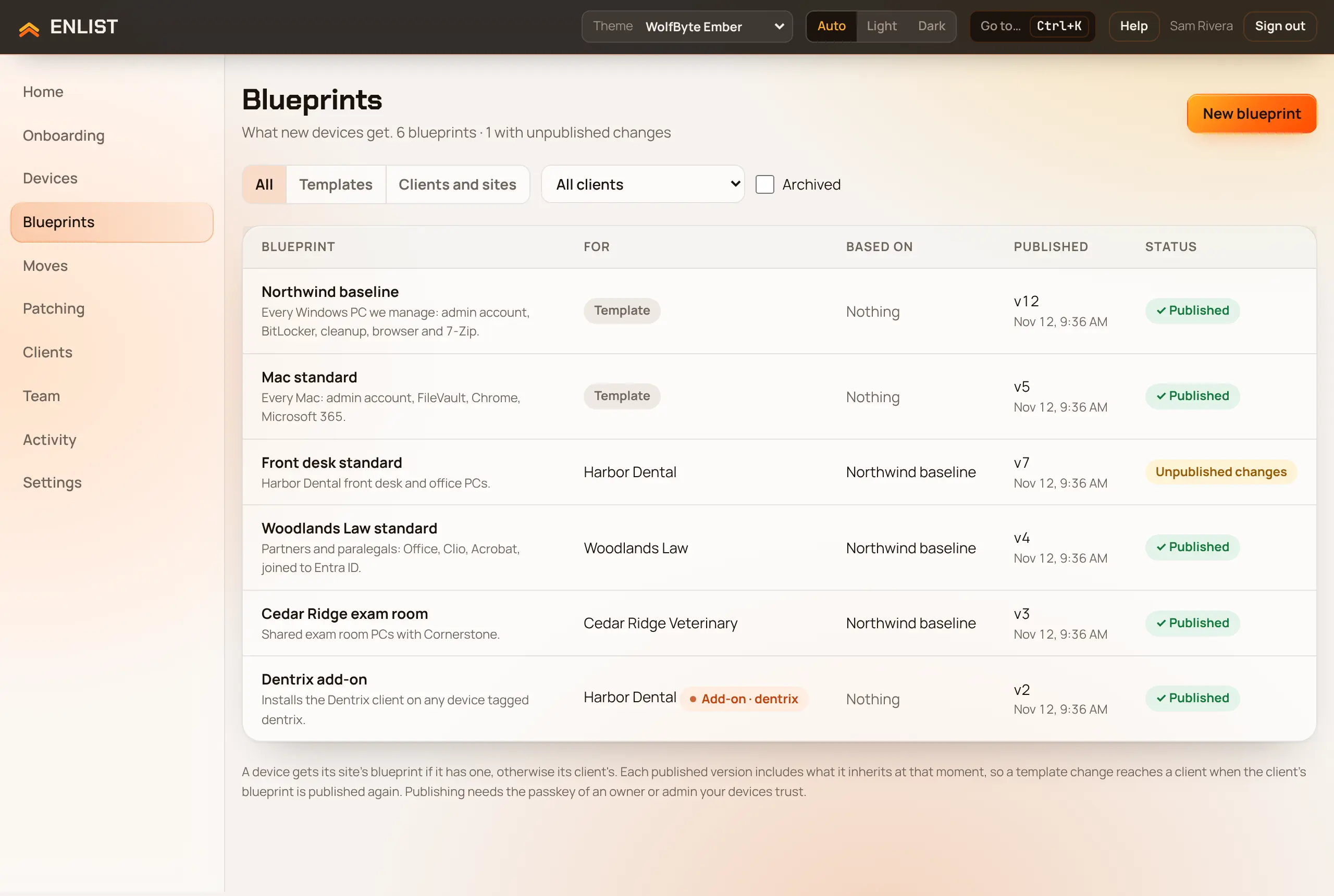
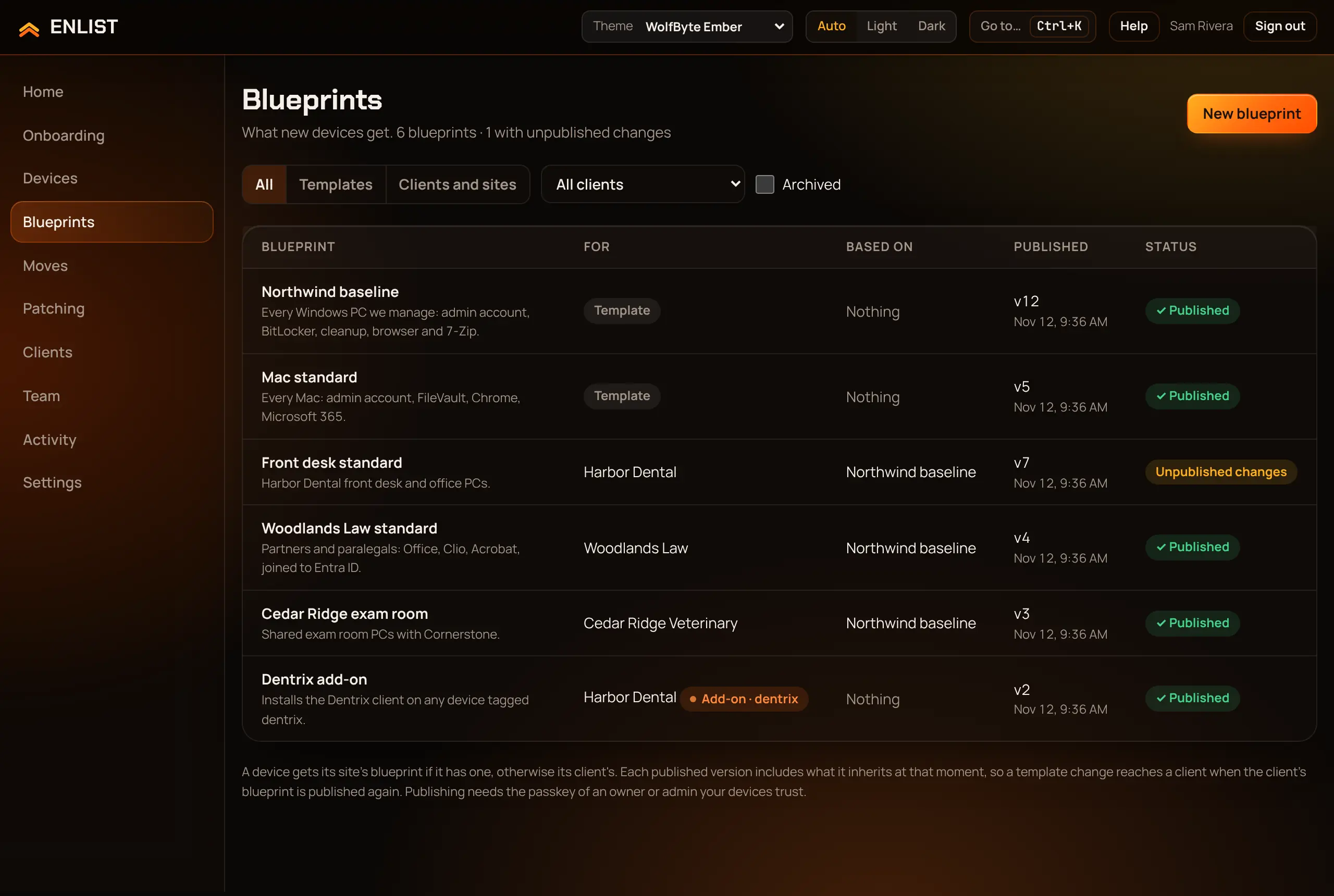
Ready-made starters #
- Microsoft 365 business (Windows)
- Google Workspace (Windows)
- Accounting office (Windows)
- Engineering and CAD (Windows)
- Developer workstation (Windows)
- Shared or front-desk PC (Windows)
- Security baseline only (Windows)
- Mac business baseline (macOS)
- Mac build machine, safe (macOS): only a hidden admin account and two checks, for a Mac that builds, signs or runs CI
A starter fills in a draft. Change anything before you publish.
Editing safely #
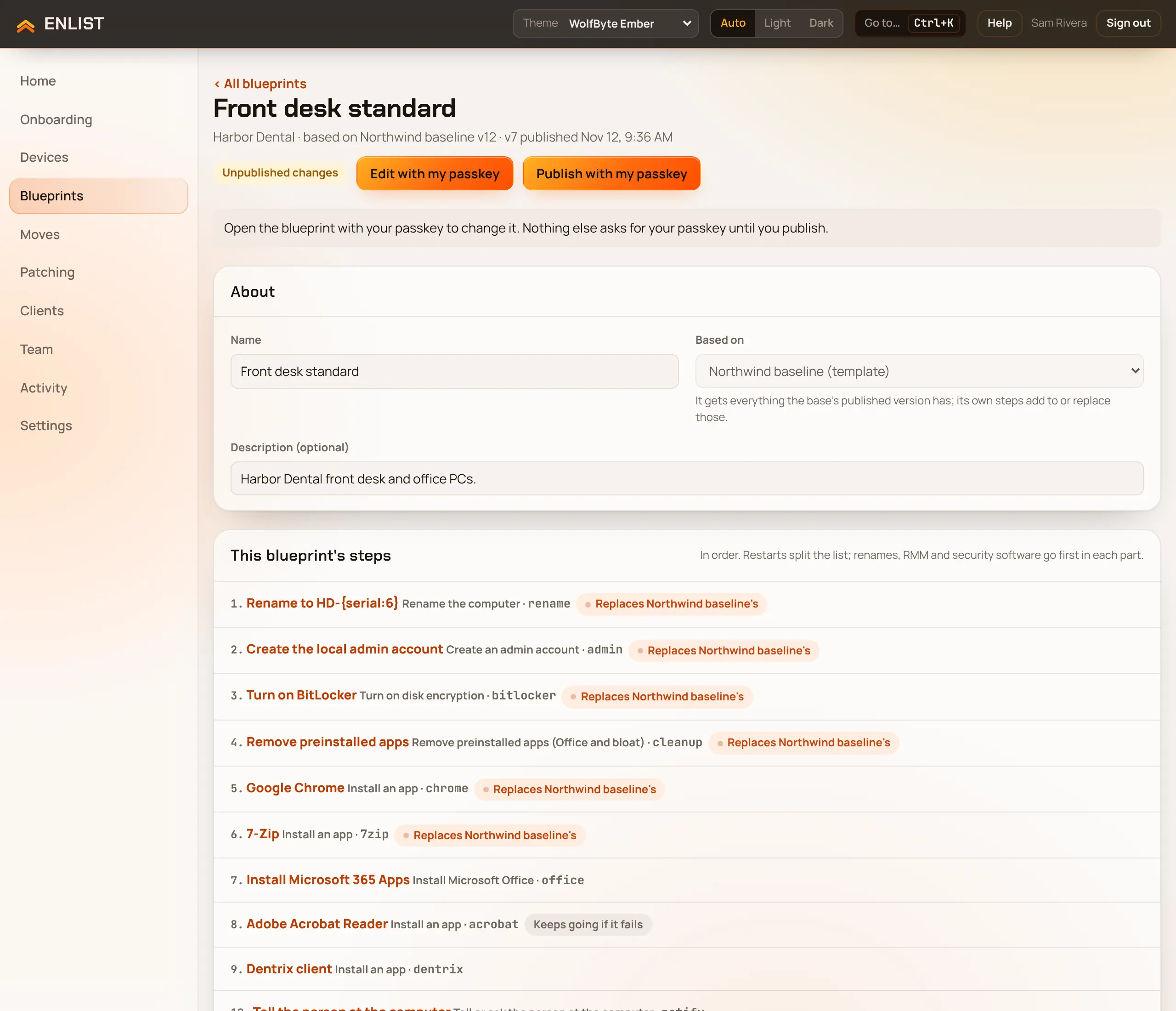
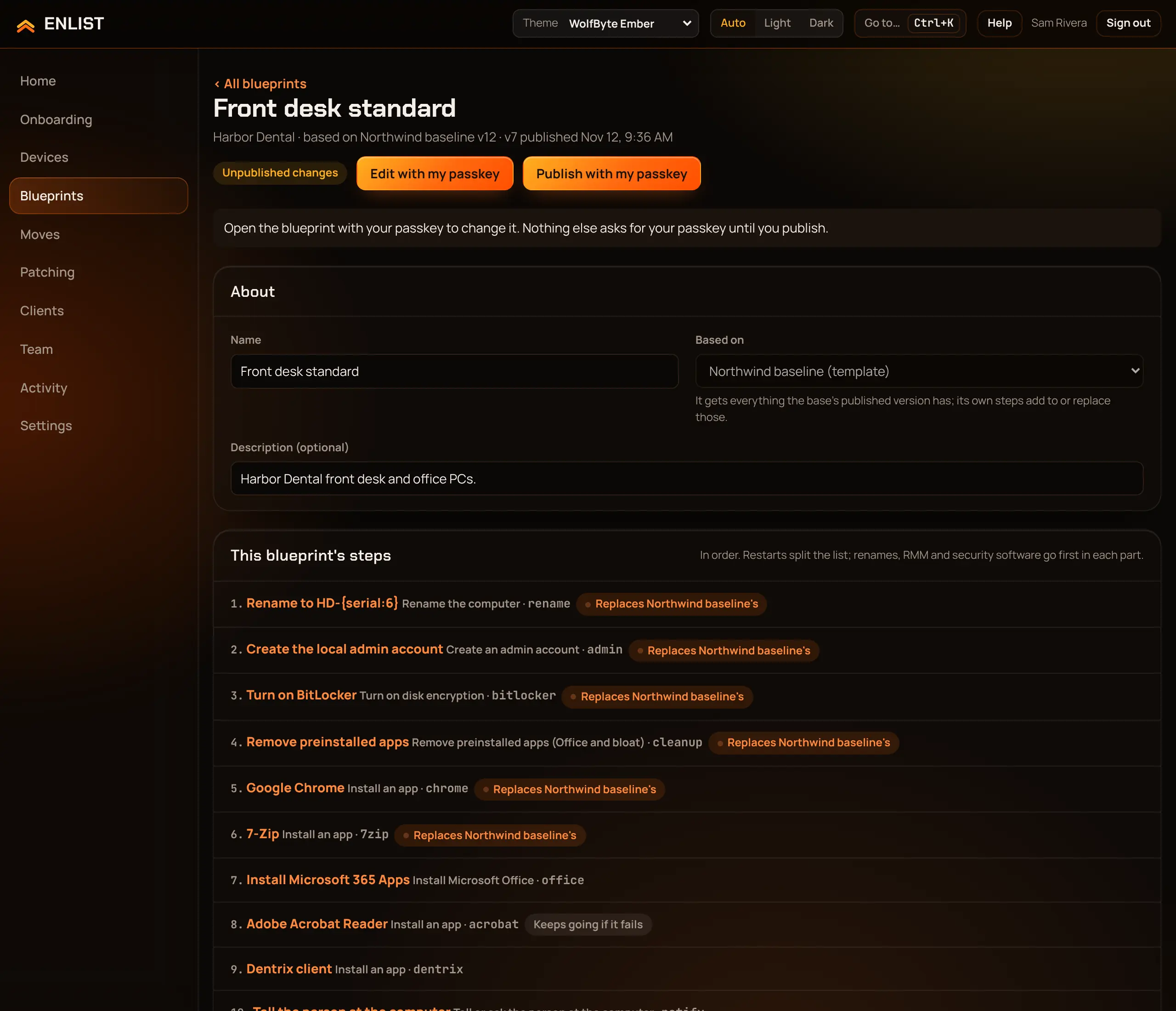
To change a blueprint, pick Edit with my passkey. That opens an edit session: saving, adding apps and uploading installers then need no more passkey checks. The session ends when you publish, close the editor, archive the blueprint or sign out, after 30 minutes with no save, or 8 hours after it opened.
Publishing and approvals #
Publishing signs the version with your passkey. Devices check that signature, so only a passkey your devices trust can publish work they will run, and nobody can change a version on its way to a device. If your MSP needs more than one approval, the version waits in Versions until enough people pick Review and approve. That shows every step and check, and its digest, before Approve with my passkey.
Versions and archiving #
The Versions panel lists what devices run, newest first. To retire a blueprint, use Archive blueprint at the bottom of the editor. Tick Archived in the list to see archived ones.
Compare and restore versions #
Pick Compare on any published version, or Compare versions at the top of the panel, to see what changed. Choose any two versions, or a version and the saved draft. Each step and check that differs is listed as added, removed, changed or moved, with the old and new value of each field. Scripts and settings show line by line, and apps show their name and version. Inherited steps count too, so a change in the base blueprint shows up here.
If a publish went wrong, pick Restore… on the version that worked. You see what would change for devices, from the version they run now to the one you picked. Then pick Restore and publish with my passkey, or Restore as a draft only to check it first. Restoring opens the blueprint for editing if it isn't open yet, and it replaces the draft, including unsaved changes on the page. It also puts back the base the version was built on, unless that base has been archived since. The restored steps build on the latest published version of that base, so if the base changed after your version was published, those inherited changes stay, and the preview shows them. What you see is exactly what Restore and publish sends to devices.
Devices keep running the current version until the restored draft is published. Publishing it makes a new version with the next number, approved like any other publish, so the history keeps every version. A version can't be restored if one of its apps was archived from the library since. The draft then stays as it was, and you can add a current version of that app to it instead. Each restore is in the activity log as blueprint.version_restored, with the version it came from.
Copy apps from a device #
On a device's page, Copy apps to a blueprint matches its installed software to the software library, so you can build a blueprint from a computer a client already likes.
Last updated 2026-11-15. Something wrong or missing? Email [email protected].