Integrations
Client reports and ready emails
Pro +: email each client a branded monthly or quarterly IT report, and tell people when their new computer is ready.
Two emails that go to your clients, not your team, in your own branding (name, logo, color and support address from Settings → Branding). Both are part of Pro +. The people who get them never sign in to Enlist.
Client IT reports #
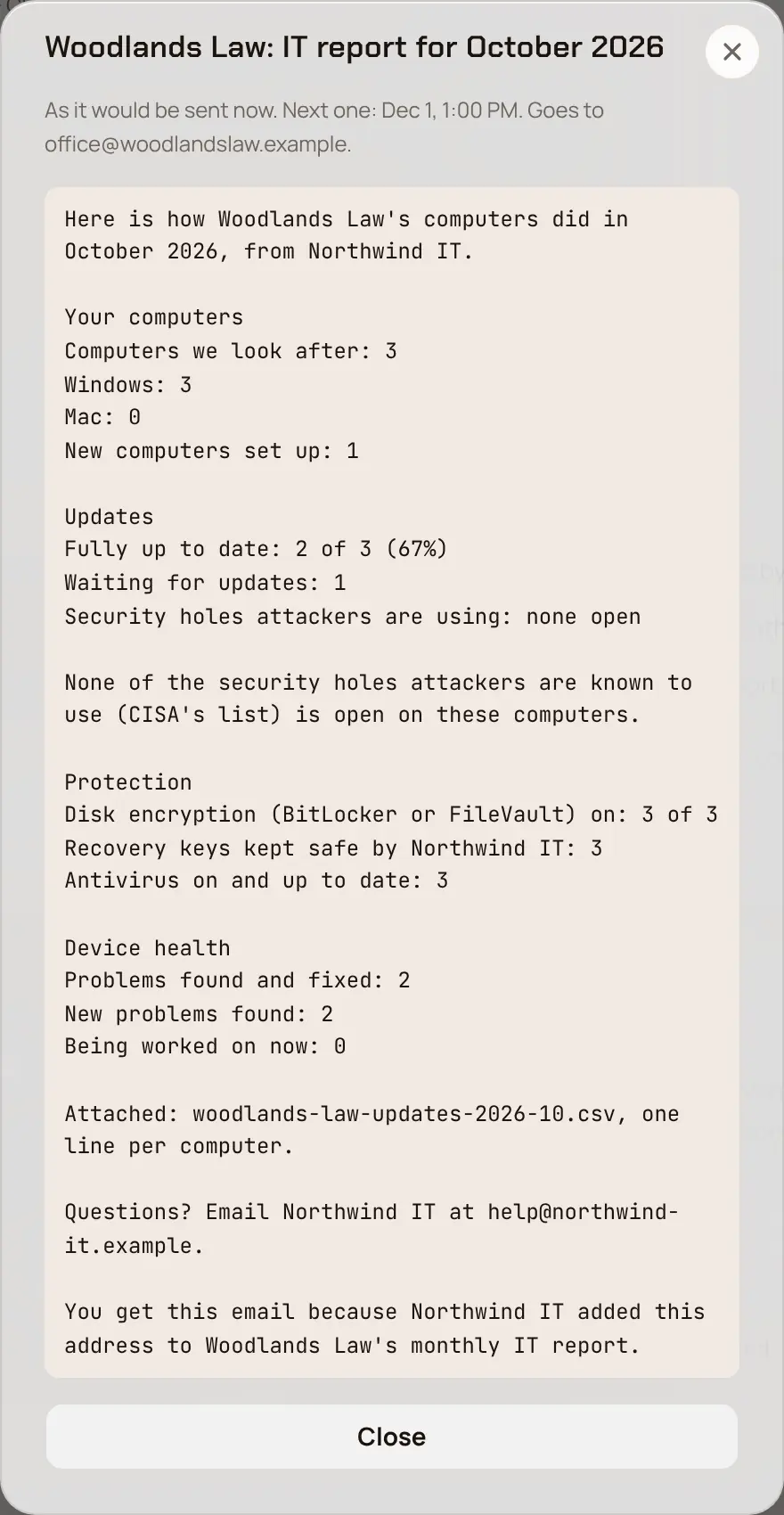
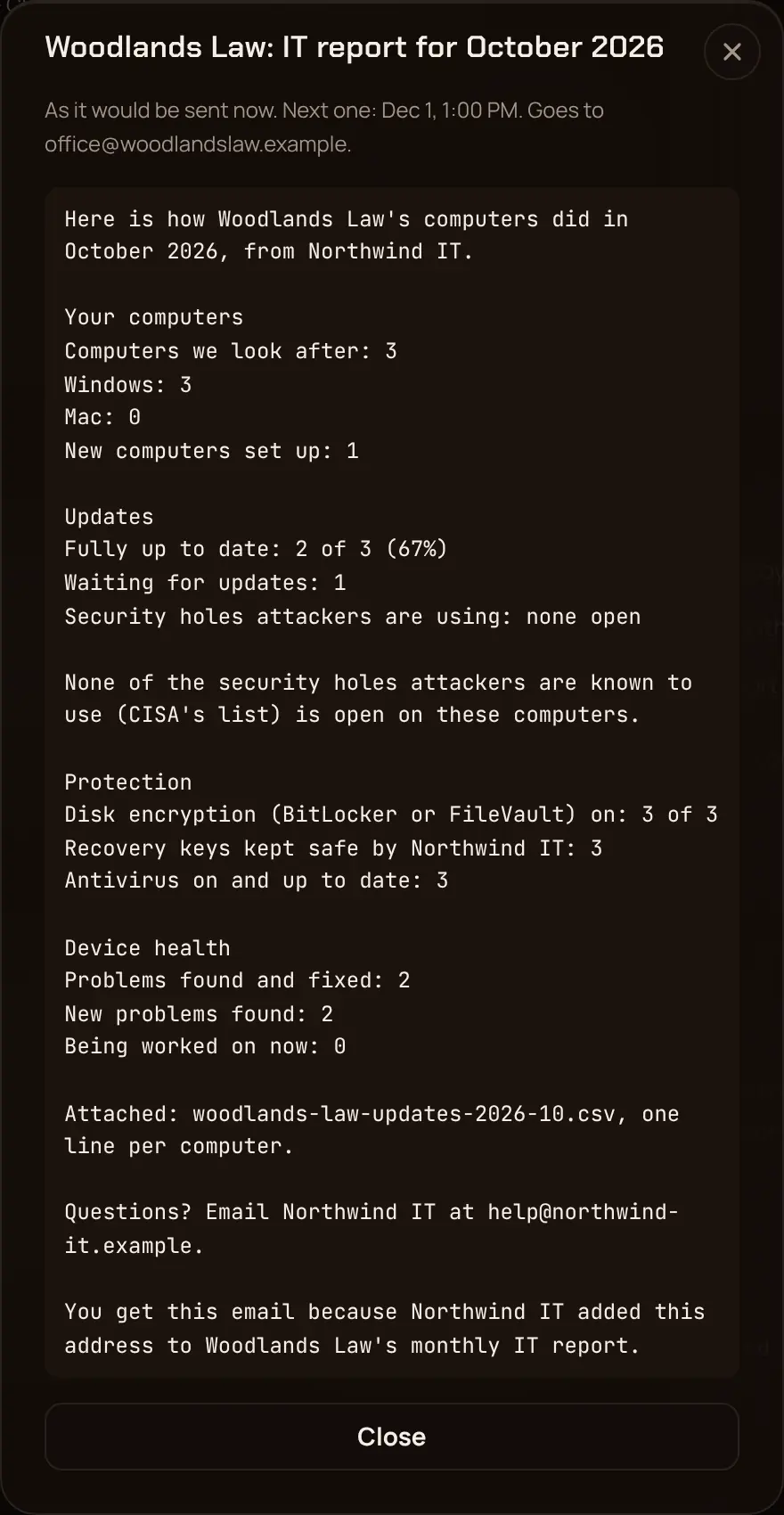
A plain-language summary for someone at the client who isn't technical, such as the office manager or the owner. Each report covers one client only:
- How many computers you look after (Windows and Mac) and how many new ones were set up.
- Updates: how many computers are fully up to date, waiting, failed or past a deadline.
- Security holes on CISA's list of ones attackers are known to use (KEV) that are still open.
- BitLocker and FileVault: computers encrypted, and recovery keys you keep.
- Antivirus on and up to date.
- Device health: problems found, fixed and being worked on now.
The per-computer update list is attached as a CSV file.
Send a client their report #
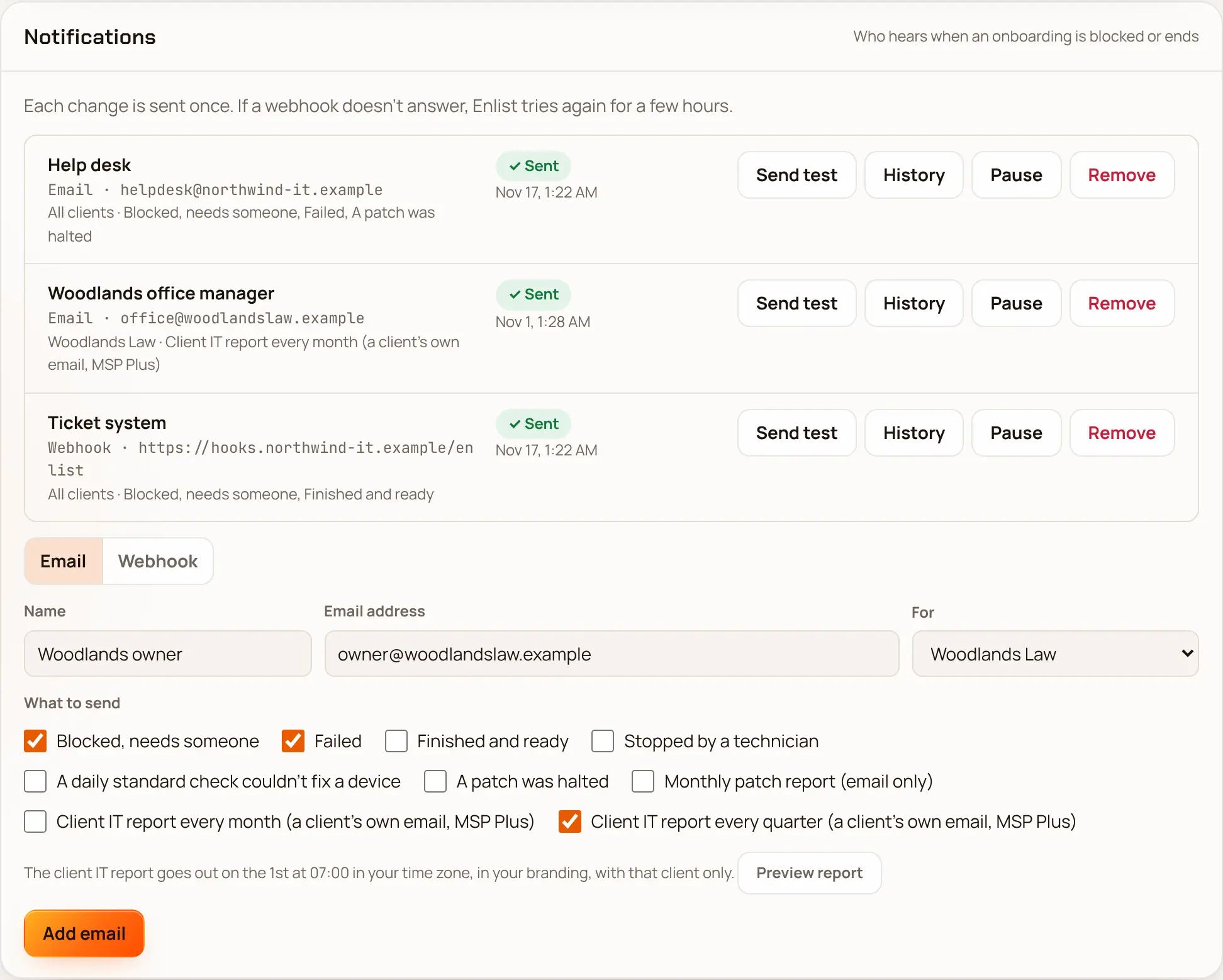
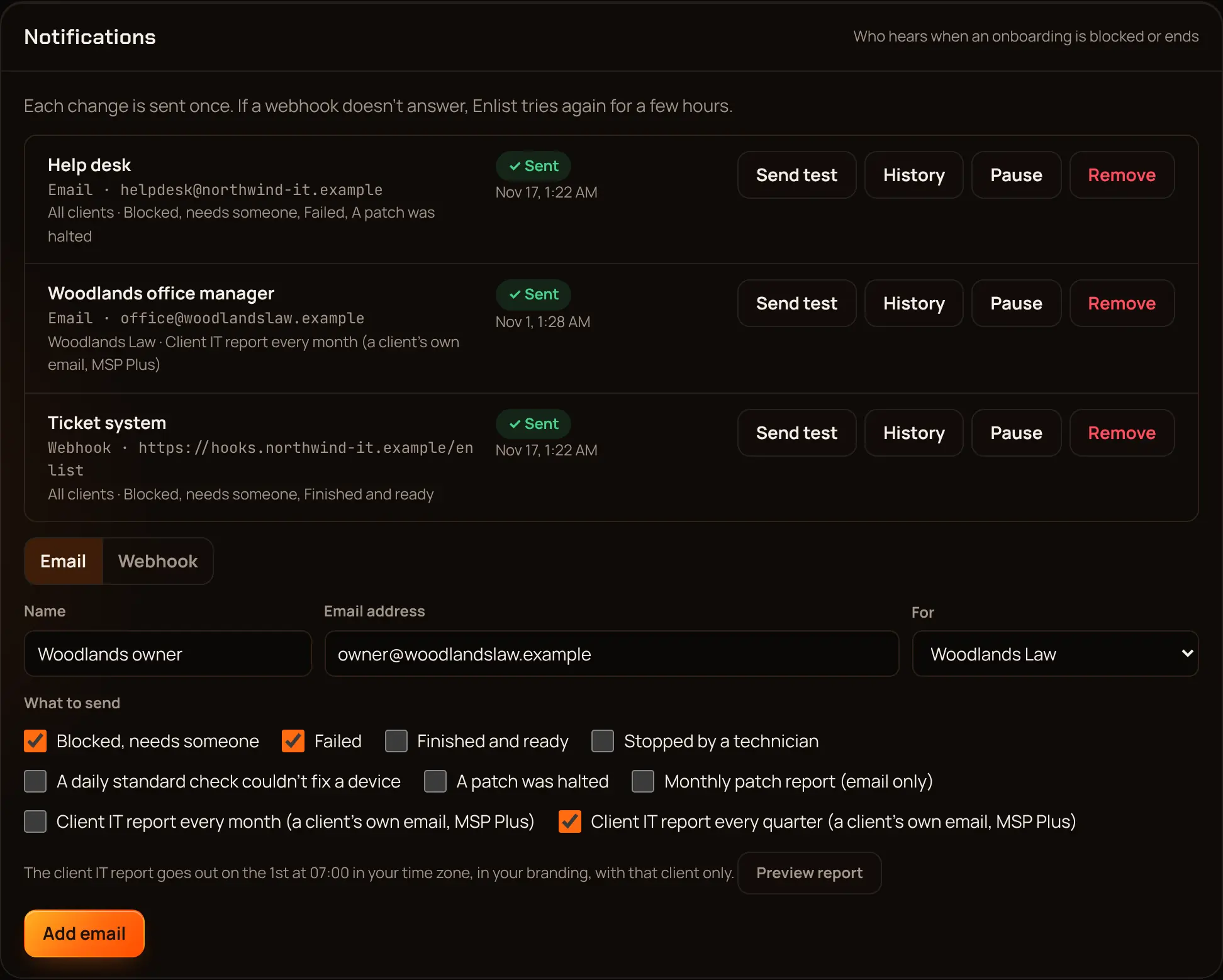
In Settings → Notifications, choose Email.
Give it a Name (for example "Office manager") and the person's email address.
In For, pick the client. Client reports can't go to All clients.
Tick Client IT report every month or Client IT report every quarter, and untick the onboarding alerts unless that person should get them too. Pick Preview report to see what it would say today.
Pick Add email.
Reports go out on the 1st at 07:00 in your time zone (your patch policy's), an hour after your own monthly patch report. Monthly reports cover the month just ended; quarterly reports go out after March, June, September and December. Use History on the channel to see what was sent.
"Your new computer is ready" email #
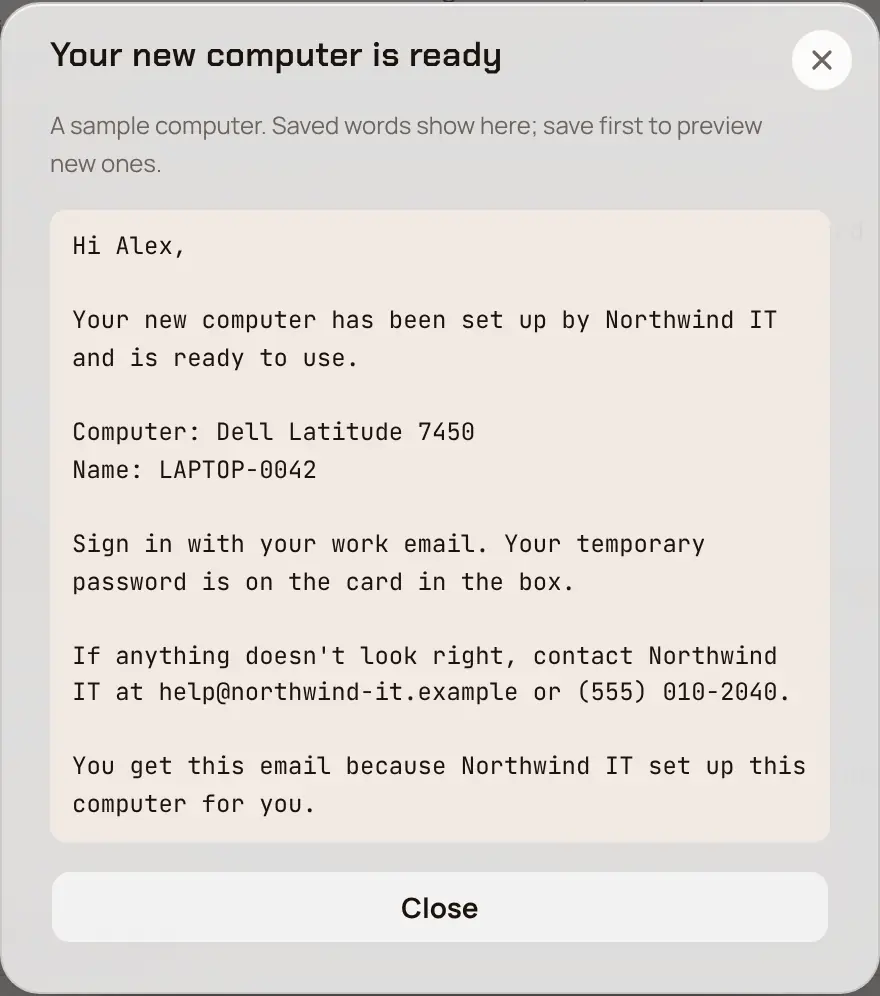
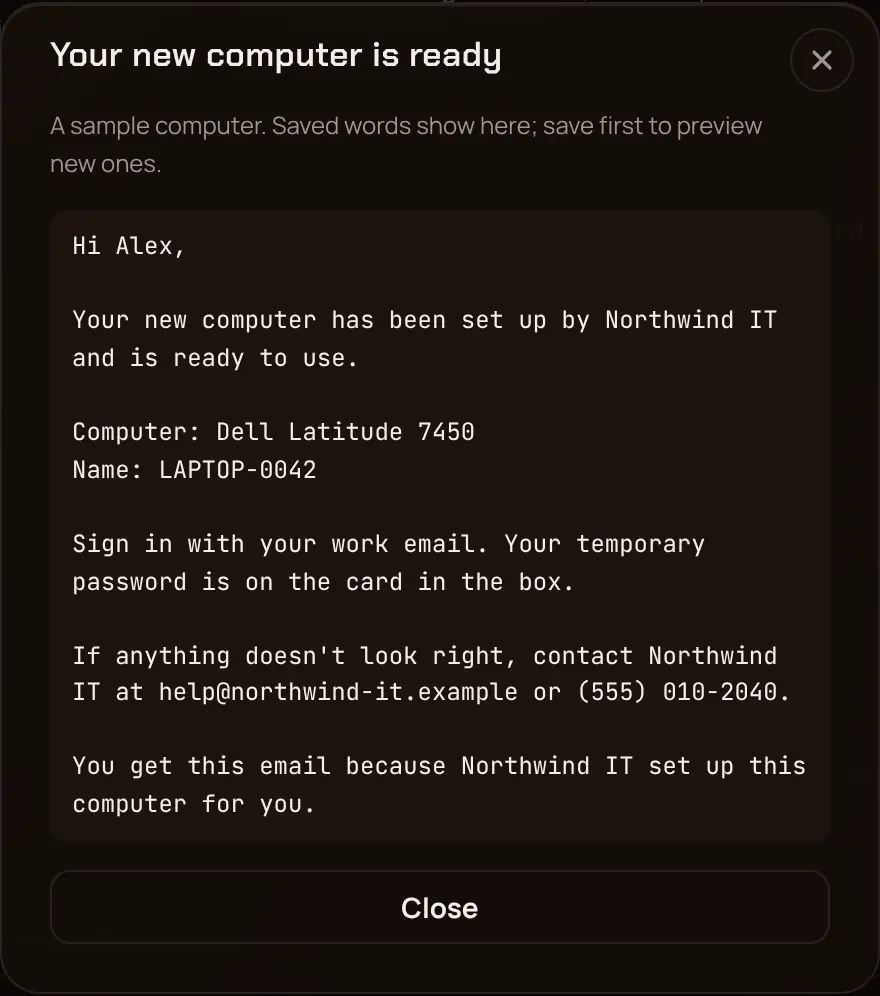
When a computer finishes onboarding (Ready), the person it was set up for gets a short email: the computer's model and name, that it's ready, your own words, and how to reach you. It's sent once per onboarding, never for daily standard checks or add-ons.
In Settings → New computer ready email, tick Send the ready email.
Optionally add your own words, such as how to sign in the first time (up to 1,000 characters). Preview shows the email for a sample computer.
Pick Save.
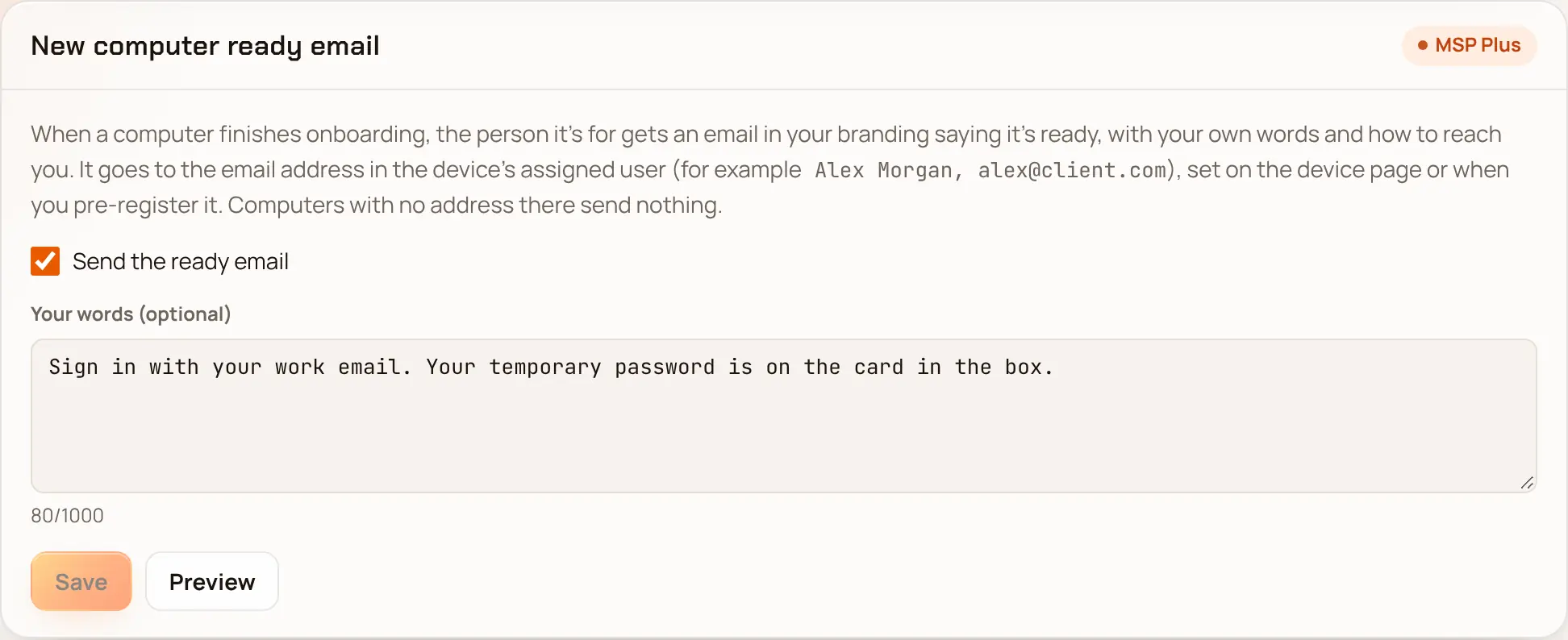
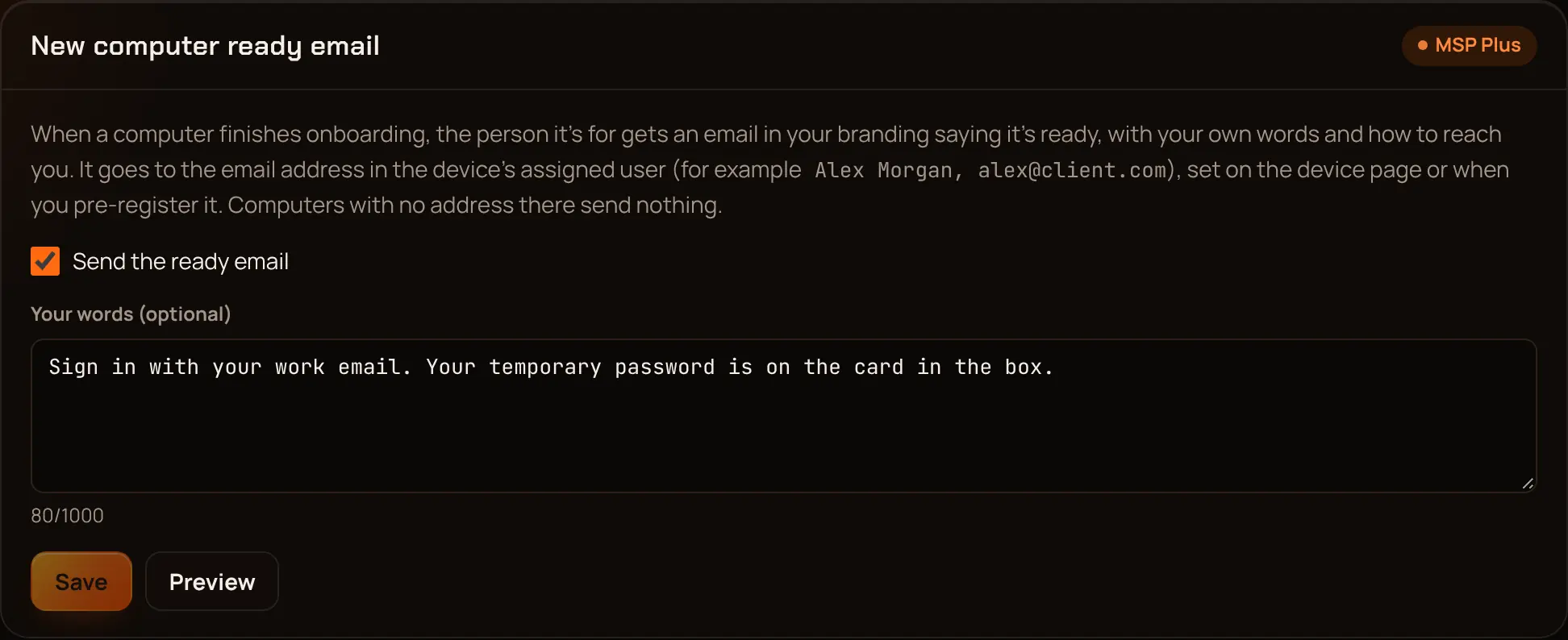
The email goes to the address in the device's assigned user, written like Alex Morgan, [email protected]. Set it on the device page or when you pre-register the device. A device with no address there, or with two, sends nothing.
If you leave Pro + #
Reports and ready emails stop. Your report channels stay (you can rename, pause or remove them), and start sending again if you come back to Pro +.
Last updated 2026-11-17. Something wrong or missing? Email [email protected].