Onboarding
Custom fields
Add your own fields to devices and clients, such as an asset tag, a warranty date or a site code. Fill them in by hand or from a script, and use them in groups, the device list, reports and scripts.
Custom fields hold the facts Enlist doesn't track for you: an asset tag, when a warranty ends, a client's site code, whether a laptop is a loaner. You define a field once, and it shows on every device or every client. You fill it in by hand, or a script fills it in for you, and you can use it in groups, in the device list, in a report and in your scripts.
Add a field #
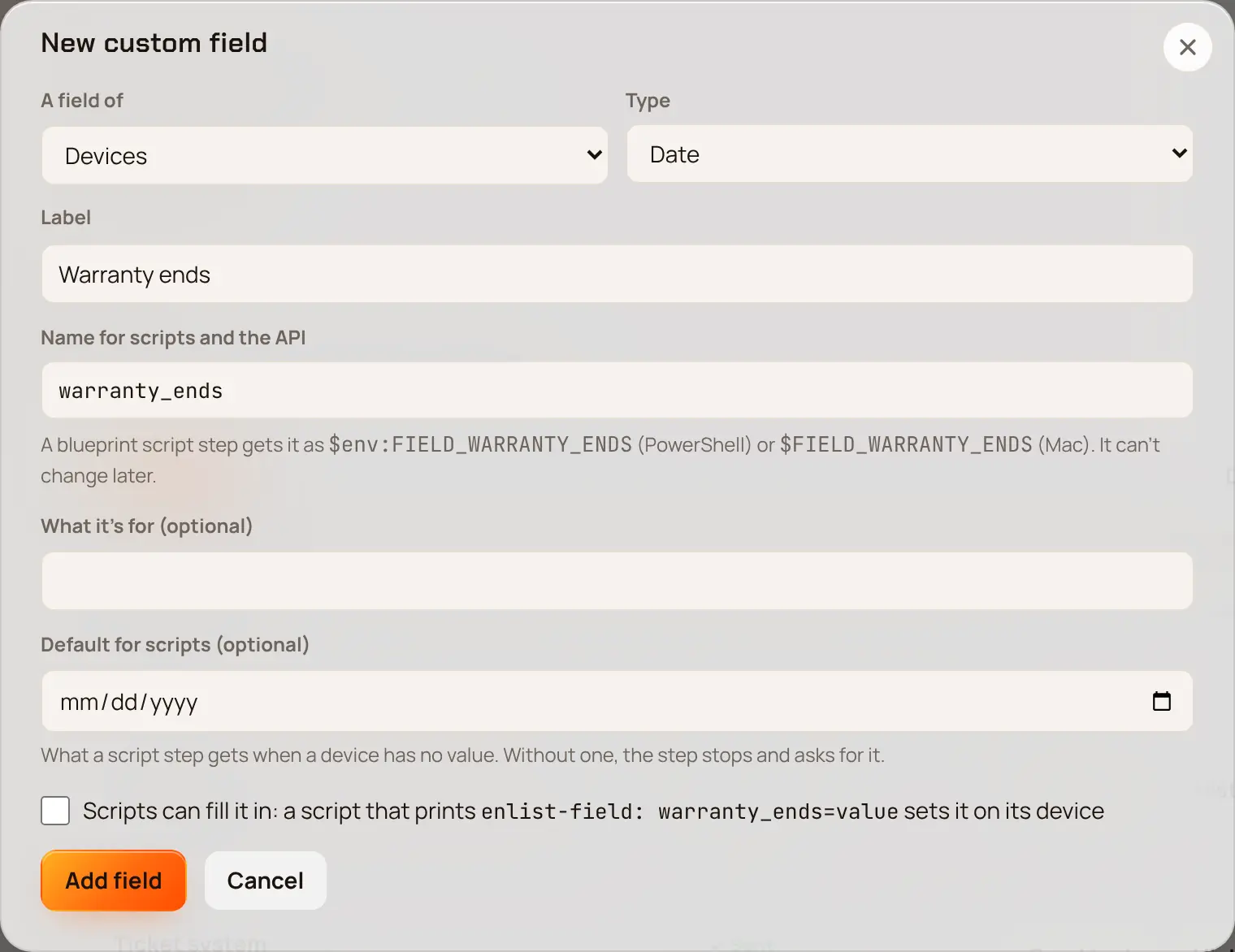
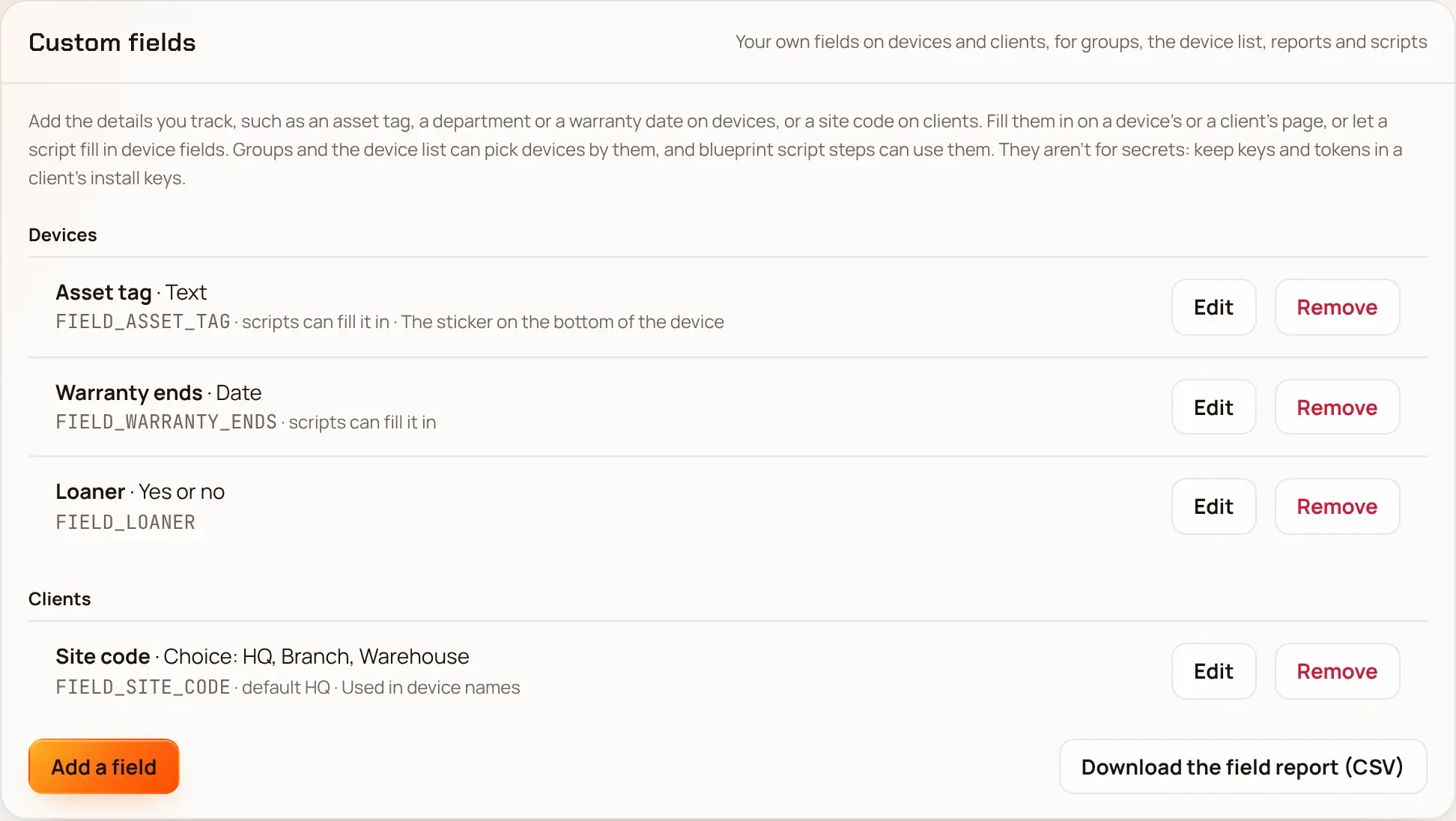
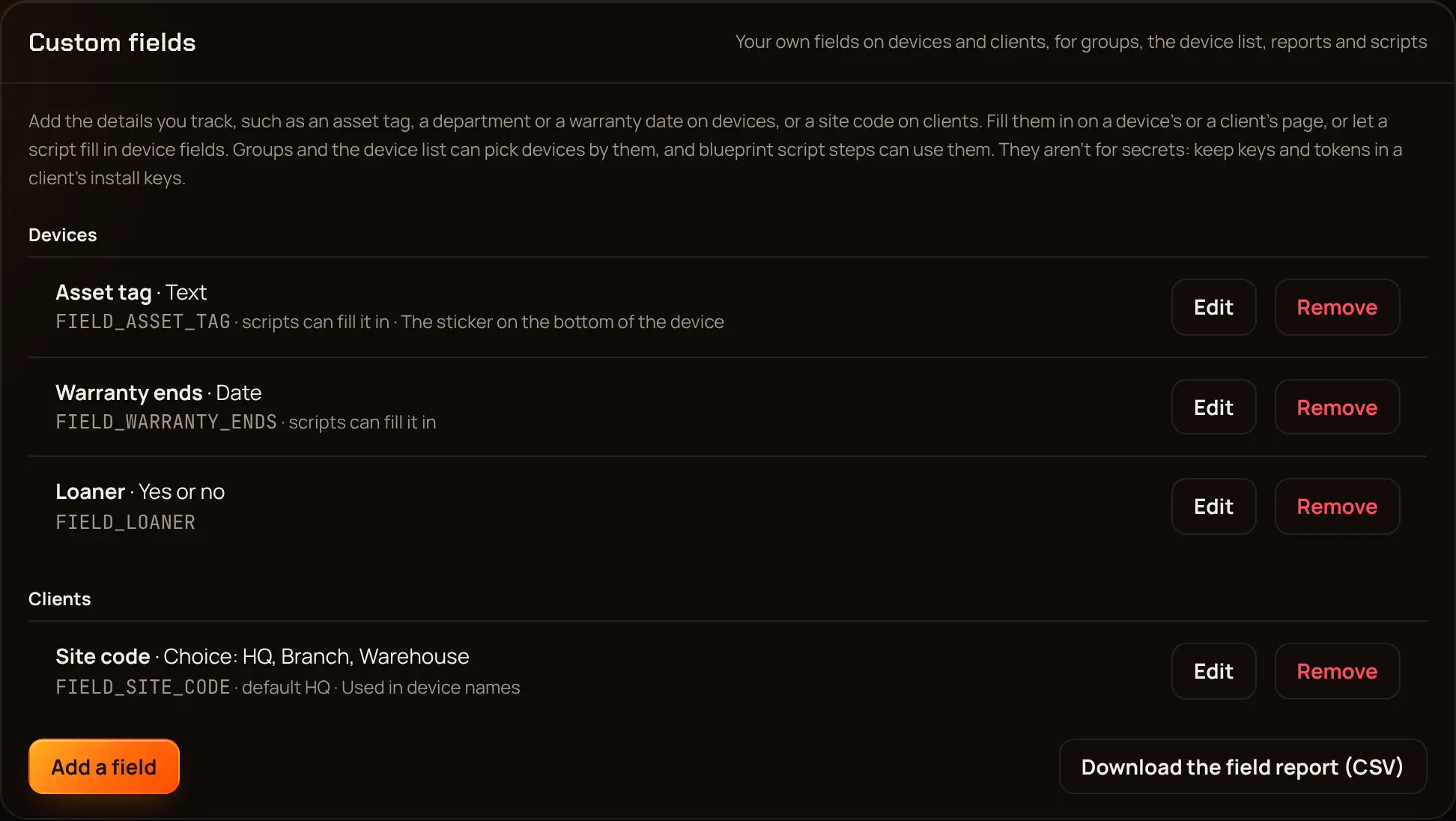
Open Settings and scroll to Custom fields. Pick Add a field.
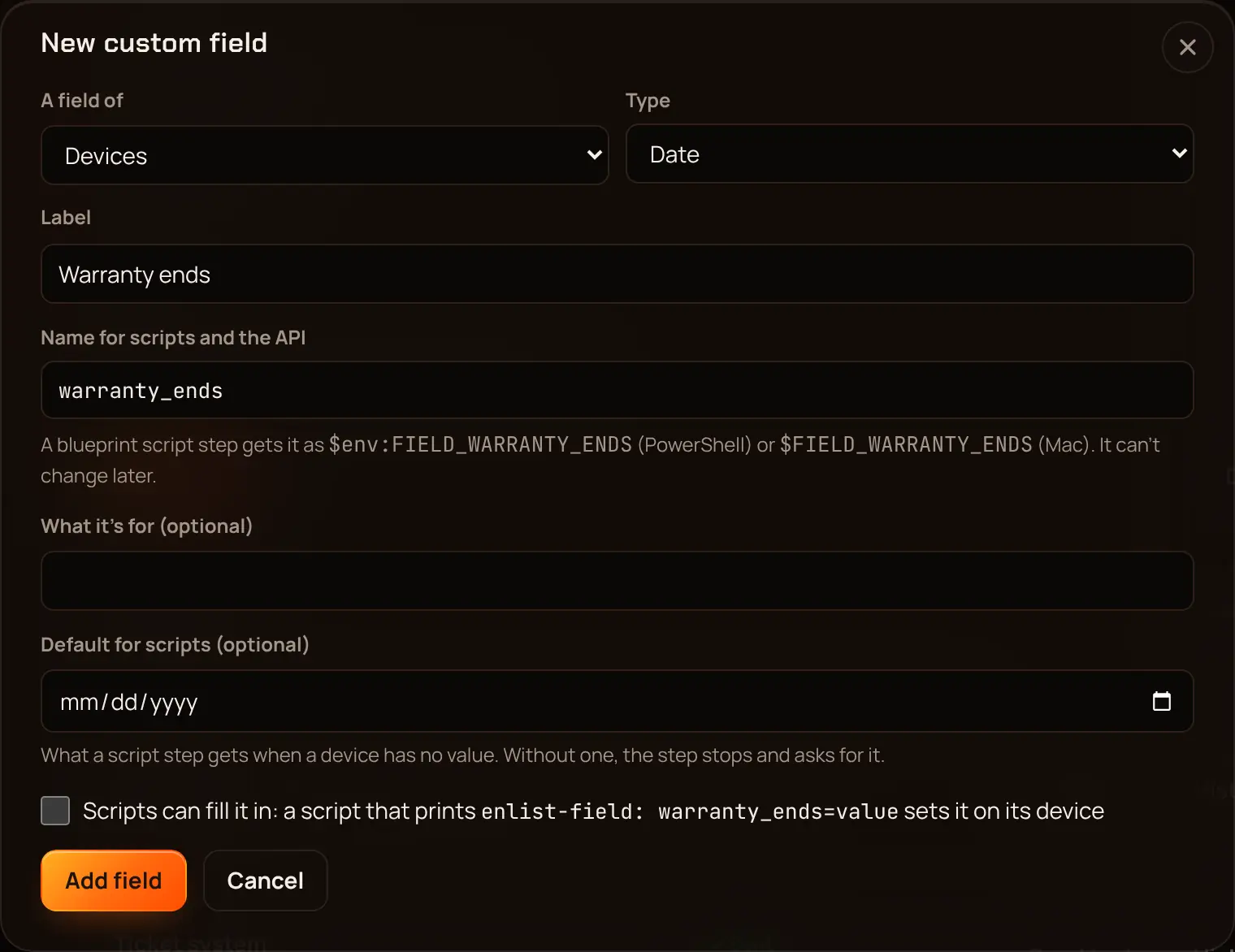
Under A field of, pick Devices or Clients. A client field shows on each of that client's devices too.
Pick a Type: text, number, yes or no, date, or a choice from a list. For a choice, type the Choices, one per line.
Type the Label, for example Asset tag. Enlist makes the Name for scripts and the API from it (asset_tag); you can change it now, but not later.
Optionally set a Default for scripts, and for a device field tick Scripts can fill it in. Pick Add field.
Only owners and admins add, change or remove fields. A field's kind, name and type stay as they were made, so scripts and groups that use it keep working; to change them, remove the field and add a new one. Removing a field removes every value in it. You can have up to 100 fields.
Fill in a field #
Open a device and scroll to Custom fields, or open a client and pick Client settings. Change the values and pick Save fields. Leave a value empty to clear it. A device shows its client's fields read-only below its own; change those on the client's page.


Anyone who can run actions on devices can fill in device fields. Only owners and admins fill in client fields. Numbers, dates and yes or no are checked against the field's type, and every change is in the activity log with the old and new value.
Let a script fill in a field #
Tick Scripts can fill it in on a device field. Any script Enlist runs on the device can then set it by printing a line like this:
enlist-field: asset_tag=A-1001The line must be on the script's normal output, and the script must succeed. If it prints the same field twice, the last line wins, and a script sets at most 20 fields. A field that doesn't allow scripts, a client field, or a value that doesn't fit the field's type is skipped, and the activity log says which. The device shows Set by a script next to the value.
Give a field to a script #
In a blueprint's Run a script step, pick the field under Custom fields.
In the script, read it as $FIELD_ASSET_TAG (PowerShell $env:FIELD_ASSET_TAG).
Each device gets its own value, else its client's, else the field's default. If none is set, the step stops and says which field to fill in; fill it in and resume the onboarding. A step can use up to 10 install keys and custom fields together. Values a script gets show as [redacted] in the step's output, and must be plain letters, digits and punctuation (no accented letters). Fields go to blueprint steps only, not to scripts run from the device's Terminal.
Use a field in groups and the device list #
In a dynamic group's rules, the field picker lists your fields under Custom fields. A field can be set or not set, be, contain, not contain or start with a value, and a number or date field can be above or below one. In Devices, the filter menu next to the search box lists them under Custom field filled in; type a value to show only devices with exactly that value.
Report #
Pick Download the field report (CSV) under Settings › Custom fields. It lists every device with its client, serial number and platform, then each device field and each client field.
API #
GET /api/custom-fields lists the fields and GET /api/custom-fields/report.csv downloads the report. An API key with clients:write can set client values with PUT /api/clients/{id}/custom-fields. Device values can't be changed with an API key. See the API reference.
Last updated 2026-11-17. Something wrong or missing? Email [email protected].