Devices and agents
Device health alerts
Hear when a device has been offline for days, its disk encryption or antivirus is off, or its disk is nearly full.
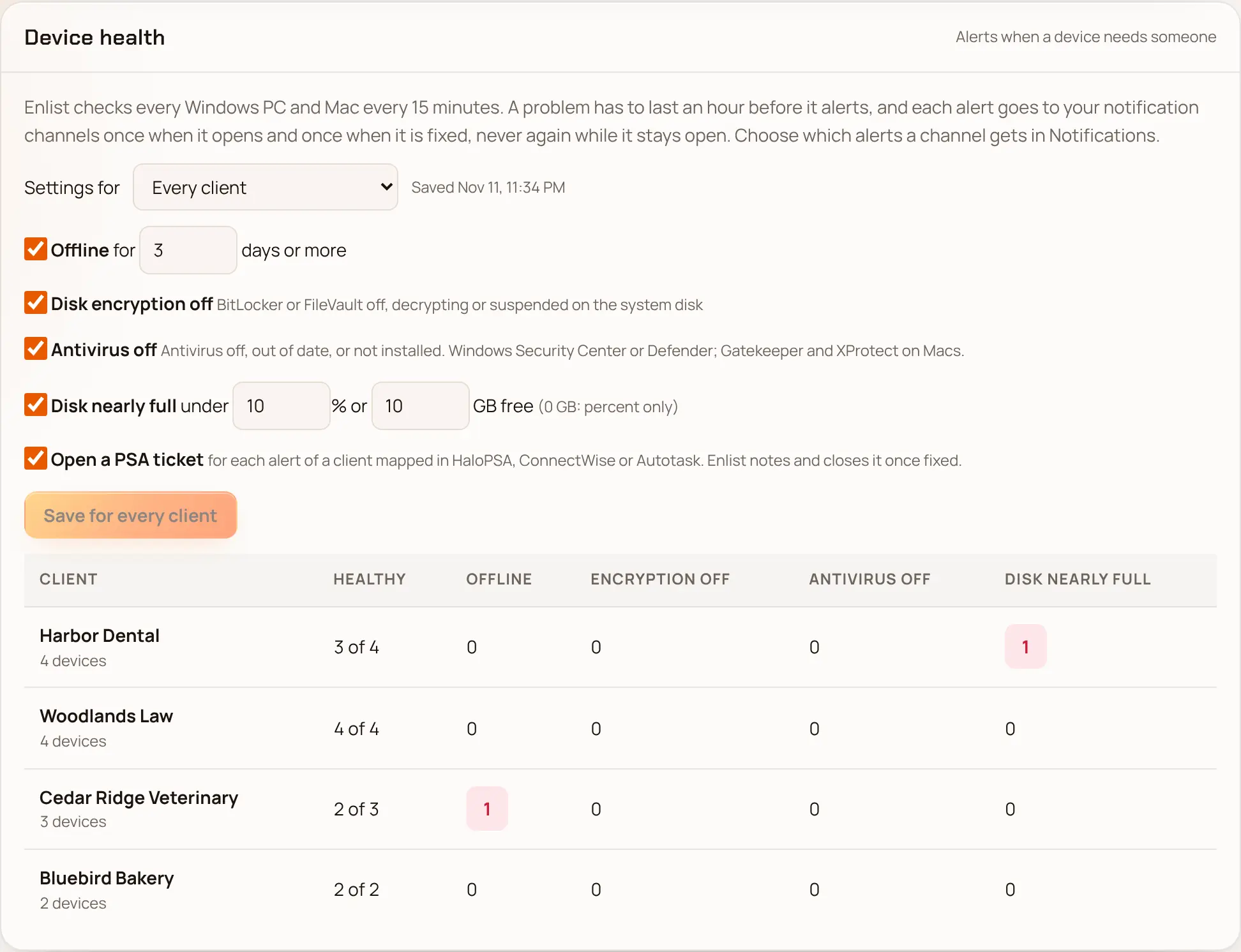
Enlist checks every Windows PC and Mac every 15 minutes and tells you when one needs someone: it has been offline for days, BitLocker or FileVault is off, antivirus is off or out of date, or a disk is nearly full. Alerts go to the email addresses, webhooks and PSA tickets you already use, once when a problem starts and once when it is fixed.
What it checks #
| Alert | When | Fixed when |
|---|---|---|
| Offline | The device hasn't checked in for 3 days (you choose 1 to 90) | It checks in again |
| Disk encryption off | BitLocker (Windows) or FileVault (Mac) is off, decrypting, or suspended on the system disk | It is on again |
| Antivirus off | Windows Security Center (or Microsoft Defender on servers) says the antivirus is off, its definitions are more than a week old, or none is installed. On a Mac: Gatekeeper is off or XProtect is missing | It is on and up to date |
| Disk nearly full | The fullest disk has less than 10% or less than 10 GB free (you choose both; 0 GB checks the percent only). Small recovery partitions never count | There is room again |
A problem has to last an hour before it alerts, so a restart, an update or a big download never does. Offline waits its own number of days instead. While a problem lasts you hear nothing more about it.
Encryption, antivirus and disk space come from the device's inventory, which the agent sends at least daily and whenever something changes. If the inventory is more than two days old, those alerts neither open nor close: the device being offline is the news. Older agents that don't report antivirus are left out of that check, never shown as off.
Change the checks #
In Settings → Device health, pick Every client or one client under Settings for.
Tick the checks you want and set the days and free space.
Pick Save. Turning a check off, loosening it, or turning on tickets asks you to confirm with your passkey; tightening one doesn't.
A client with its own settings uses only those. Use the settings for every client puts it back. Every change is in the activity log. Turning a check off ends its open alerts quietly, without a "fixed" message.
Get the alerts #
In Settings → Notifications, add or edit a channel and tick the device health events. A channel limited to one client gets only that client's devices, so you can send each client's alerts to its own team or ticket queue. See Notifications and the webhook events (health.offline, health.encryption_off, health.antivirus_off, health.disk_low and health.resolved).
With Open a PSA ticket on, each alert of a client mapped in HaloPSA, ConnectWise PSA or Autotask opens one ticket. When the problem is fixed, Enlist adds a note and closes it. A lost answer from the PSA never opens a second ticket.
See and take on alerts #
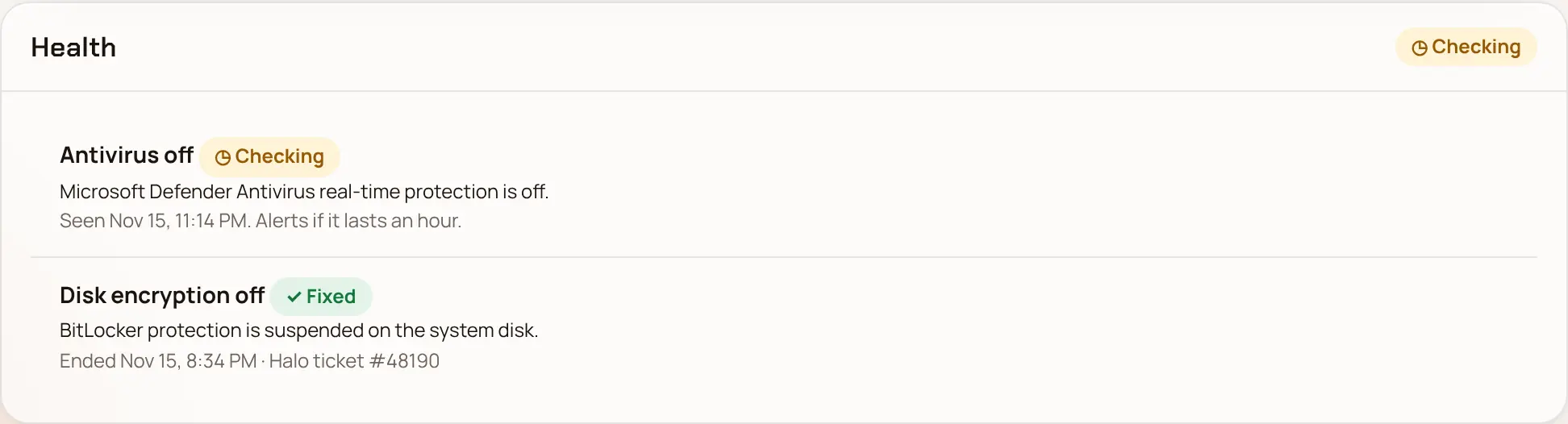
Open alerts show on Home under Device health, and on each device's page under Health, with what was found and since when. Take it on tells your team someone is on it; Enlist still says when it is fixed.
For a report by client, use GET /health-alerts/summary, and for the alerts themselves GET /health-alerts, in the API (an API key with devices:read).
Last updated 2026-11-15. Something wrong or missing? Email [email protected].