Onboarding
Domain and Entra join
Join new computers to a client's Microsoft Entra ID or Active Directory, directly or offline through the AD connector.
A blueprint's Join a domain or Entra ID step can join a Windows PC in one of three ways. Set up what the client needs once, in Clients → the client → Domain join, then add the step to its blueprint.
| Way | Use it when | What you set up |
|---|---|---|
| Microsoft Entra ID, with the client's Entra join package | The client uses Microsoft 365 with Entra ID | An Entra join package (.ppkg) |
| Active Directory, directly with the client's join account | The PC can reach a domain controller during onboarding | A join-only account |
| Active Directory, offline through the AD connector | The PC onboards off the client's network | An AD connector on one of the client's servers |
Entra join package #
The console shows these steps under How to make the Entra join package.
On a Windows PC, install and open Windows Configuration Designer (from the Microsoft Store).
Pick Provision desktop devices and give the project a name.
At Account Management, choose Enroll into Azure AD, pick when the bulk token expires (30 days is a good default, 180 is the most), and pick Get Bulk Token.
Sign in as a Global Administrator or Cloud Device Administrator of the client's tenant, and finish the wizard to export the
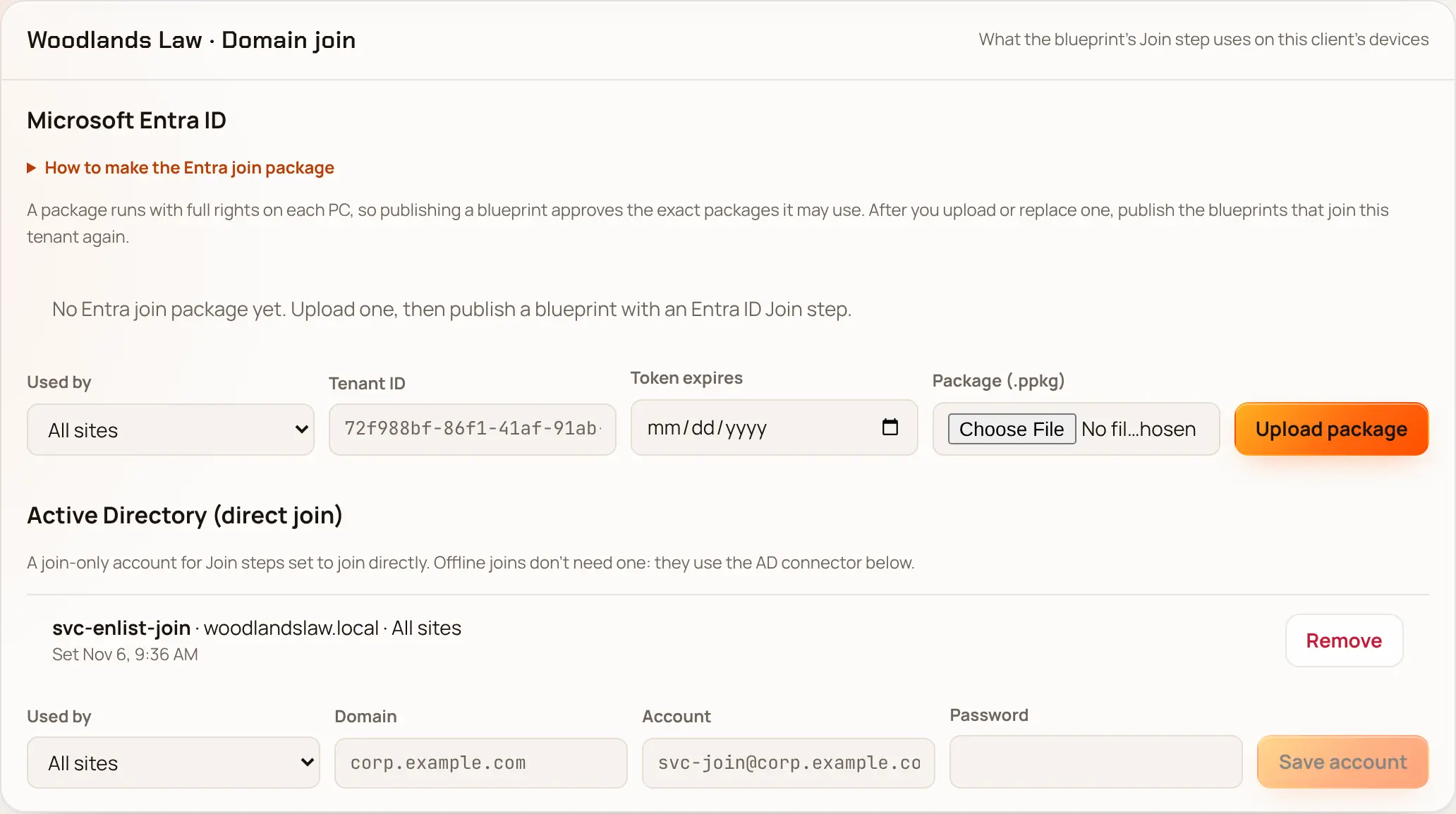
.ppkg.In Enlist, under the client's Domain join, fill in Used by, Tenant ID or domain (the tenant ID, or any domain of the client's Microsoft 365, such as
contoso.com) and Token expires, choose the package (at most 64 KB), and pick Upload package.Publish the client's blueprint again, so devices get the new package.
Before the token expires, make a new package and pick Replace package, then publish again.
US Government clouds (GCC, GCC High and DoD) #
Enlist asks Microsoft which cloud the client's tenant is in and shows it next to the package: Commercial, GCC, GCC High or DoD. You don't pick it yourself. GCC tenants work like any other. For a GCC High or DoD tenant, make the package the same way, signing in to Get Bulk Token with the tenant's own admin account. Microsoft doesn't document bulk tokens for its US Government clouds, so try the package on one PC before the rest. On the PC, Enlist checks that Windows joined exactly the tenant the blueprint names, in any cloud.
Active Directory, direct #
In the client's AD, make an account that can only join computers, ideally limited to one OU.
Under the client's Domain join → Active Directory (direct join), enter the Domain, Account and Password, and pick Save account.
Add the join step to the blueprint and publish.
The PC needs to reach a domain controller (on the client's network or over their VPN) while it onboards.
Active Directory, offline through the AD connector #
The AD connector is a small Windows service (EnlistConnector) on one of the client's domain-joined servers. When a PC onboards anywhere, the connector makes its computer account and an offline join blob, so the PC joins without seeing a domain controller.
Pick a domain-joined server that isn't a domain controller.
In AD, give that server's computer account only Create Computer objects and Delete Computer objects on the OU new PCs go in.
In Enlist, under the client's AD connectors, pick Make connector token and confirm with your passkey.
Install the connector on the server with that token.
While a PC waits, its step shows "Waiting for the AD connector". Each connector has Renew certificate and Retire. Setting up or changing a connector alerts your notification channels (security.connector_enrolled, security.connector_changed).
Last updated 2026-11-15. Something wrong or missing? Email [email protected].