Patching
Reports
Build a report with charts for your own team or for one client's business review (TBR), pick what goes in, and download it as a PDF, a Word file or an Excel file.
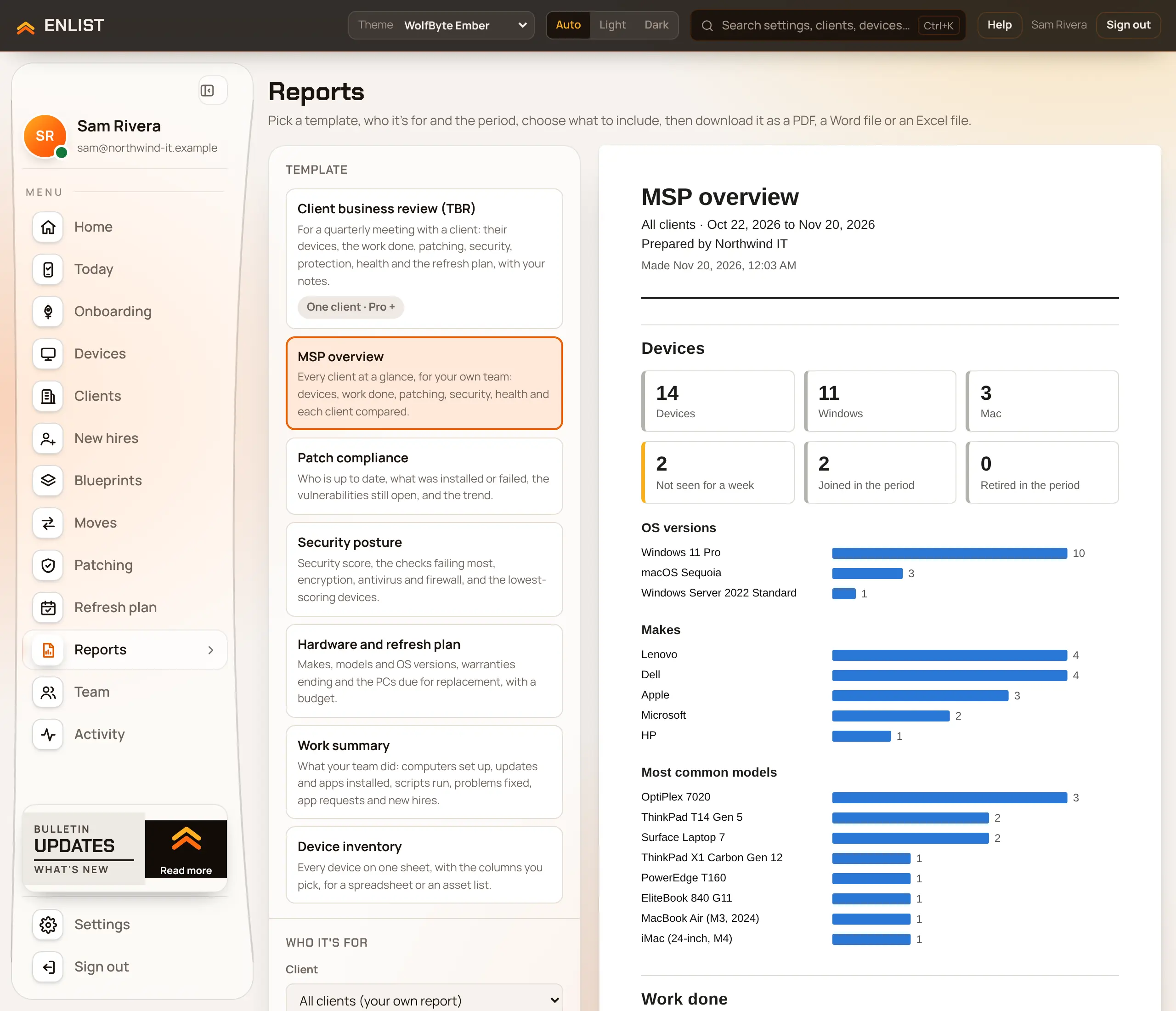
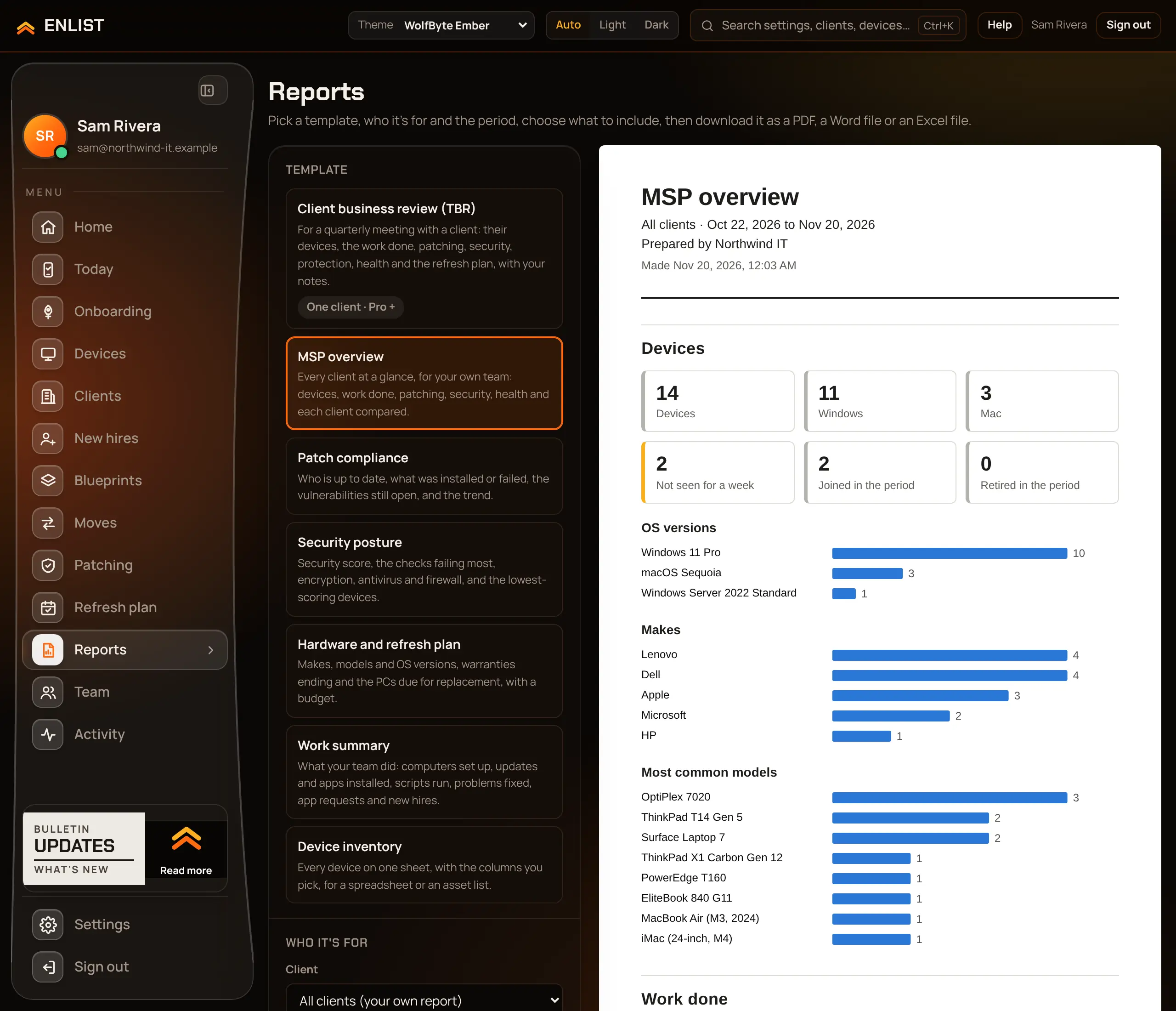
Reports in the side menu builds a report from what Enlist already knows about your devices: how many there are, patching, security score, protection, device health, onboarding, app requests, the work your team did and the equipment lifecycle. You pick a template, who it's for and the period, choose what goes in, and download it. The preview on the right is exactly what you'll get.
- Reports about all your clients (for your own team) work on every plan.
- Reports about one client or one site, such as a quarterly business review to hand to the client, are part of Pro +, like everything else a client sees.
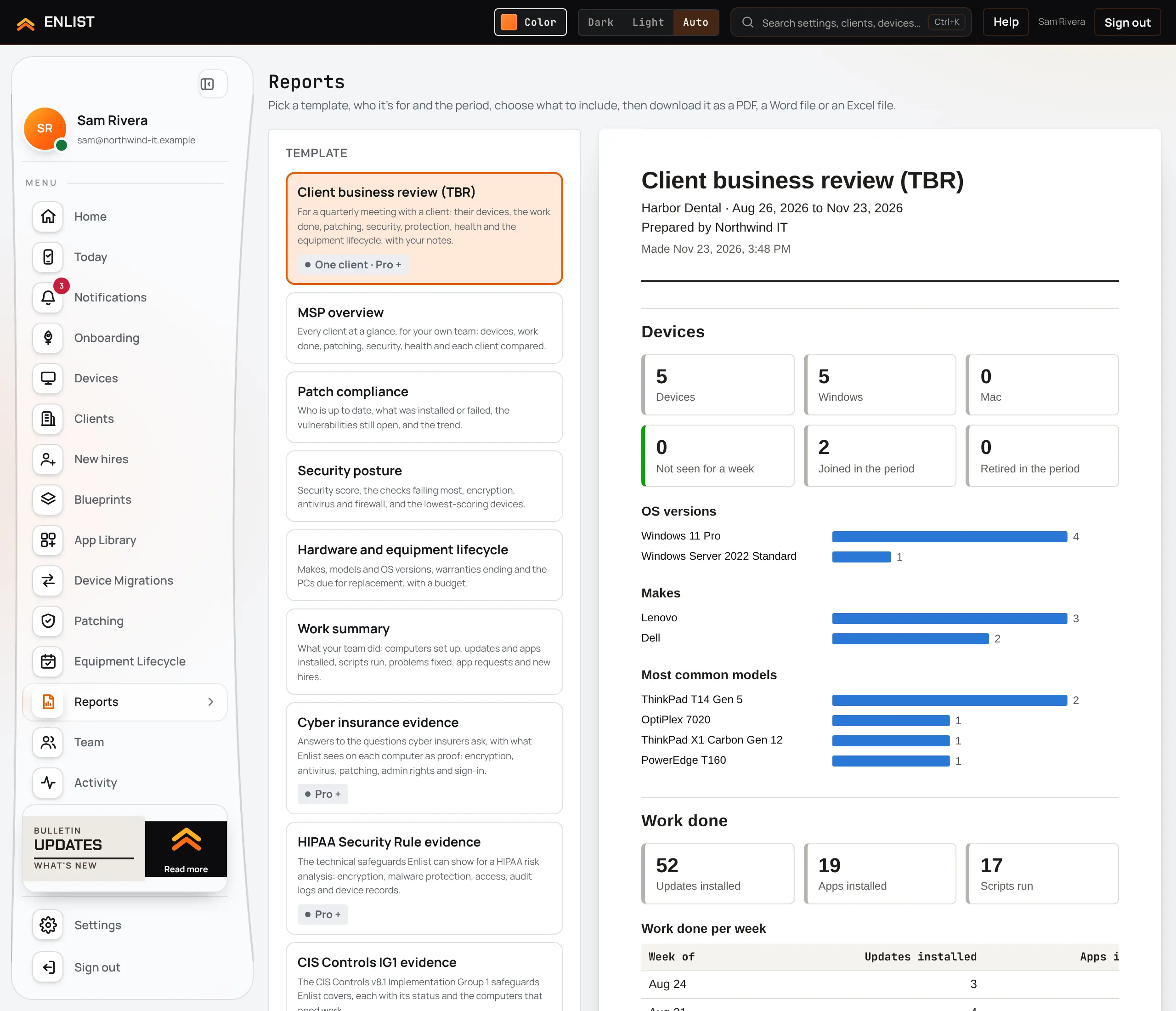
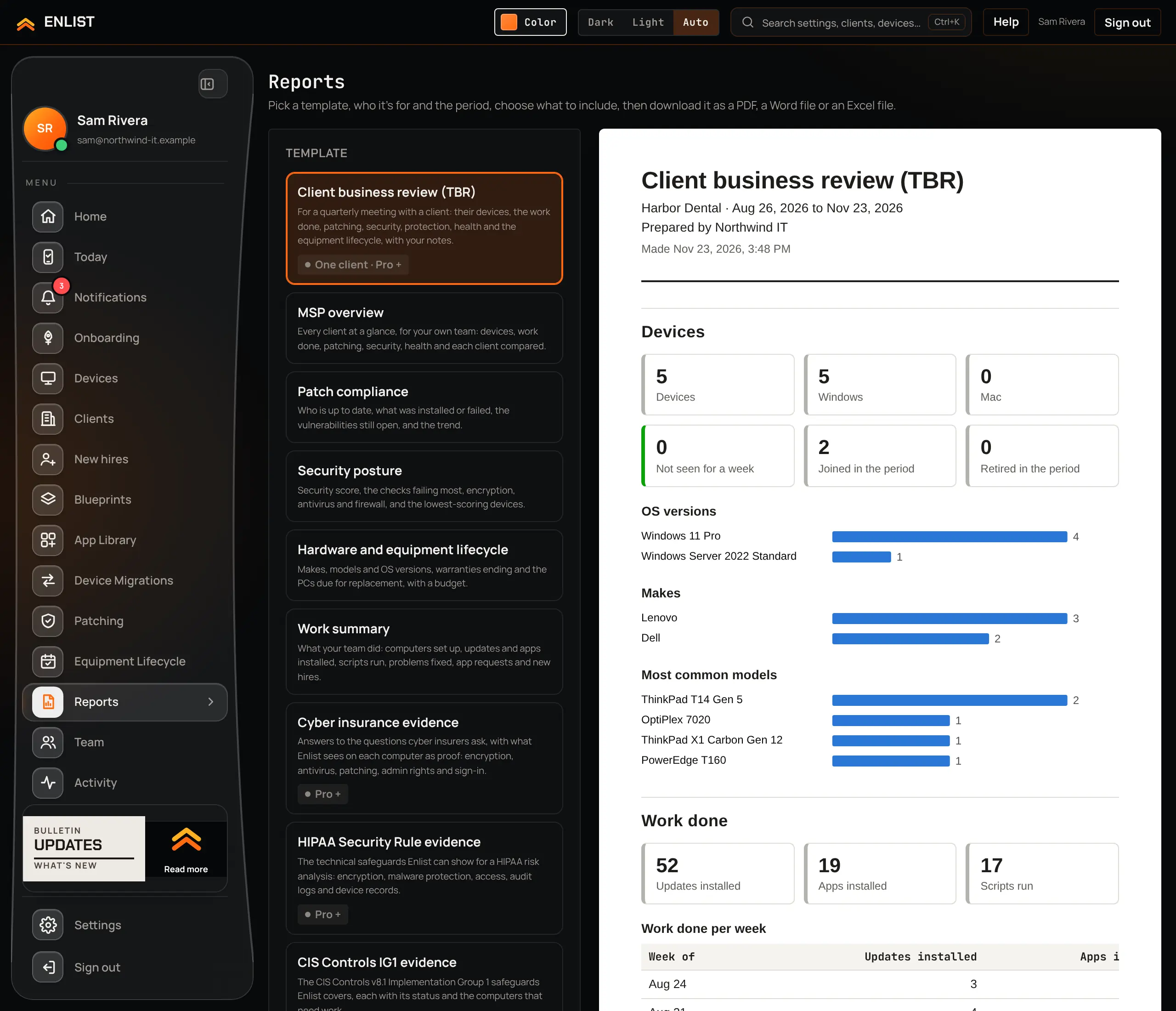
Templates #
Each template is a starting point: it picks the sections, the period and the best download. You can change any of them afterwards.
| Template | For | What's in it |
|---|---|---|
| Client business review (TBR) | One client (Pro +) | Your notes, their devices, work done, patching, security score, protection, device health, onboarding, app requests, the equipment lifecycle and trends. 90 days, PDF. |
| MSP overview | All clients | Devices, work done, patching, security, protection, health, trends and a line for each client. 30 days, PDF. |
| Patch compliance | Either | Who is up to date, updates installed and failed, open vulnerabilities, trend and a device list. |
| Security posture | Either | Security score, the checks failing most, encryption, antivirus and firewall, and the lowest-scoring devices. |
| Hardware and equipment lifecycle | Either | Makes, models and OS versions, warranties ending and the PCs due for replacement with a budget. A year, Word. |
| Work summary | Either | Computers set up, updates and apps installed, scripts run, problems fixed, app requests and new hires. Word. |
| Device inventory | Either | Every device on one sheet, with the columns you pick. Excel. |
| Cyber insurance evidence | Either (Pro +) | The questions cyber insurers ask, each answered Yes, Mostly, No or Unknown with what Enlist sees as proof, the computers that need work, and what to answer from your own records. 30 days, PDF. |
| HIPAA Security Rule evidence | Either (Pro +) | The technical safeguards Enlist can show for a HIPAA risk analysis, each with its section of the rule, plus protection, patching and trends. 90 days, PDF. |
| CIS Controls IG1 evidence | Either (Pro +) | The CIS Controls v8.1 Implementation Group 1 safeguards Enlist covers, with the security score and trends. 30 days, PDF. |
Compliance and insurance evidence packs #
The three evidence templates (Pro +) turn what Enlist already checks on every computer into evidence for an insurance application, a HIPAA risk analysis or a CIS Controls review. Each control gets a status: Met when every computer reported and passes, Partly met when none fail outright or at least 90% pass, Not met otherwise, and Not reported when no computer has sent it yet.
| Control | What Enlist checks |
|---|---|
| Disk encryption | BitLocker or FileVault is on for the system disk. |
| Recovery keys kept safe | Each encrypted computer's recovery key is kept in Enlist. |
| Antivirus | Antivirus is on and its definitions are current. |
| Firewall | The firewall is on. |
| Operating system updates | Every OS update is installed, or none is past its deadline. |
| Known exploited vulnerabilities | Nothing on CISA's Known Exploited Vulnerabilities list is open. |
| Local admin accounts | Only the Enlist-managed account has admin rights. |
| Secure Boot and TPM | Windows computers have Secure Boot on and a TPM 2.0. |
| Inventory | Every computer is listed with its make, model and serial number, and checks in within the client's offline limit. |
| Console sign-in | Everyone signs in to Enlist with a passkey. |
| Activity log | Every action your team takes on these computers is logged, for as long as your activity log setting keeps it. |
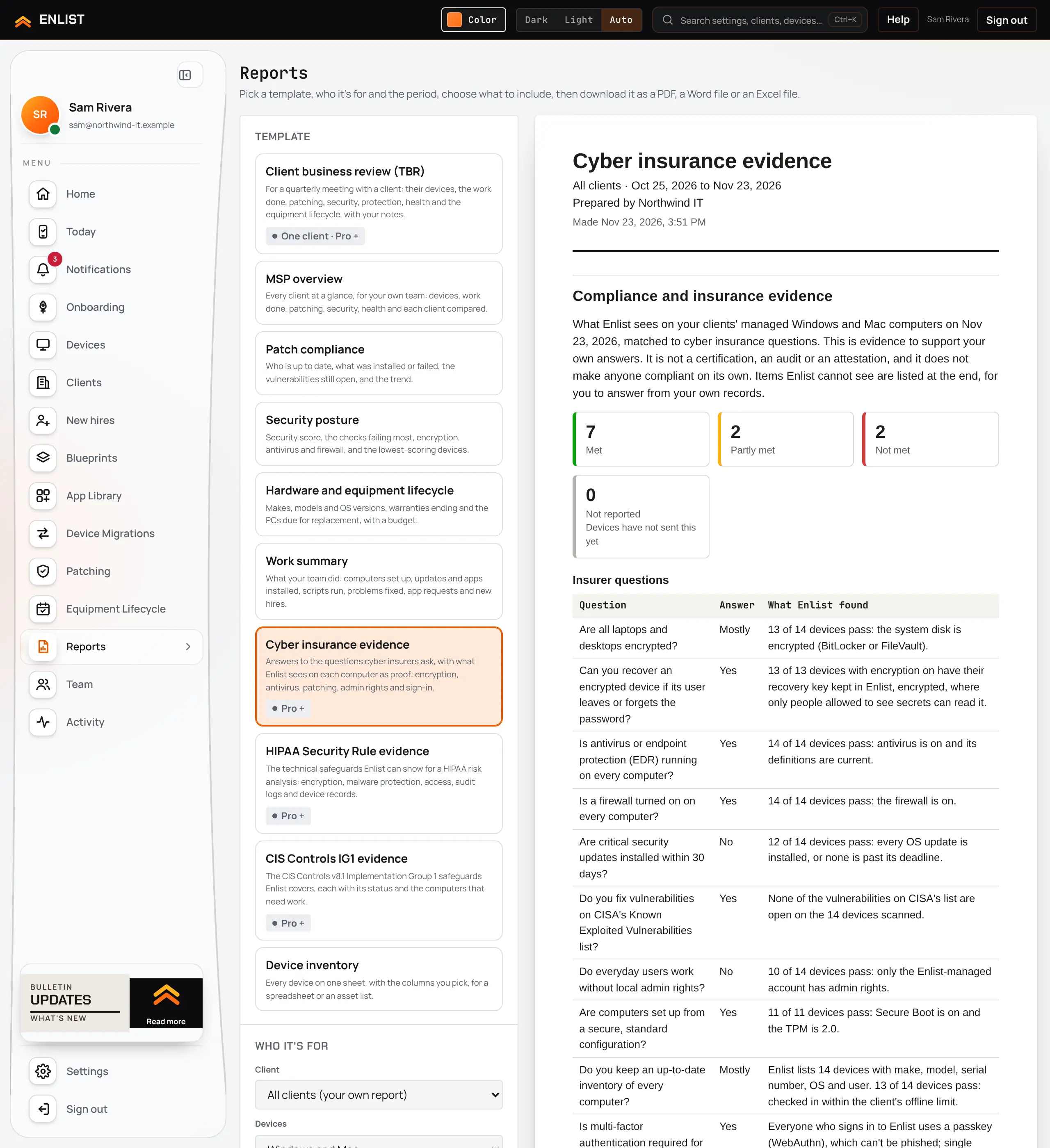
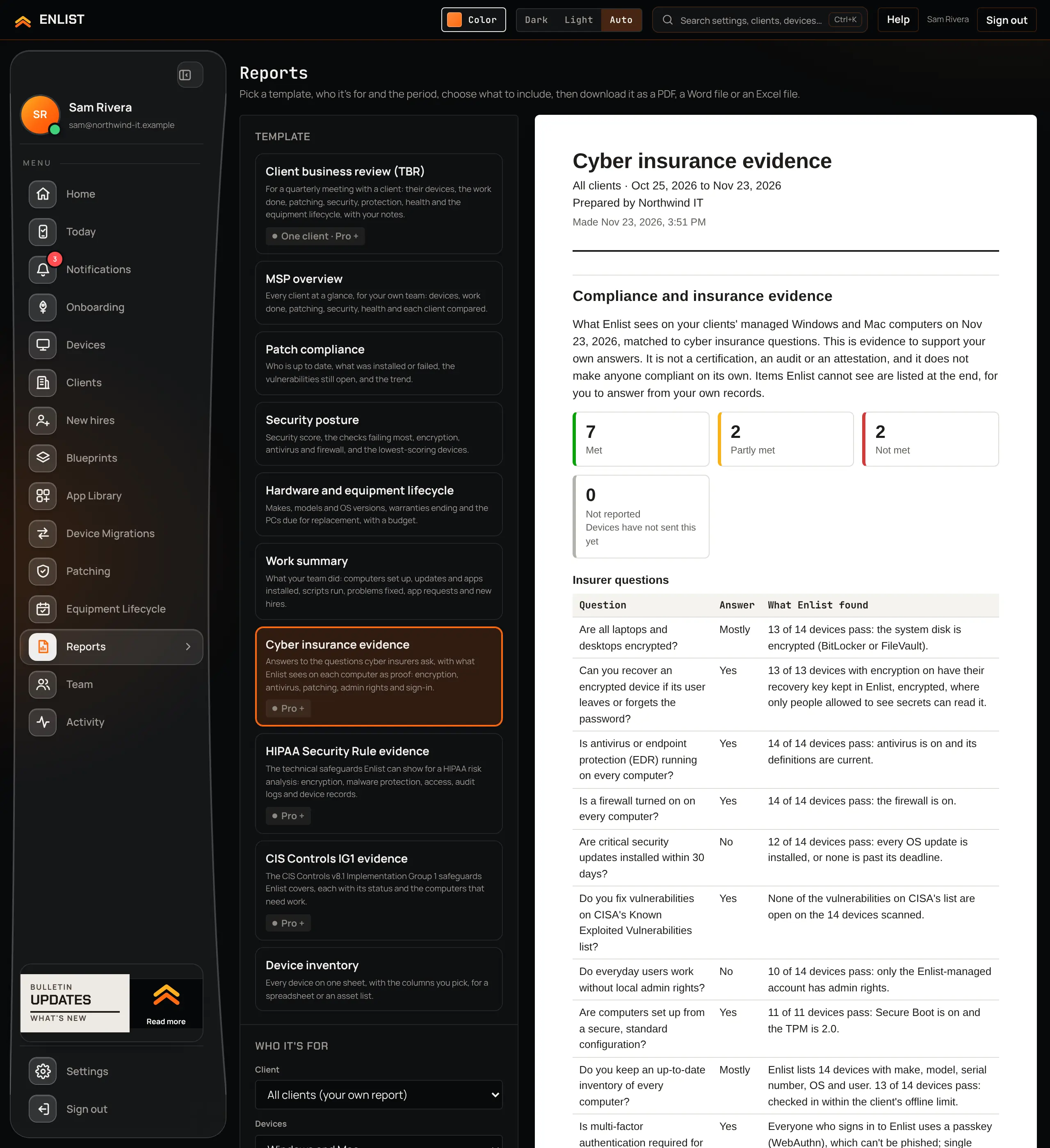
A pack is evidence to support your own answers. It is not a certification, an audit or an attestation, and it doesn't make a client compliant on its own. Every pack ends with the items Enlist can't see, such as email MFA, backups, training and written policies, for you to answer from your own records. The Compliance and insurance evidence section can also be ticked in any other template.
Make a report #
Open Reports and pick a template.
Under Who it's for, pick the client, and a site if the client has more than one. Devices narrows it to Windows or Macs.
Under Period, pick the last 7, 30 or 90 days, the last year, or your own dates (up to two years). Charts go by day, week or month to fit.
Under Include, change the title, tick the sections you want and untick the rest. Notes and next steps adds your own words at the top, such as what you recommend for next quarter. With Device list ticked, pick its columns.
Pick Download PDF, Download Word or Download Excel, or Print.
Which download to use #
- PDF: ready to send or print, with the charts. Letter size.
- Word: the same report with the charts as pictures, so you can add your own words before sending it.
- Excel: the numbers, one sheet per section, as real numbers you can sort, filter and chart. Best for the device list.
Reports are made in your browser from the numbers on screen. Nothing is stored and no file is kept on the server.
Trends #
Patching, security score, encryption and antivirus "day by day" come from a snapshot Enlist takes every night at 23:00 in your time zone, kept for two years. History starts the night after this feature reached your console, so trends fill in from then. Everything else in a report (updates installed, problems fixed, apps installed and so on) comes from what Enlist has always recorded, so it covers the whole period from the start.
Who sees what #
A report only covers the clients and sites you can see. A technician who looks after two clients gets those two in an MSP-wide report, and can't pick any other client. The equipment lifecycle and the compliance and insurance evidence sections need Pro +; on other plans they say so instead.
To email a short monthly or quarterly report to a client automatically, see Client reports and ready emails.
Last updated 2026-11-19. Something wrong or missing? Email [email protected].