Integrations
Billing sync
Keep each client's per-device line on your PSA contract at the real device count, and make a monthly draft invoice in QuickBooks Online, Xero or Sage.
Most MSPs bill clients per managed device, and someone copies each client's count into the PSA or the accounting system every month. Billing sync does that for you. It is in Settings → Integrations → Billing sync, on Pro and Pro +, and owners and admins can change it. It is about you billing your clients. It never changes what Enlist bills you.
Which devices count #
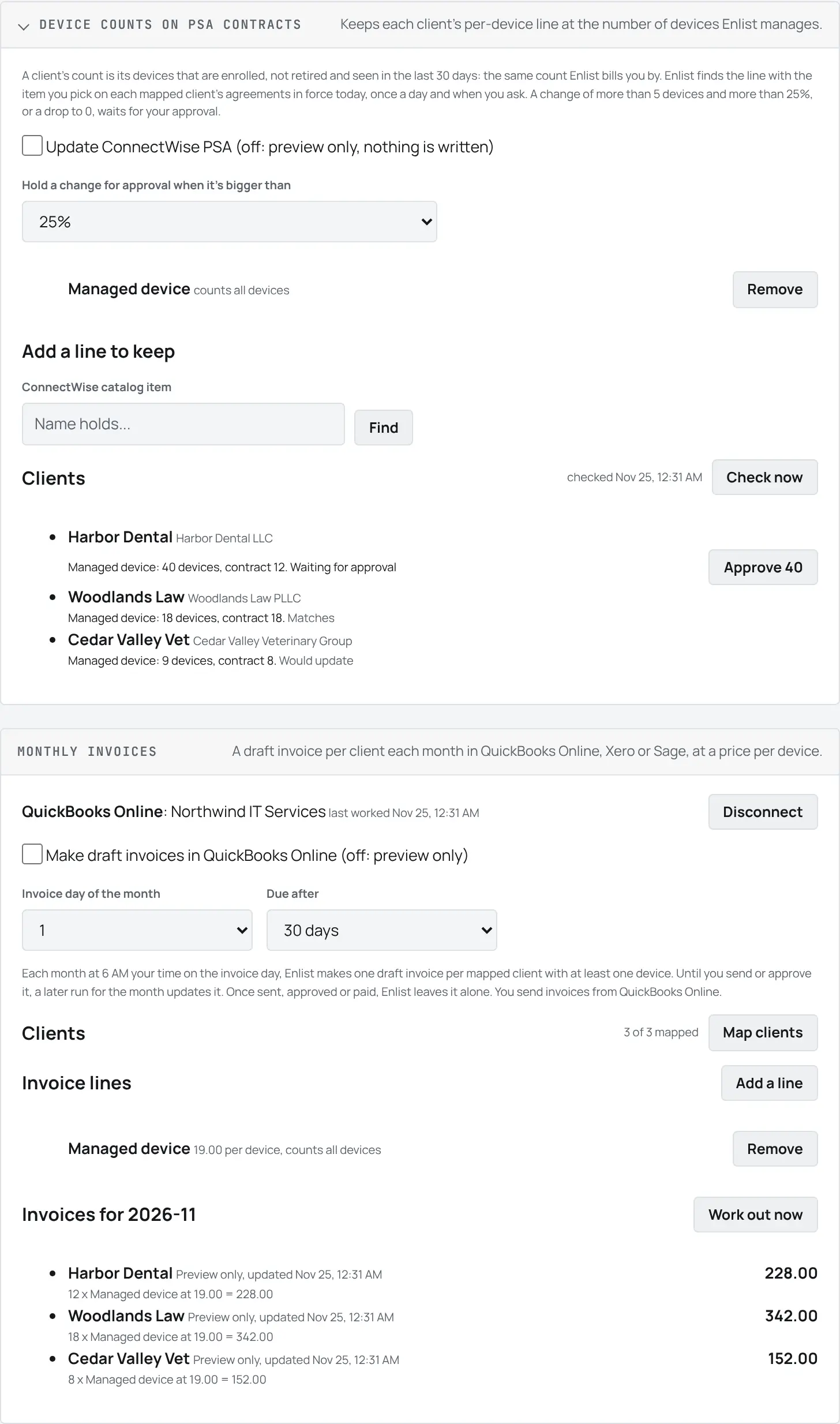
A client's count is the same count Enlist bills you by: devices that are enrolled, not retired, and seen in the last 30 days. A rule can count only Windows, only Mac, or only devices with one tag.
Device counts on PSA contracts #
This works with HaloPSA, ConnectWise PSA and Autotask. Connect your PSA and map your clients first.
Add a rule. Search for your per-device item: a Halo item, a ConnectWise catalog item or an Autotask service.
Check the preview. Enlist looks at each mapped client's recurring invoices (Halo), agreements (ConnectWise) or contracts (Autotask) in force today. It finds the line with that item and shows the line's quantity next to the device count. Nothing is written yet.
Turn on updating. When the numbers look right, tick Update. You'll confirm with your passkey, and the change is in the activity log.
After that, Enlist checks once a day, and again when you press Check now. Two kinds of change wait for you to press Approve:
- A change of more than 5 devices that is also more than the hold limit (25% unless you change it).
- Any drop to 0 from more than 5.
An approval covers that one count. If the PSA refuses a write, or takes it badly, Enlist stops writing to that line until you approve again. If a client has no line with the item, or more than one, Enlist shows that and writes nothing.
What changes in each PSA:
- ConnectWise: the agreement addition's quantity.
- Autotask: a contract service adjustment, dated today, for the difference. Autotask only changes units this way.
- HaloPSA: the line's quantity on the recurring invoice. Enlist reads the invoice back afterwards to check the change.
Monthly invoices #
You can connect QuickBooks Online, Xero or Sage Accounting. For Sage 50, Enlist makes an import file instead.
Connect. Pick the system and sign in. If Enlist has no app registered for that system, register your own app in the system's developer portal. Use the redirect address shown in Settings, then paste in the app's client ID and secret. For Xero and Sage, pick the company the invoices go to.
Map clients. Map each client to a customer. Enlist suggests the customer whose name matches.
Add invoice lines. A line is an item at a price per device. In Sage Accounting, a line also needs a sales ledger account and a tax rate. In Sage 50, you type the Item ID, the G/L account and the tax type.
Turn it on. Pick the invoice day (1 to 28) and when invoices are due. Enlist starts in preview. Tick Make draft invoices when the preview looks right.
On the invoice day at 6 AM your time, each mapped client with at least one device gets one draft invoice for the month. Until you send or approve it, a later run that month updates the same invoice, so a client never gets two. Once you send, approve or pay it, Enlist leaves it alone. Enlist never sends invoices. You send them from your accounting system.
Sage 50 (US) #
Sage 50 runs on your PC and has no web connection. Instead, press Download Sage 50 file, then import the file in Sage 50: File → Select Import/Export → Accounts Receivable → Sales Journal. Downloading the file marks those invoices as exported.
Disconnecting #
Disconnecting signs Enlist out. Intuit and Sage revoke the sign-in, and Xero removes the connection. Enlist also forgets the client mapping and invoice lines. Invoices that were already made stay in your accounting system.
Last updated 2026-11-25. Something wrong or missing? Email [email protected].